# 구성: Cloud 및 EDR 간 연동
## 개요
App Contorl 제품과 EDR 및 Cloud 간의 연동 구성 방법입니다.
## 진행 방법
### 1. App Control - EDR 간 연동
참고 문서 : [https://community.carbonblack.com/t5/Knowledge-Base/EDR-How-to-Integrate-with-App-Control/ta-p/82936](https://community.carbonblack.com/t5/Knowledge-Base/EDR-How-to-Integrate-with-App-Control/ta-p/82936)
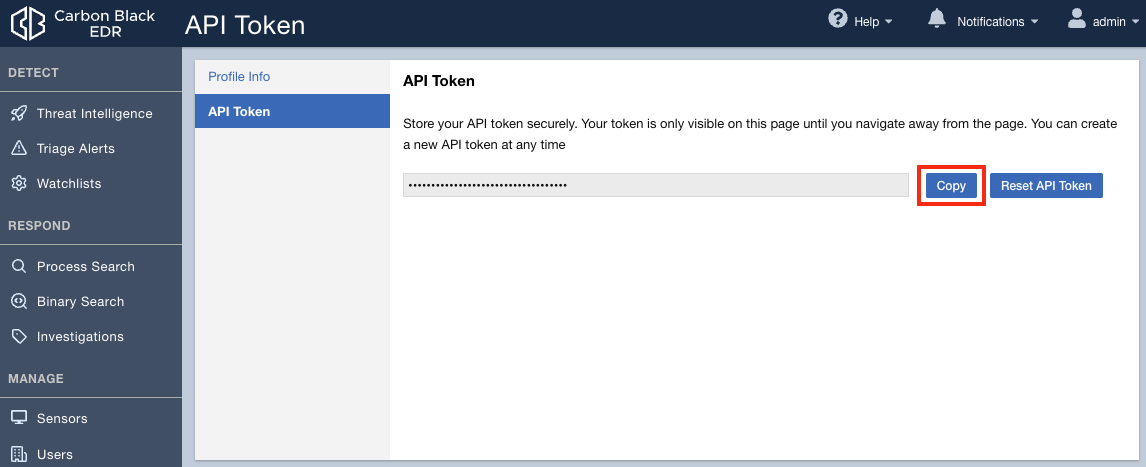
#### 1.1 EDR API Token 복사 (EDR 서버)
**- \[EDR 웹 콘솔\] 접속 > 오른쪽 상단의 \[사용자 이름\] My Profile 클릭 > \[API Token\] 탭 > API Token \[Copy\] 버튼 선택하여 API 토큰 값 복사**
[](https://bs.etevers.tech/uploads/images/gallery/2024-01/fXAimage.png)
#### 1.2 EDR 서버 연동 (App Control 서버)
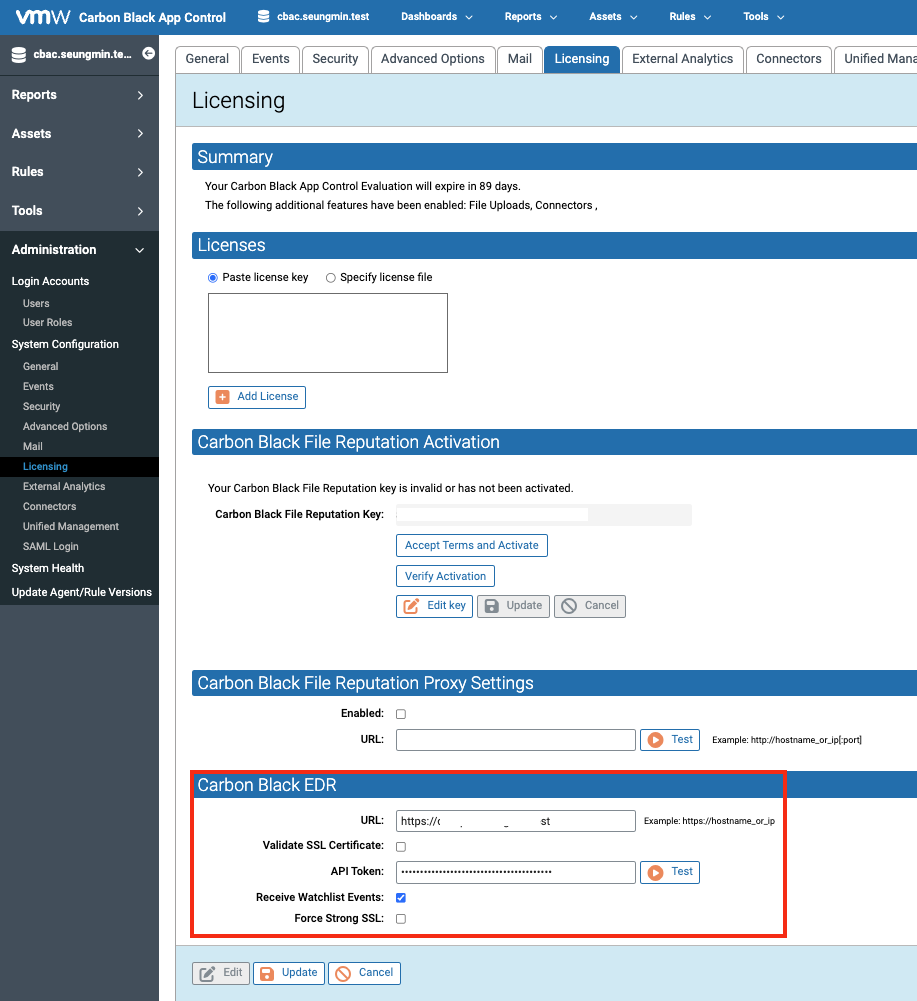
**- \[App Control 웹 콘솔\] 접속 > 오른쪽 상단의 \[Settings\] 'System Configuration' 클릭 > \[Licensing\] 탭 선택 > 'Carbon Black EDR' 설정**
[](https://bs.etevers.tech/uploads/images/gallery/2024-01/kBOimage.png)
- EDR 서버로 부터 Watchlist Event 발생 이력에 대해 수신 받을 수 있음
- URL : EDR 서버의 도메인 정보 입력 (ex : https://FQDN or IP)
- SSL Certificate : SSL 인증서 사용 여부 선택
- API Token : EDR 서버에서 복사한 API 토큰 입력
- Receive Watchlist Events : EDR 서버로부터 Watchlist Event 수신 여부 선택
- 체크 선택 시 : Watchlist 데이터 수신 및 센서 status 및 디바이스 정보 확인 가능
- 체크 해제 시 : Watchlist 데이터 미수신 및 센서 status 및 디바이스 정보 확인 가능
- Force Strong SSL : SSL 강제 적용 여부 선택 (?)
#### 1.3 App Control 연동 여부 확인 (EDR 서버)
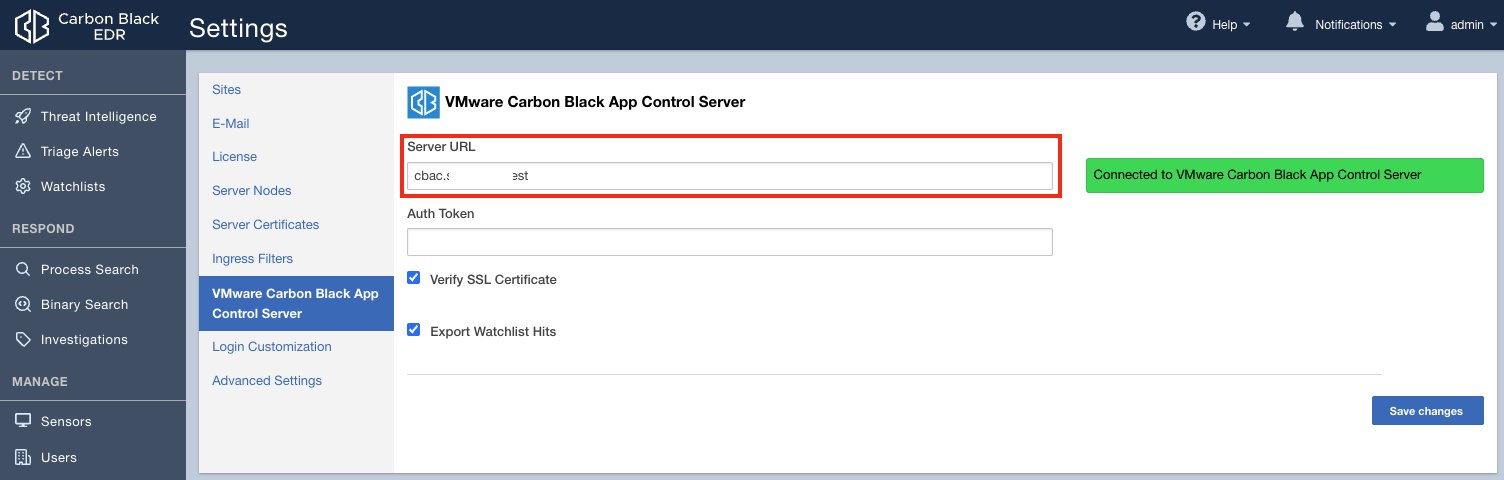
**- \[EDR 웹 콘솔\] 접속 > 오른쪽 상단의 \[사용자 이름\] 의 Settings 클릭 > \[VMware Carbon Black App Control Server\] 탭 선택**
[](https://bs.etevers.tech/uploads/images/gallery/2024-01/nuximage.png)
- 정상 연동이 이루어진 경우, 'Connected to VMware Carbon Black App Control Server' 메세지가 확인되며,
또한 'Server URL' 정보에 App Control 서버 URL 이 자동으로 기입됨
#### 1.4 EDR 연동 정보 확인 (App Control)
**- \[App Control 웹 콘솔\] 접속 > \[Reports\] 의 \[Event\] 메뉴 선택**
[](https://bs.etevers.tech/uploads/images/gallery/2024-01/fepimage.png)
- Watchlist 에서 생성된 정보를 수신하여 App Control 콘솔에서 확인 가능
- Event 프로세스에 대한 세부 정보 확인 가능
- EDR 에이전트에 대한 상태 정보 확인 가능
- \[EDR 버튼\]을 선택하면 EDR 웹 콘솔로 이동하여, EDR 웹 콘솔 통한 디테일 정보 확인 가능
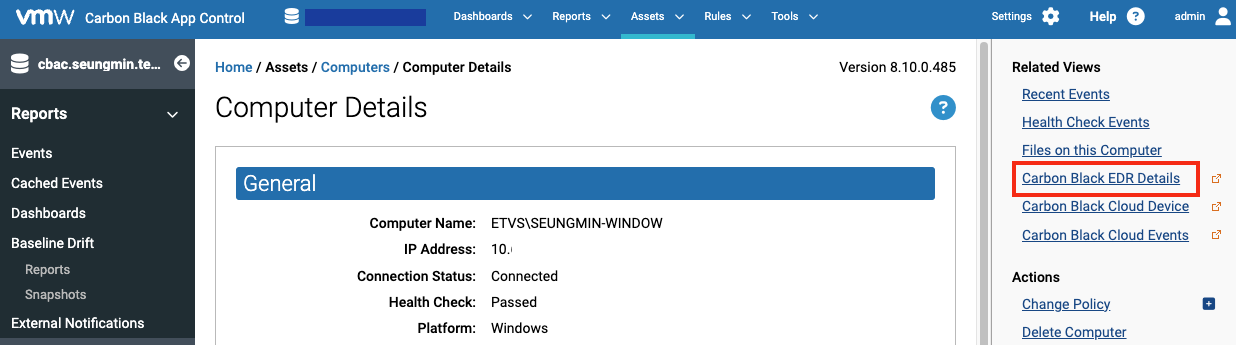
**- \[App Control 웹 콘솔\] 접속 > \[Assets\] 의 \[Devices on Computers\] 메뉴 선택**
[](https://bs.etevers.tech/uploads/images/gallery/2024-01/MGjimage.png)
- \[EDR 버튼\]을 선택하면 EDR 웹 콘솔로 이동하여, EDR 웹 콘솔 통한 디테일 정보 확인 가능
### 2. App Control - Cloud 간 연동
참고 문서 : [https://community.carbonblack.com/t5/Knowledge-Base/App-Control-How-to-enable-VMware-Carbon-Black-Cloud-Integration/ta-p/103396](https://community.carbonblack.com/t5/Knowledge-Base/App-Control-How-to-enable-VMware-Carbon-Black-Cloud-Integration/ta-p/103396)
#### 2.1 Cloud 서버 연동 (App Control 서버)
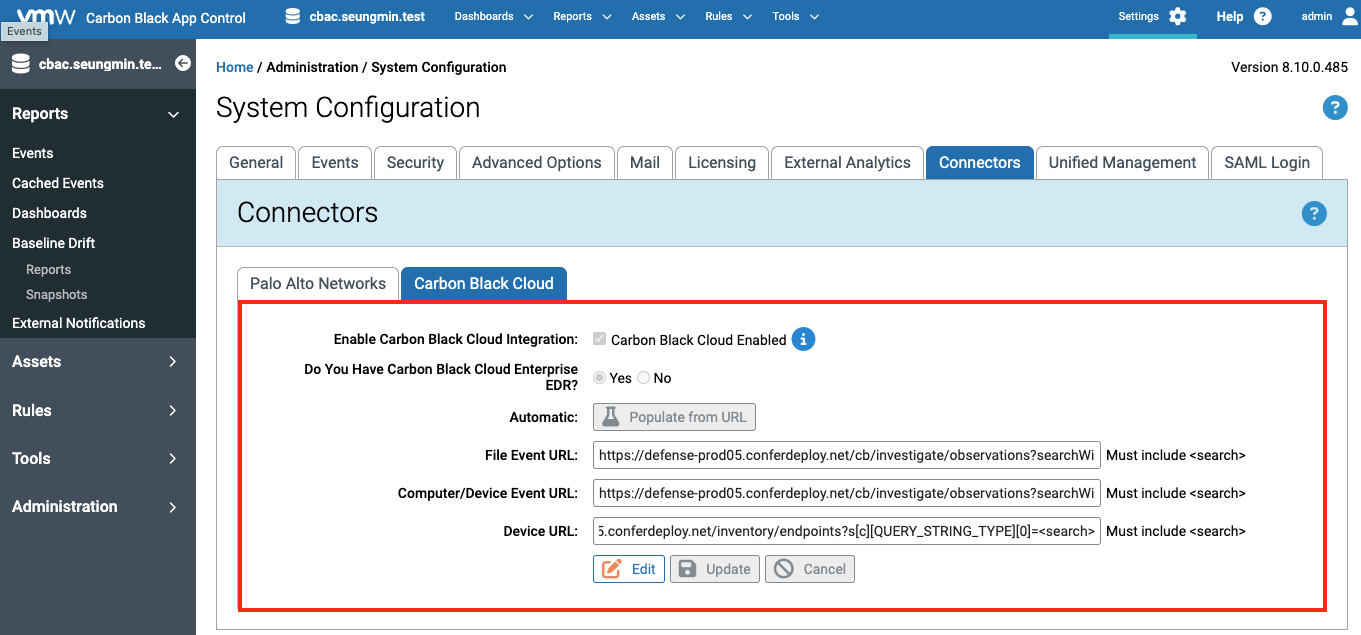
**- \[App Control 웹 콘솔\] 접속 > 오른쪽 상단의 \[Settings\] 'System Configuration' 클릭 > \[Connectors\] 탭 선택 > 'Carbon Black Cloud' 설정**
[](https://bs.etevers.tech/uploads/images/gallery/2024-01/6pNimage.png)
- Cloud 웹 콘솔 정보를 입력하여, Cloud 콘솔로 다이렉트 이동 지원
- Enable Carbon Black Cloud Integration : Carbon Black Cloud 와의 통합 여부
- Do You Have Carbon Black Cloud Enterprise EDR : Enterprise EDR 사용 여부 (미사용 시, 이벤트/장치 정보만 수집 가능)
- Automatic : 기본 URL 주소 입력하여, 각 필드 URL에 적용
- File Evenet URL, Computer/Device Event URL, Device URL : 수집할 Carbon Black Cloud URL 정보 입력
#### 2.2 Cloud 연동 정보 확인 (App Control)
**- \[App Control 웹 콘솔\] 접속 > \[Reports\] 의 \[Event\] 메뉴 선택**
[](https://bs.etevers.tech/uploads/images/gallery/2024-01/Lgiimage.png)
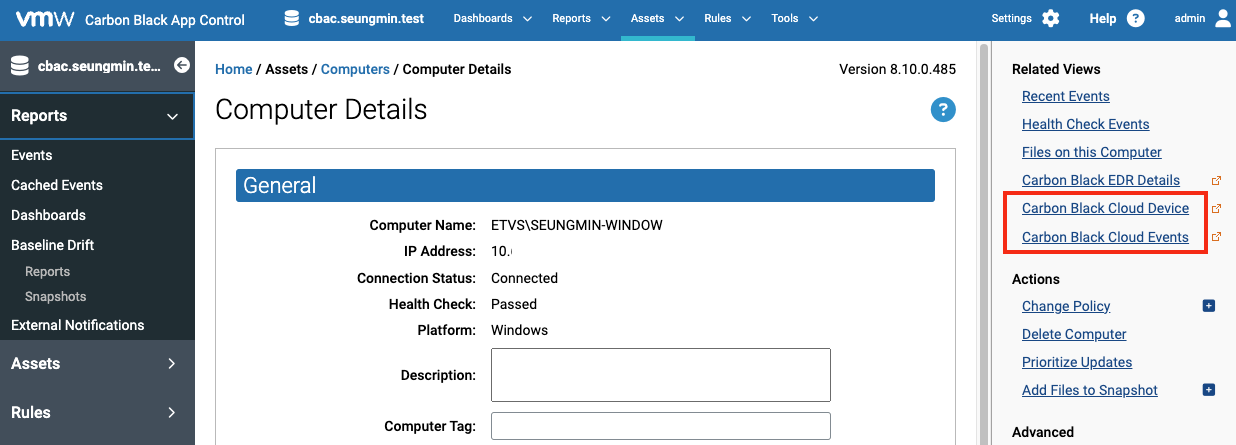
**- \[App Control 웹 콘솔\] 접속 > \[Assets\] 의 \[Devices on Computers\] 메뉴 선택**
[](https://bs.etevers.tech/uploads/images/gallery/2024-01/RYmimage.png)
- \[Cloud 버튼\]을 선택하면 Cloud 웹 콘솔로 이동하여, Cloud 웹 콘솔 통한 디테일 정보 확인 가능
### 3. Reputation Approval Rules 활성화
#### 3.1 Reputation 활성화 (App Control 서버)
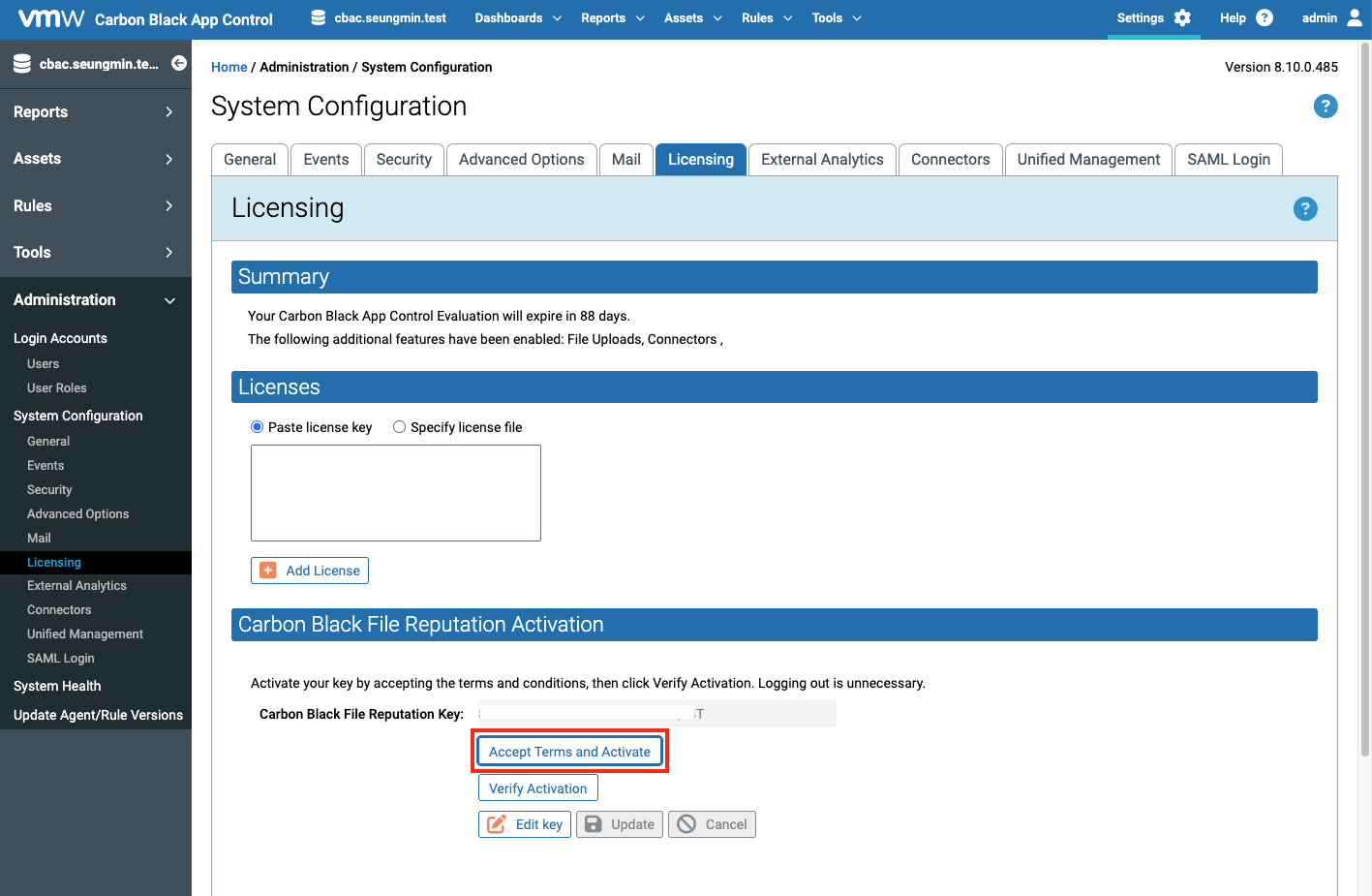
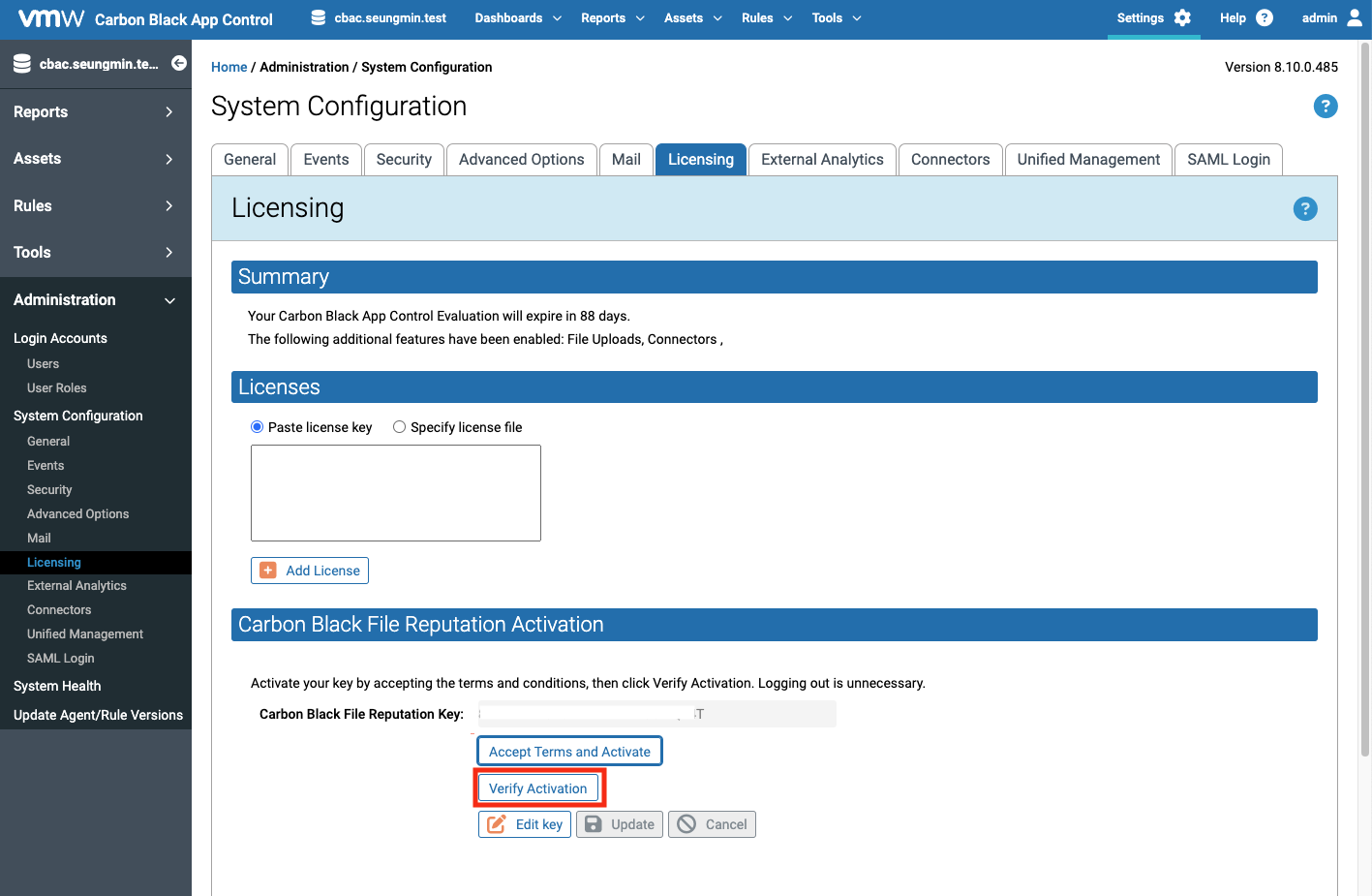
**- \[App Control 웹\] 접속 > 오른쪽 상단의 \[Settings\] 'System Configuration' 클릭 > \[Licensing\] 탭 선택 > 'File Reputation Activation' 설정**
[](https://bs.etevers.tech/uploads/images/gallery/2024-01/4m1image.png)
- \[Accept Terms and Activate\] 버튼을 클릭하여 Carbon Black File Reputation 사이트 '약관 동의' 진행
[ ](https://bs.etevers.tech/uploads/images/gallery/2024-01/0Tnimage.png)
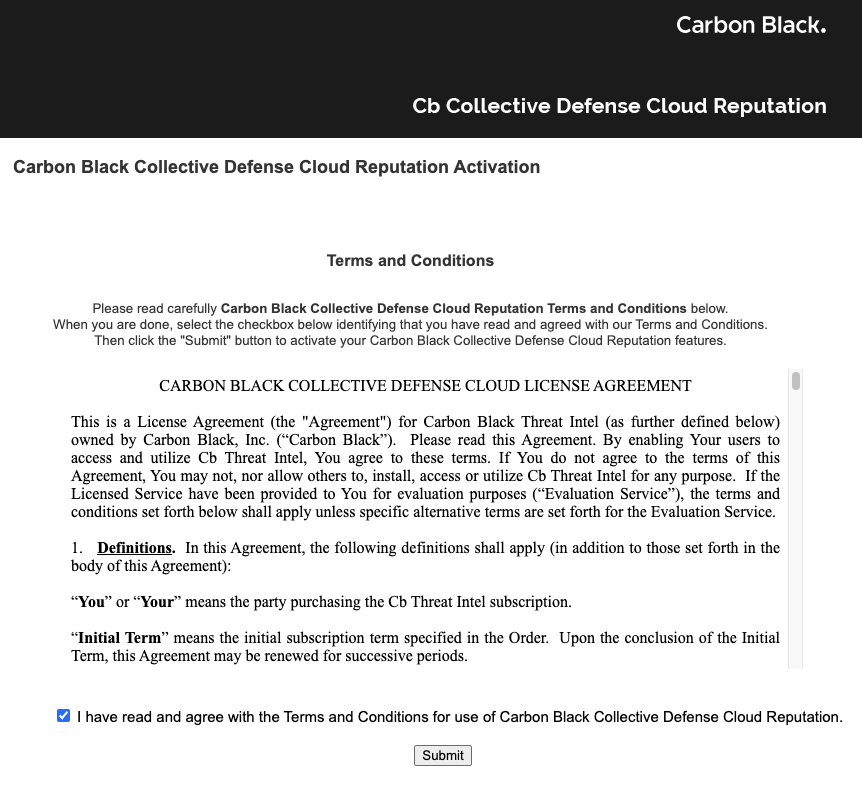
- Carbon Black File Reputation 사이트로 이동되며, 이용 약관 확인 및 제출
[https://services.bit9.com/services/signup.aspx?ak=989f0414ef1da7d704b6fa170189760f&sg=de1b18a8b6d6ccb9b4486001da912697&v=8.10.0.485](https://services.bit9.com/services/signup.aspx?ak=989f0414ef1da7d704b6fa170189760f&sg=de1b18a8b6d6ccb9b4486001da912697&v=8.10.0.485) 로 이동됨
[](https://bs.etevers.tech/uploads/images/gallery/2024-01/rRsimage.png)
- \[Verify Activation\] 버튼을 선택하여 Carbon Black File Reputation 사이트와의 연동 진행
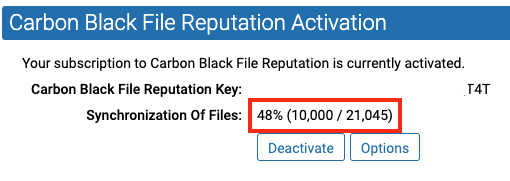
- Carbon Black File Reputation 데이터 다운로드 현황 확인
[](https://bs.etevers.tech/uploads/images/gallery/2024-01/ZGpimage.png)
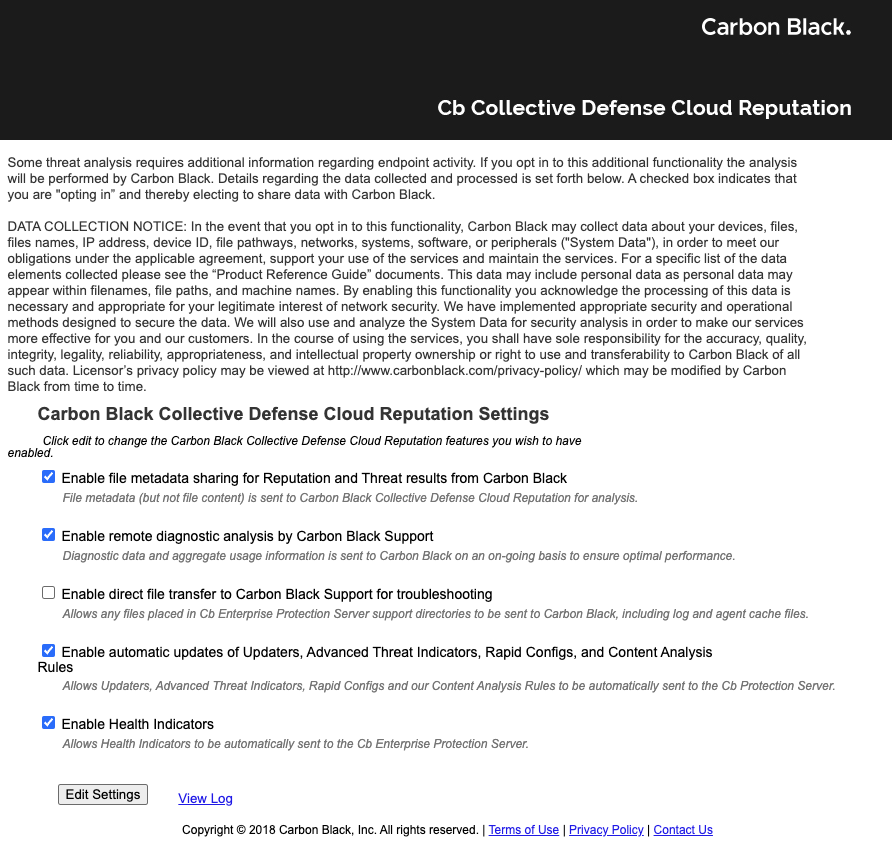
- \[Options\] 버튼 선택 시, Carbon Black File Reputation 사이트로 이동되며, 옵션 설정 가능
[](https://bs.etevers.tech/uploads/images/gallery/2024-01/L3Aimage.png)
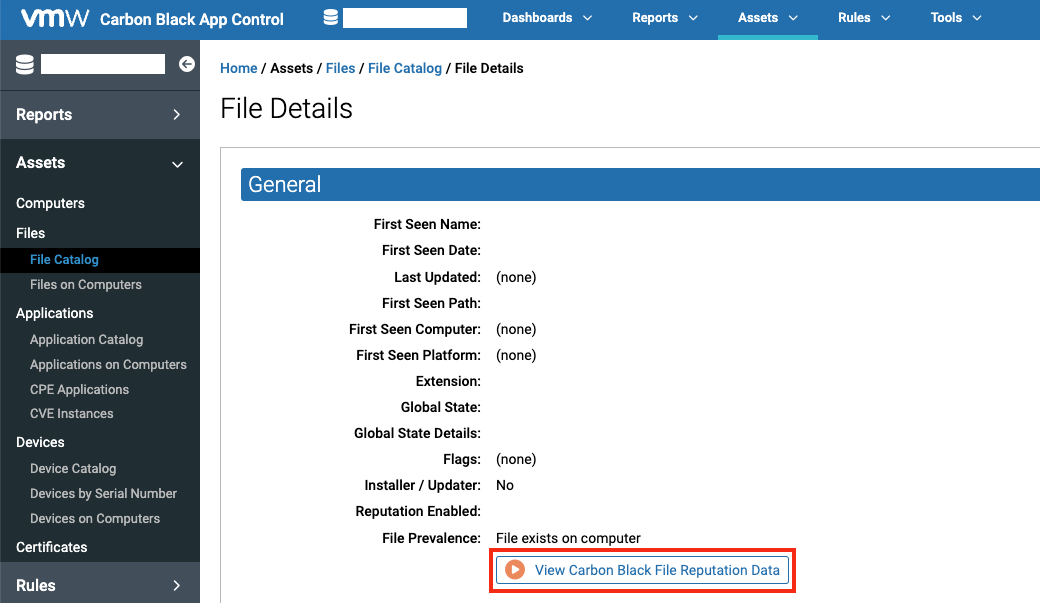
- \[View Carbon Black File Reputation Data\] 를 선택하여 파일에 대한 평판 확인