# Omnissa Customer Connect 회원 가입

<p class="callout info">Omnissa Customer Connect URL: [https://customerconnect.omnissa.com/](https://customerconnect.omnissa.com/ "https://customerconnect.omnissa.com/")</p>

## 1. 신규 회원

<table border="1" id="bkmrk-omnissa-customer-con-1" style="border-collapse: collapse; width: 100%;"><colgroup><col style="width: 50%;"></col><col style="width: 50%;"></col></colgroup><tbody><tr><td>[![image.png](https://bs.etevers.tech/uploads/images/gallery/2025-10/scaled-1680-/s4wimage.png)](https://bs.etevers.tech/uploads/images/gallery/2025-10/s4wimage.png)

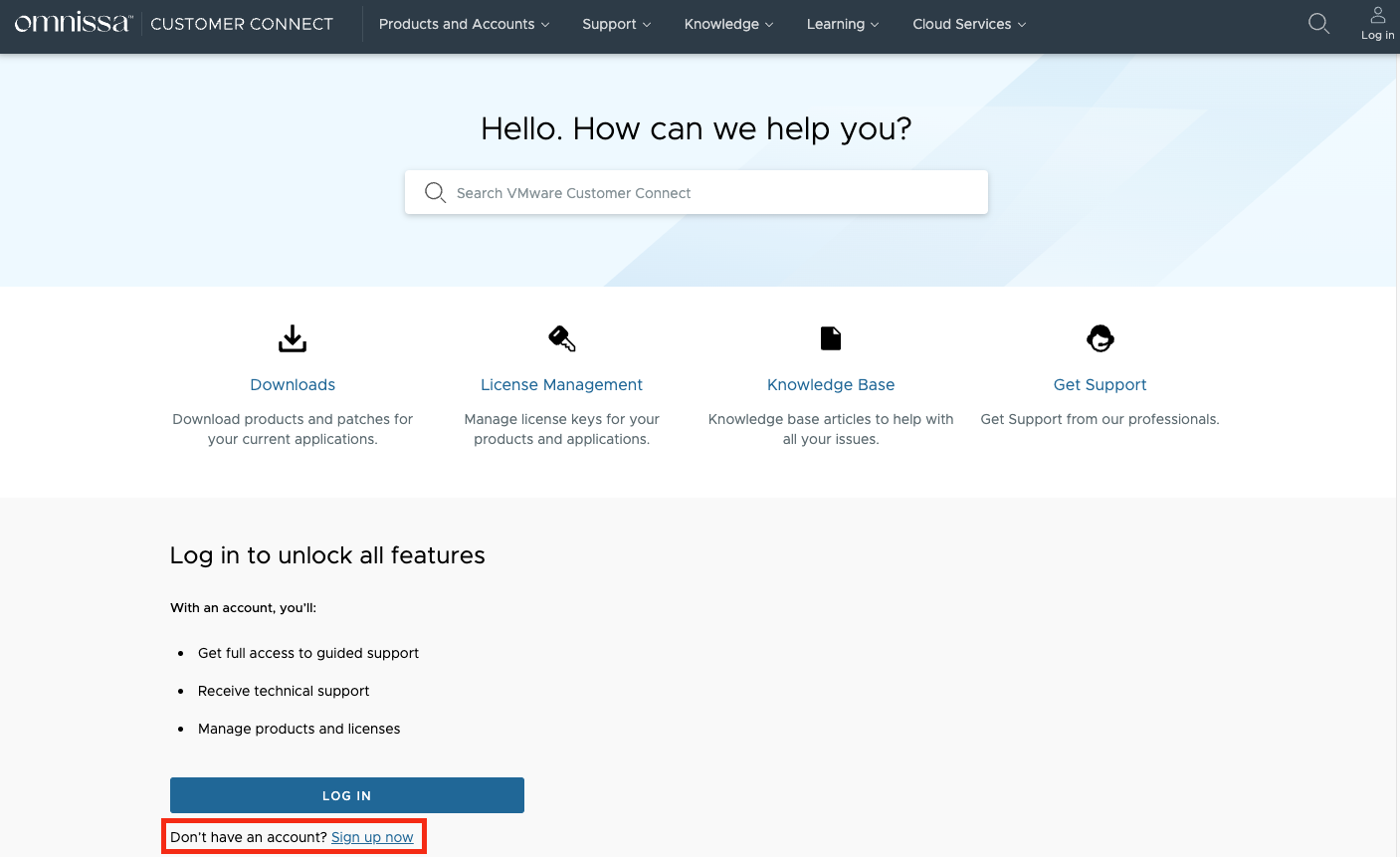
</td><td>- Omnissa Customer Connect 페이지 접속
- 왼쪽 사이트 화면에서 'Sign up now' 버튼을 클릭하여 회원가입 진행

<p class="callout warning">*<span class="fabric-text-color-mark" data-renderer-mark="true" data-text-custom-color="#bf2600">기존 VMware Customer Connect의 계정이 있는 경우,</span>*  
*<span class="fabric-text-color-mark" data-renderer-mark="true" data-text-custom-color="#bf2600">기존 계정을 사용하므로 해당 절차는 필요하지 않습니다.</span>*</p>

</td></tr></tbody></table>

### 1.1 개인 계정 회원가입

<p class="callout info">Omnissa Customer Connect 를 개인용으로 사용할 경우 진행</p>

<table border="1" id="bkmrk-%ED%9A%8C%EC%9B%90%EA%B0%80%EC%9E%85%EC%97%90-%ED%95%84%EC%9A%94%ED%95%9C-%EC%A0%95%EB%B3%B4-%EC%9E%85%EB%A0%A5-emai" style="border-collapse: collapse; width: 100%;"><colgroup><col style="width: 50%;"></col><col style="width: 50%;"></col></colgroup><tbody><tr><td>[![image.png](https://bs.etevers.tech/uploads/images/gallery/2025-10/scaled-1680-/oDhimage.png)](https://bs.etevers.tech/uploads/images/gallery/2025-10/oDhimage.png)

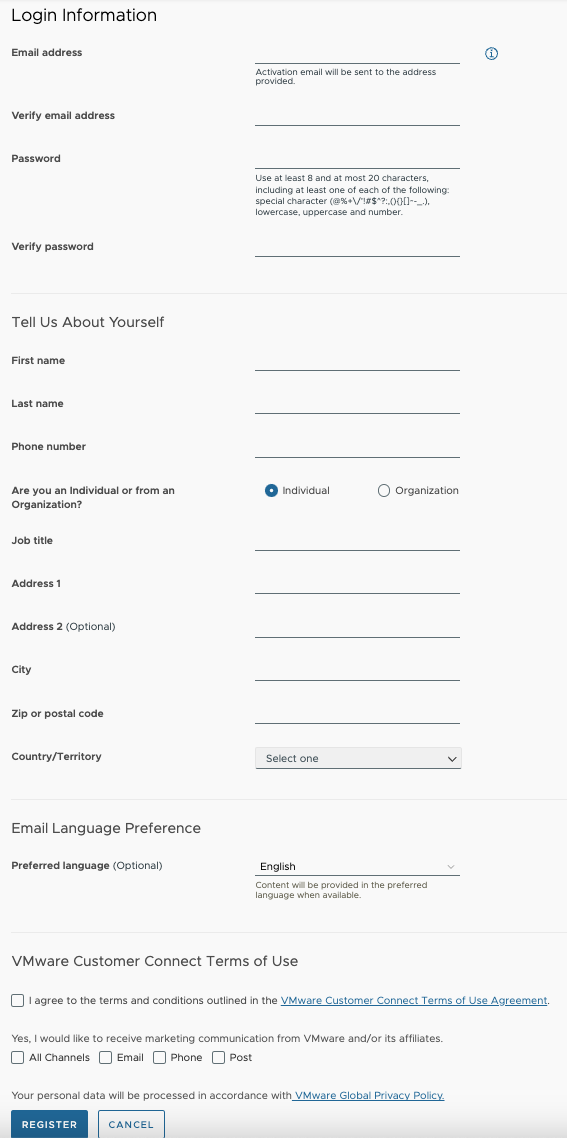
</td><td>- 회원가입에 필요한 정보 입력
    
    
    - Email address : 계정으로 사용할 이메일 주소
        
        
        - 이메일 수신이 필요하므로, 수신 가능한 이메일 주소 입력 필요
    - Verify email address : 이메일 재차 검증
    - Password : 비밀번호 입력
        
        
        - 최소 8글자 ~ 최대 20글자
        - 특수문자/소문자/대문자/숫자 하나 이상 포함
    - First name : 이름 (영문) 입력
    - Last name : 성 (영문) 입력
    - Phone number : 핸드폰 번호 (82) 입력
    - Are you an Individual or from an Organization? : individual 선택
    - Job title : 직책 (영문) 입력
    - Address 1 : 주소 (영문) 입력
    - City : 도시 (영문) 입력
    - Zip or postal code : 우편번호
    - Country/Territory : 국가 (Korea, Republic of)
    - VMware Customer Connect Terms of Use
        
        
        - 이용 약관 동의 (필수)
        - 마케팅 정보 수신 (옵션)

- \[REFISTER\] 버튼 클릭하여 회원가입 완료 진행

</td></tr></tbody></table>

### 1.2. 조직 계정 회원가입

<p class="callout info">Omnissa Customer Connect 를 업무용으로 사용할 경우 진행</p>

<table border="1" id="bkmrk-%ED%9A%8C%EC%9B%90%EA%B0%80%EC%9E%85%EC%97%90-%ED%95%84%EC%9A%94%ED%95%9C-%EC%A0%95%EB%B3%B4-%EC%9E%85%EB%A0%A5-emai-1" style="border-collapse: collapse; width: 100%;"><colgroup><col style="width: 50%;"></col><col style="width: 50%;"></col></colgroup><tbody><tr><td>[![image.png](https://bs.etevers.tech/uploads/images/gallery/2025-10/scaled-1680-/4ZCimage.png)](https://bs.etevers.tech/uploads/images/gallery/2025-10/4ZCimage.png)

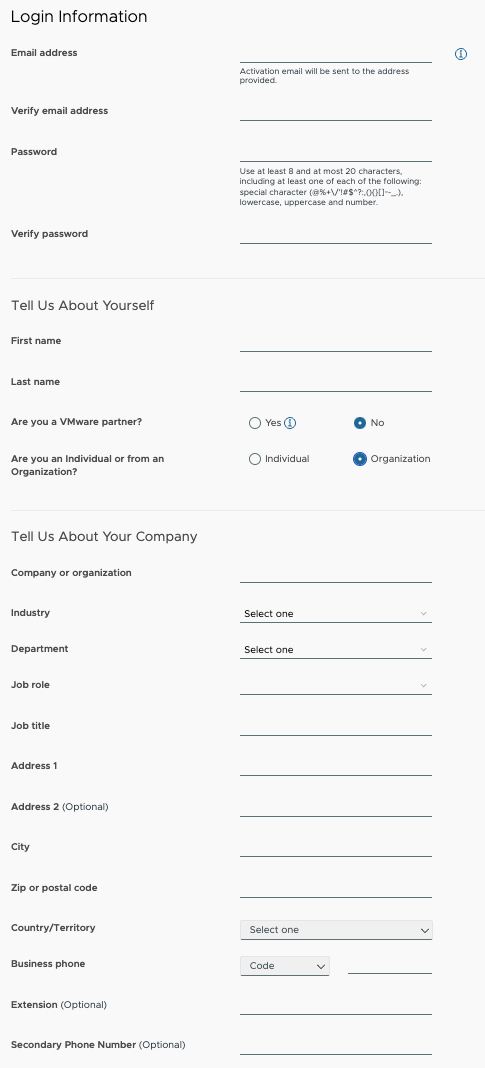
</td><td>- 회원가입에 필요한 정보 입력
    
    
    - Email address : 계정으로 사용할 이메일 주소
        
        
        - 이메일 수신이 필요하므로, 수신 가능한 이메일 주소 입력 필요
    - Verify email address : 이메일 재차 검증
    - Password : 비밀번호 입력
        
        
        - 최소 8글자 ~ 최대 20글자
        - 특수문자/소문자/대문자/숫자 하나 이상 포함
    - First name : 이름 (영문) 입력
    - Last name : 성 (영문) 입력
    - Are you a VMware partner?
        
        
        - Yes : 소속 회사가 VMware Partner 등록됨
        - No : 소속 회사가 VMware Partner 등록안됨
    - Are you an Individual or from an Organization? : Organization 선택
    - Company or organization : 회사 영문명
    - Industry : 회사 산업 선택
    - Department : 부서 선택
    - Job role : 직무 역할 (영문) 입력
    - Job title : 직함 (영문) 입력
    - Address 1 : 주소 (영문) 입력
    - City : 도시 (영문) 입력
    - Zip or postal code : 우편번호 입력
    - Country/Territory : Korea, Republic of 선택
    - Business phone : +82 선택 후 핸드폰 번호 입력
    - VMware Customer Connect Terms of Use
        
        
        - 이용 약관 동의 체크 (필수)
        - 마케팅 정보 수신 (옵션)

- \[REFISTER\] 버튼 클릭하여 회원가입 완료 진행

</td></tr></tbody></table>

# 2. 기존 회원

<table border="1" id="bkmrk-omnissa-customer-con-4" style="border-collapse: collapse; width: 100%; height: 299.863px;"><colgroup><col style="width: 50%;"></col><col style="width: 50%;"></col></colgroup><tbody><tr style="height: 270.263px;"><td style="height: 270.263px;">[![image.png](https://bs.etevers.tech/uploads/images/gallery/2025-10/scaled-1680-/Jq4image.png)](https://bs.etevers.tech/uploads/images/gallery/2025-10/Jq4image.png)

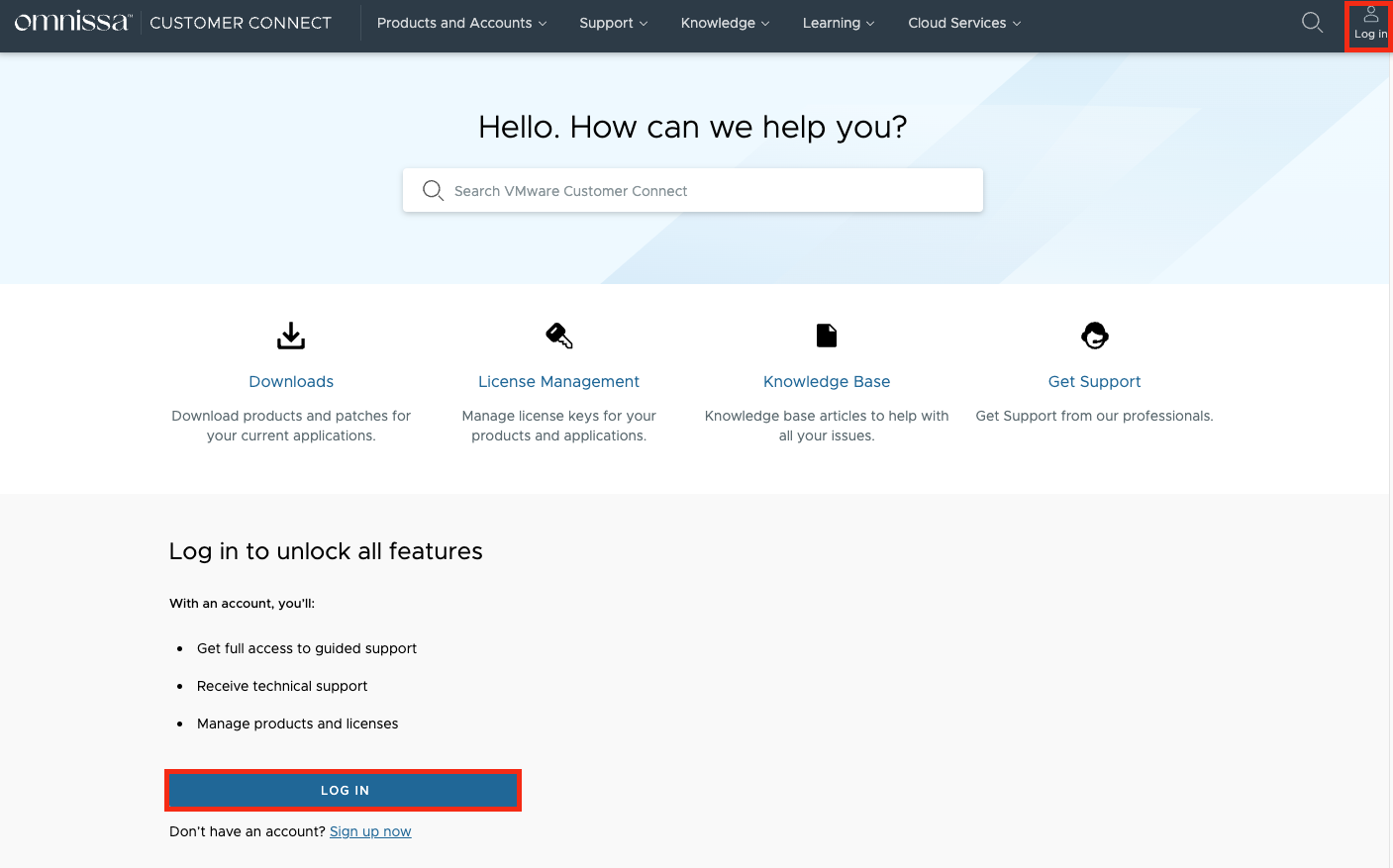
</td><td style="height: 270.263px;">- Omnissa Customer Connect 페이지 접속
- 왼쪽 화면에 위치한 \[LOG IN\] 버튼 또는 오른쪽  
    상단에 위치한 \[Log in\] 버튼 클릭

</td></tr><tr style="height: 29.6px;"><td style="height: 29.6px;">[![image.png](https://bs.etevers.tech/uploads/images/gallery/2025-10/scaled-1680-/90yimage.png)](https://bs.etevers.tech/uploads/images/gallery/2025-10/90yimage.png)

</td><td style="height: 29.6px;">- 기존 VMware Customer Connect 사이트에서   
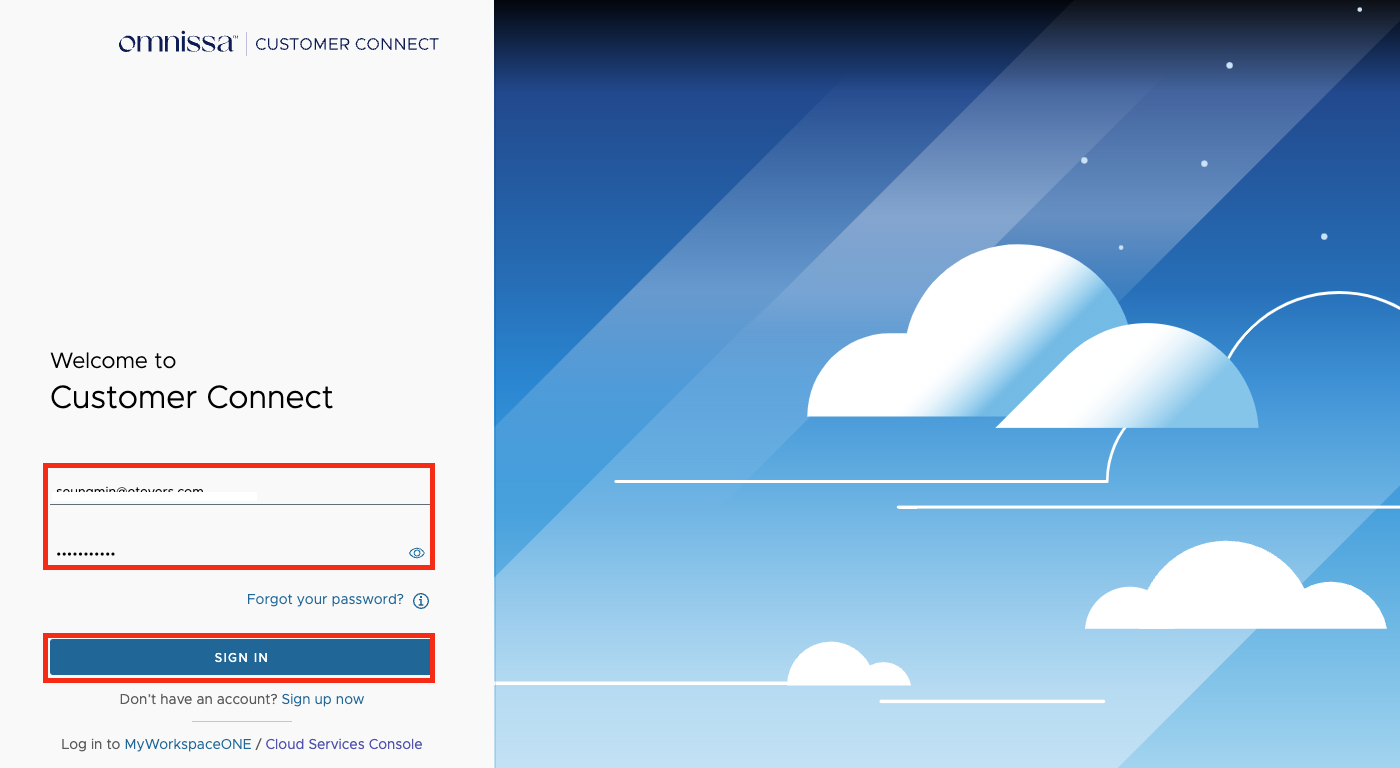
    사용했던 기존 계정 입력
- \[SIGN IN\] 버튼 클릭하여 로그인 진행

</td></tr></tbody></table>

# 3. 조직에 사용자 신규 계정 추가

#### 3.1 조직 관리자 진행

<p class="callout info">해당의 경우, 권한이 있는 관리자 계정 (ex : Super User) 으로 진행 필요합니다.</p>

<table border="1" id="bkmrk-%5Bproducts-and-accoun" style="border-collapse: collapse; width: 100%; height: 1958px;"><colgroup><col style="width: 50%;"></col><col style="width: 50%;"></col></colgroup><tbody><tr style="height: 184.788px;"><td style="height: 184.788px;">[![image.png](https://bs.etevers.tech/uploads/images/gallery/2025-10/scaled-1680-/ZGpimage.png)](https://bs.etevers.tech/uploads/images/gallery/2025-10/ZGpimage.png)

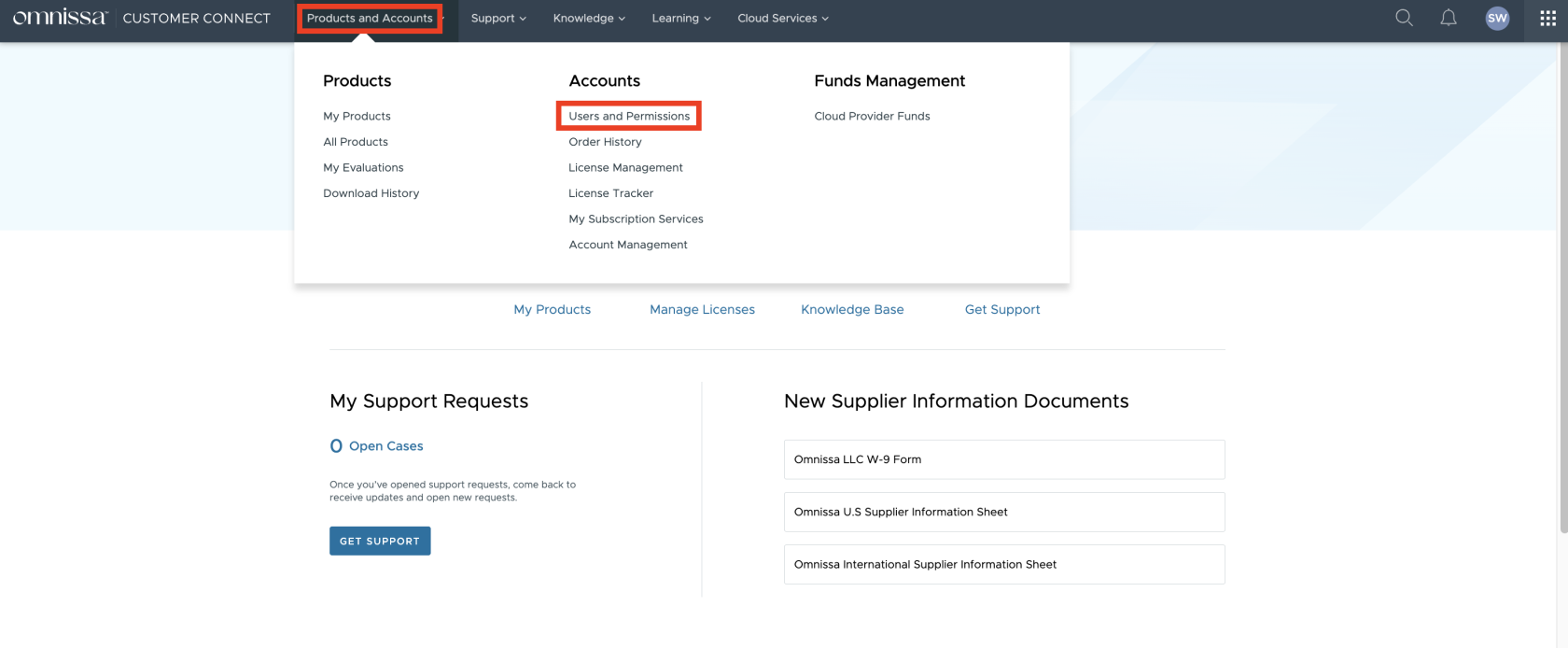
</td><td style="height: 184.788px;">- \[Products and Accounts\] &gt; \[Users and Permissions\] 메뉴 클릭

</td></tr><tr style="height: 189.35px;"><td style="height: 189.35px;">[![image.png](https://bs.etevers.tech/uploads/images/gallery/2025-10/scaled-1680-/ZbDimage.png)](https://bs.etevers.tech/uploads/images/gallery/2025-10/ZbDimage.png)

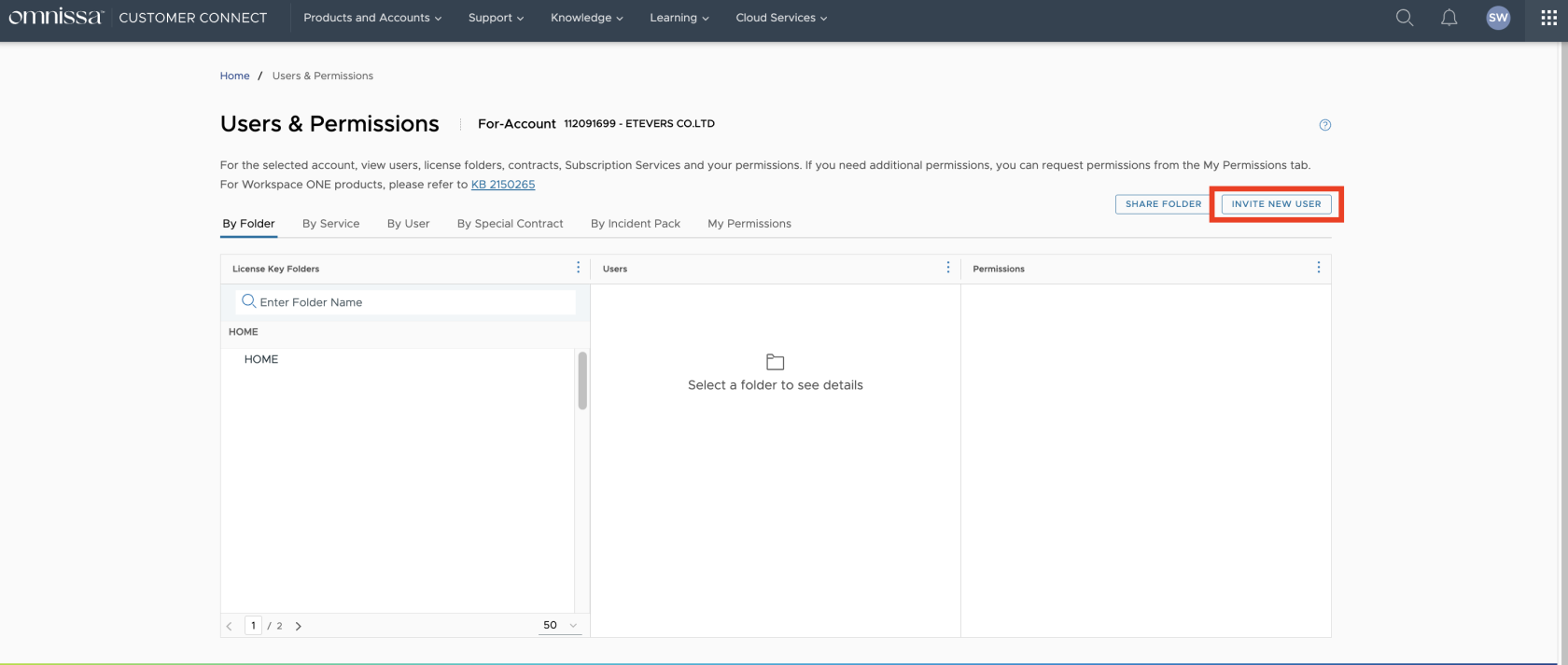
</td><td style="height: 189.35px;">- \[INVITE NEW USER\] 버튼 클릭

</td></tr><tr style="height: 278.55px;"><td style="height: 278.55px;">[![image.png](https://bs.etevers.tech/uploads/images/gallery/2025-10/scaled-1680-/K0Limage.png)](https://bs.etevers.tech/uploads/images/gallery/2025-10/K0Limage.png)

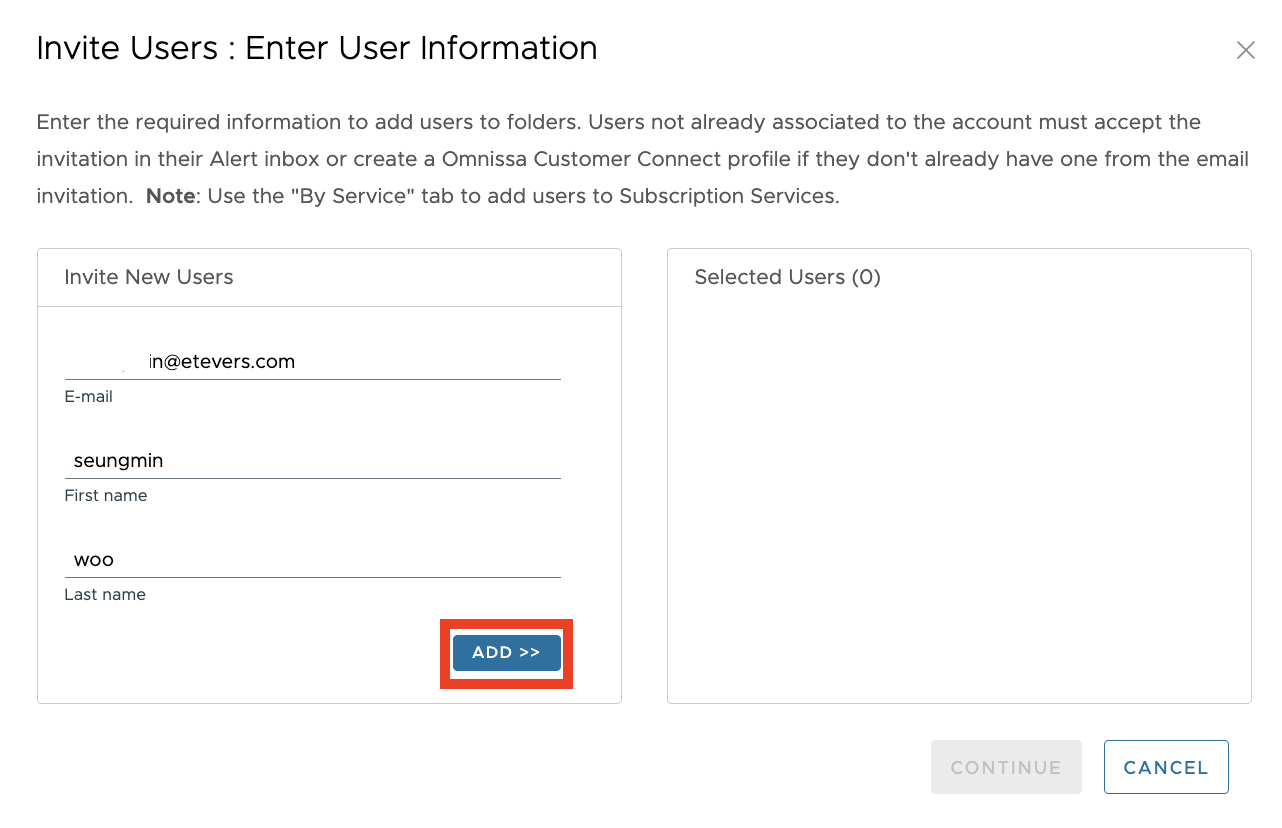
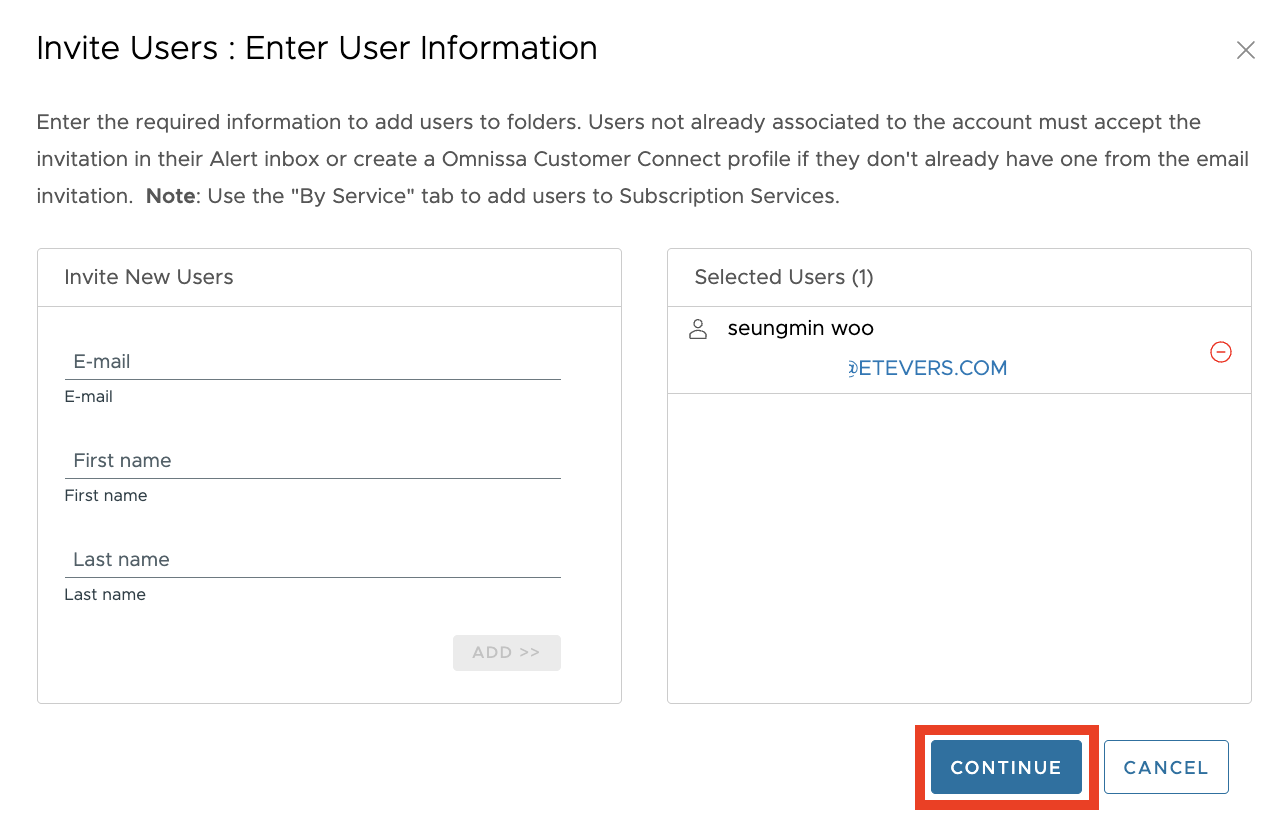
</td><td style="height: 278.55px;">- 추가할 사용자 계정 정보 입력
    
    
    - E-mail : 이메일 계정 입력
    - First Name : 이름
    - Last Name : 성
- \[ADD&gt;&gt;\] 버튼 클릭하여 계정 추가

</td></tr><tr style="height: 277.962px;"><td style="height: 277.962px;">[![image.png](https://bs.etevers.tech/uploads/images/gallery/2025-10/scaled-1680-/UVSimage.png)](https://bs.etevers.tech/uploads/images/gallery/2025-10/UVSimage.png)

</td><td style="height: 277.962px;">- \[Continue\] 버튼 클릭하여 다음으로 이동

</td></tr><tr style="height: 356.163px;"><td style="height: 356.163px;">[![image.png](https://bs.etevers.tech/uploads/images/gallery/2025-10/scaled-1680-/LGximage.png)](https://bs.etevers.tech/uploads/images/gallery/2025-10/LGximage.png)

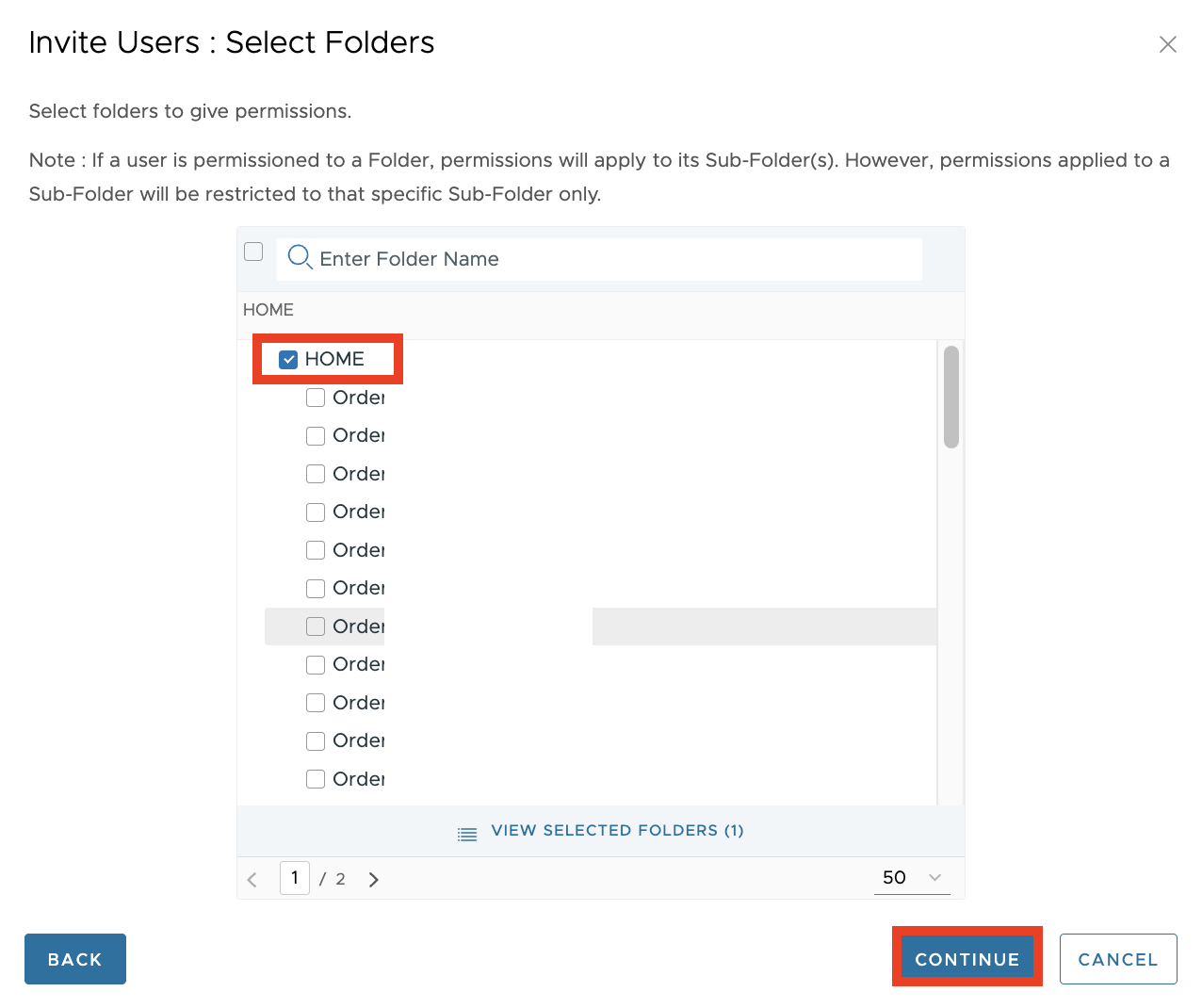
</td><td style="height: 356.163px;">- 권한 부여할 폴더 선택
- \[Continue\] 버튼 클릭하여 다음으로 이동

</td></tr><tr style="height: 286.925px;"><td style="height: 286.925px;">[![image.png](https://bs.etevers.tech/uploads/images/gallery/2025-10/scaled-1680-/YiWimage.png)](https://bs.etevers.tech/uploads/images/gallery/2025-10/YiWimage.png)

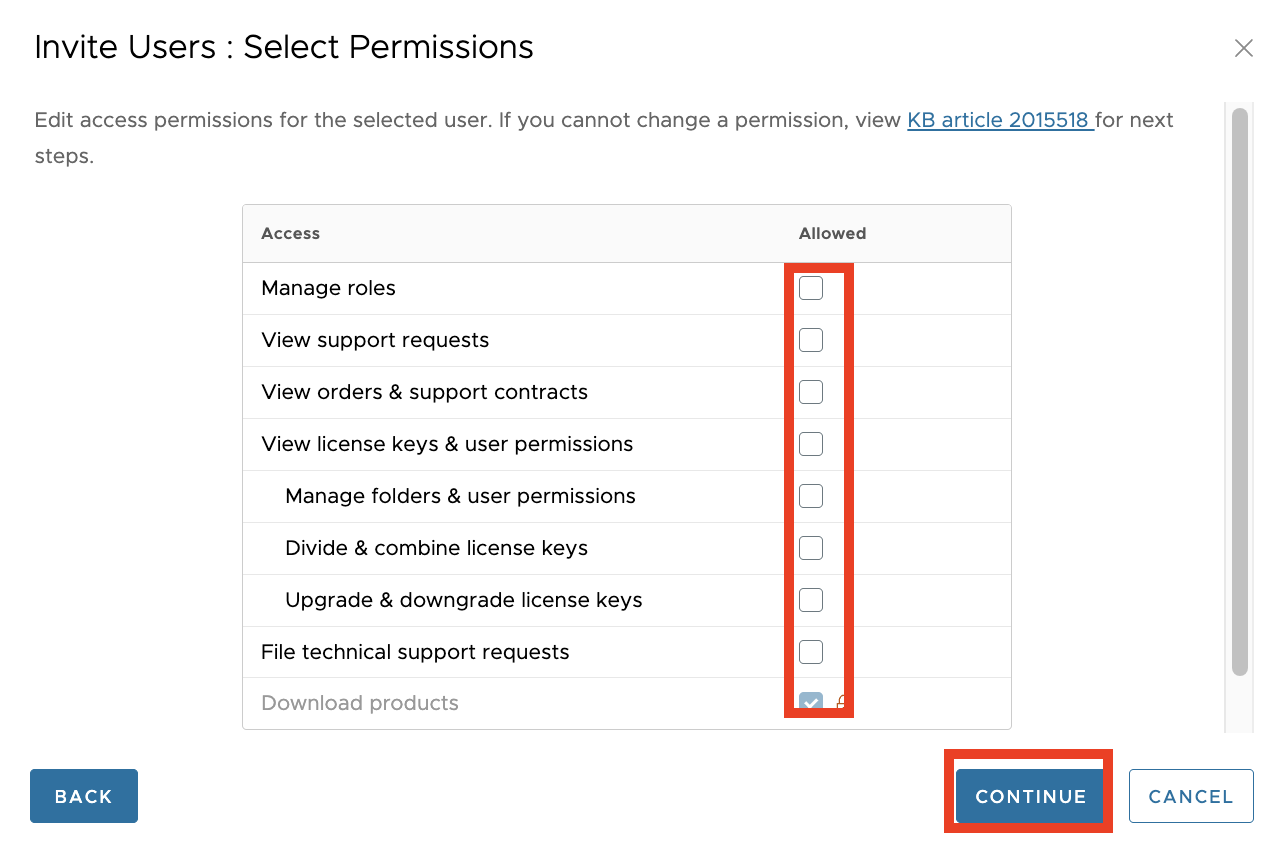
</td><td style="height: 286.925px;">- 사용자에게 부여할 권한 선택
- \[Continue\] 버튼 클릭하여 다음으로 이동

</td></tr><tr style="height: 271.712px;"><td style="height: 271.712px;">[![image.png](https://bs.etevers.tech/uploads/images/gallery/2025-10/scaled-1680-/p8uimage.png)](https://bs.etevers.tech/uploads/images/gallery/2025-10/p8uimage.png)

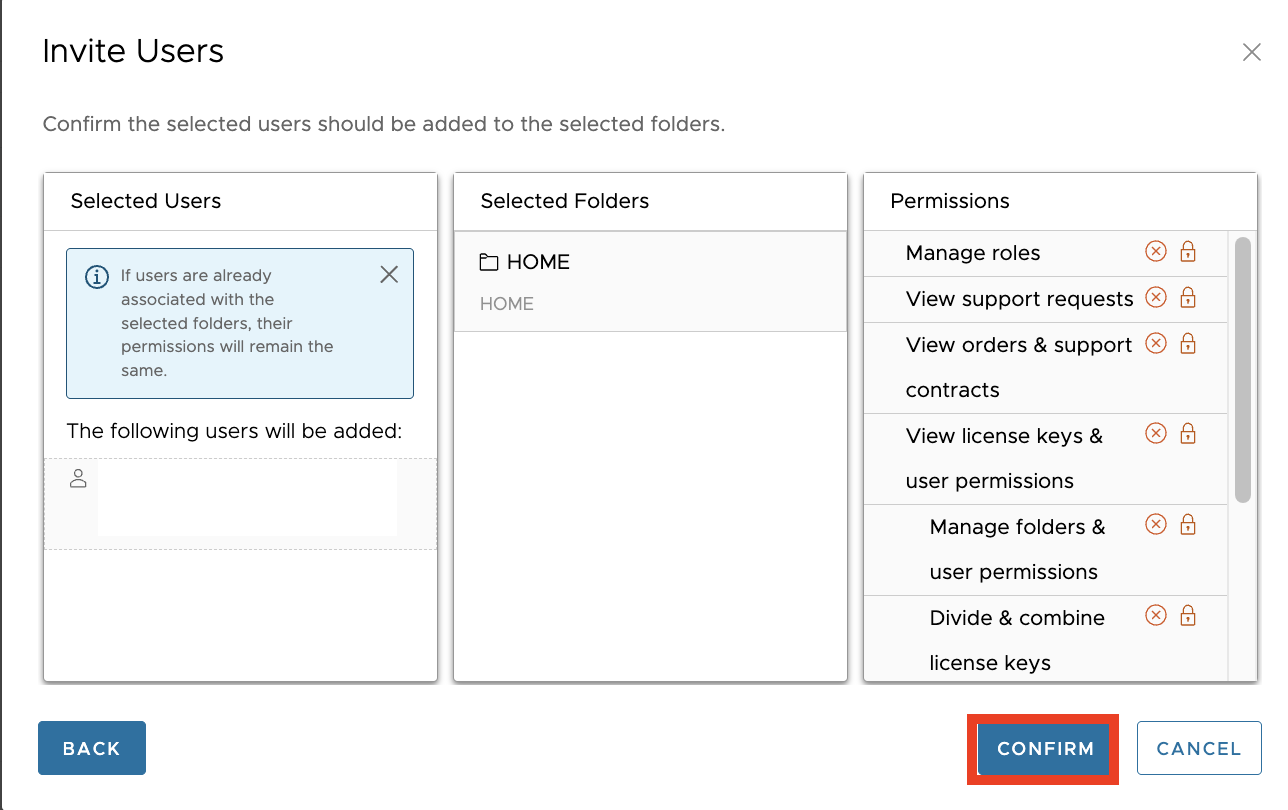
</td><td style="height: 271.712px;">- 입력한 정보 확인 후 \[Confirm\] 버튼 클릭

</td></tr><tr style="height: 111.4px;"><td style="height: 111.4px;">[![image.png](https://bs.etevers.tech/uploads/images/gallery/2025-10/scaled-1680-/kDVimage.png)](https://bs.etevers.tech/uploads/images/gallery/2025-10/kDVimage.png)

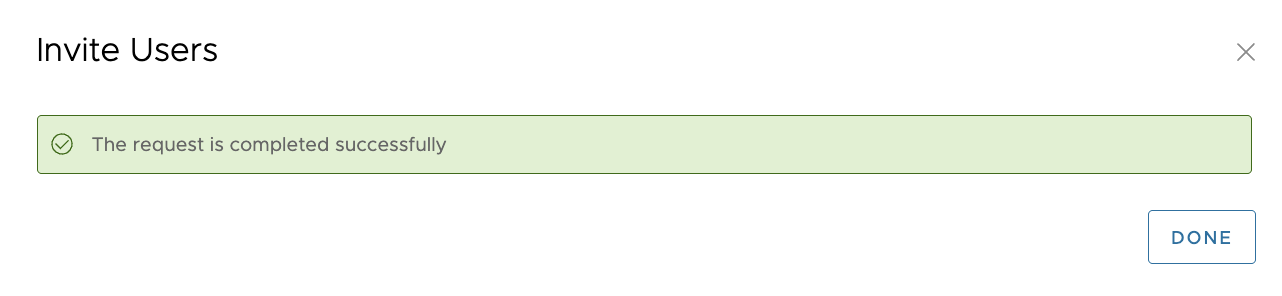
</td><td style="height: 111.4px;">- \[Done\] 버튼 클릭하여 초대 완료

</td></tr></tbody></table>

#### 3.2 사용자 진행

<table border="1" id="bkmrk-%EC%B4%88%EB%8C%80%EB%90%9C-%EC%82%AC%EC%9A%A9%EC%9E%90-%EA%B3%84%EC%A0%95-%EB%A9%94%EC%9D%BC%EB%A1%9C-%EC%86%A1%EC%8B%A0%EB%90%9C-%27" style="border-collapse: collapse; width: 100%; height: 614.212px;"><colgroup><col style="width: 47.9039%;"></col><col style="width: 52.1914%;"></col></colgroup><tbody><tr style="height: 299.25px;"><td style="height: 299.25px;">[![image.png](https://bs.etevers.tech/uploads/images/gallery/2026-01/scaled-1680-/image.png)](https://bs.etevers.tech/uploads/images/gallery/2026-01/image.png)

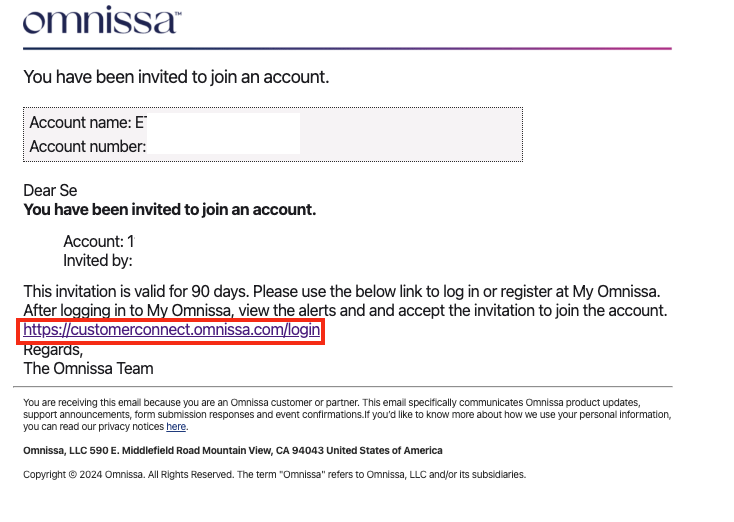
</td><td style="height: 299.25px;">- 초대된 사용자 계정 메일로 송신된 '초대 메일' 확인
- 링크를 통해 Customer Connect 접속 및 로그인 진행

</td></tr><tr style="height: 255.762px;"><td style="height: 255.762px;">[![image.png](https://bs.etevers.tech/uploads/images/gallery/2026-01/scaled-1680-/9ePimage.png)](https://bs.etevers.tech/uploads/images/gallery/2026-01/9ePimage.png)

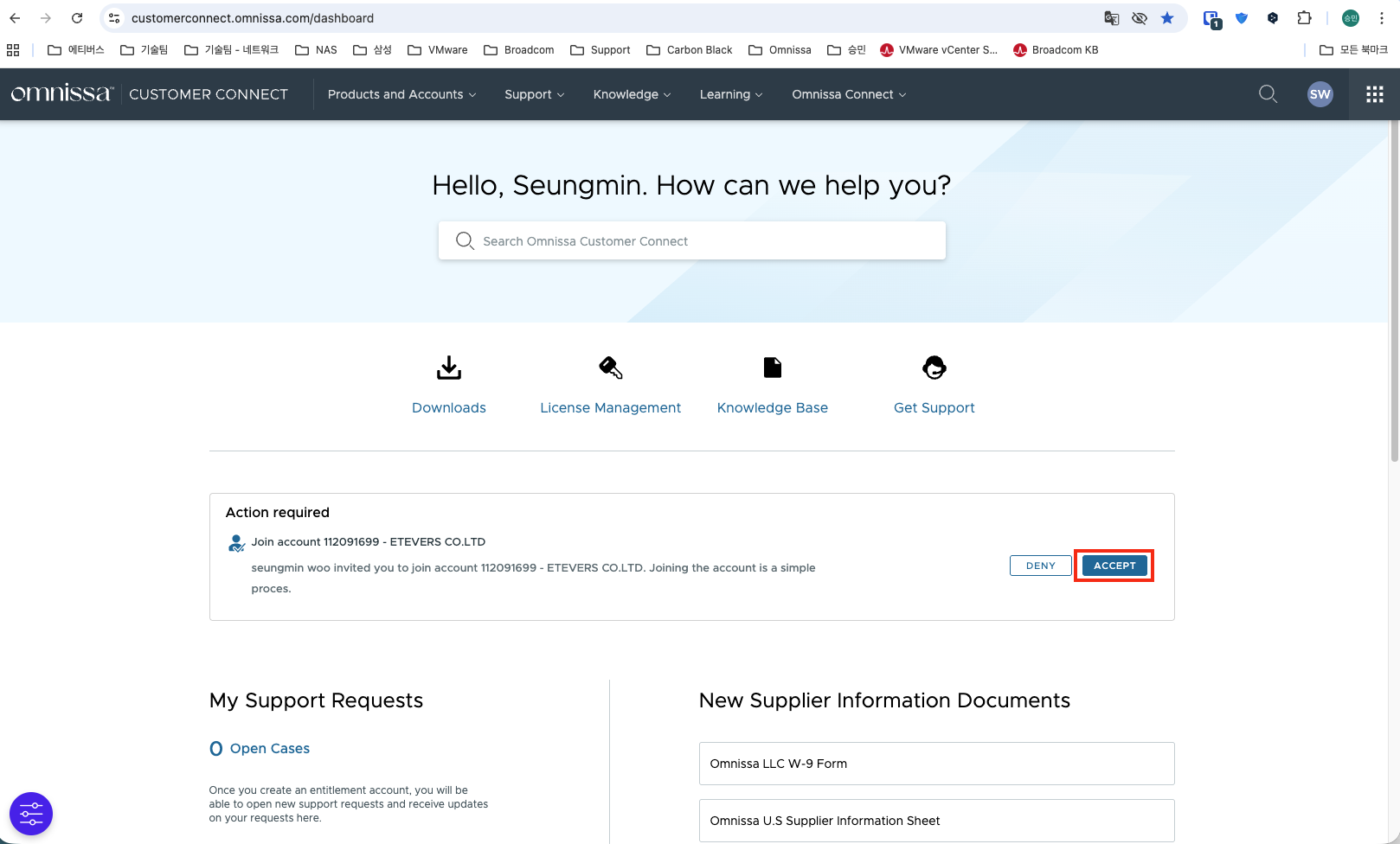
</td><td style="height: 255.762px;">- Customer Connect 메인 화면에서 'Action required' 확인
- \[ACCEPT\] 버튼 클릭

</td></tr></tbody></table>