# Omnissa Partner Connect 회원 가입

###  

### 1. Omnissa Partner Connect 접속

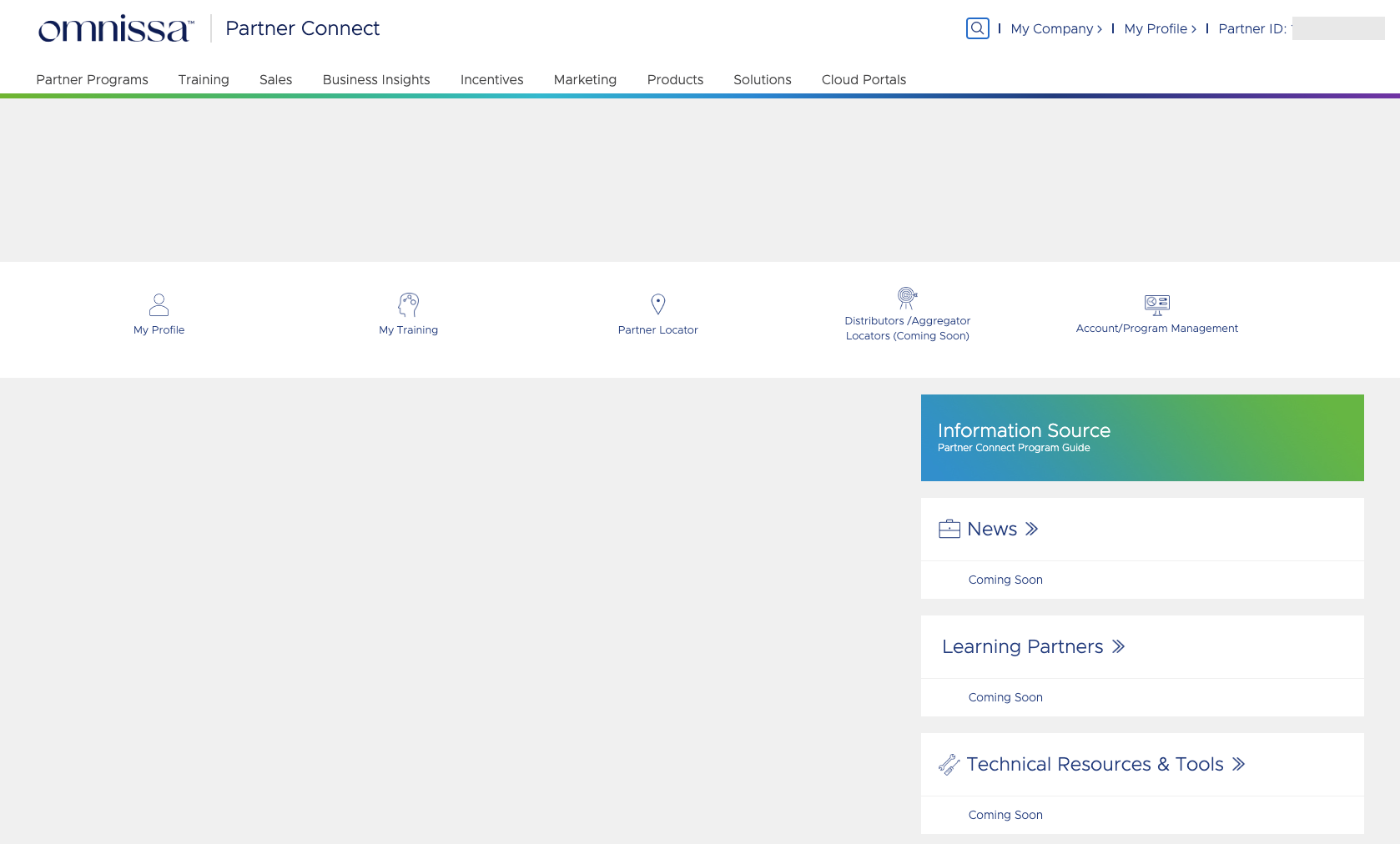
<table border="1" id="bkmrk-1.1.-omnissa-%ED%86%B5%ED%95%9C-%EC%A0%91%EC%86%8D-o" style="border-collapse: collapse; width: 100%; height: 144.25px;"><colgroup><col style="width: 50%;"></col><col style="width: 50%;"></col></colgroup><tbody><tr style="height: 114.65px;"><td style="height: 114.65px;">[![image.png](https://bs.etevers.tech/uploads/images/gallery/2025-10/scaled-1680-/eumimage.png)](https://bs.etevers.tech/uploads/images/gallery/2025-10/eumimage.png)

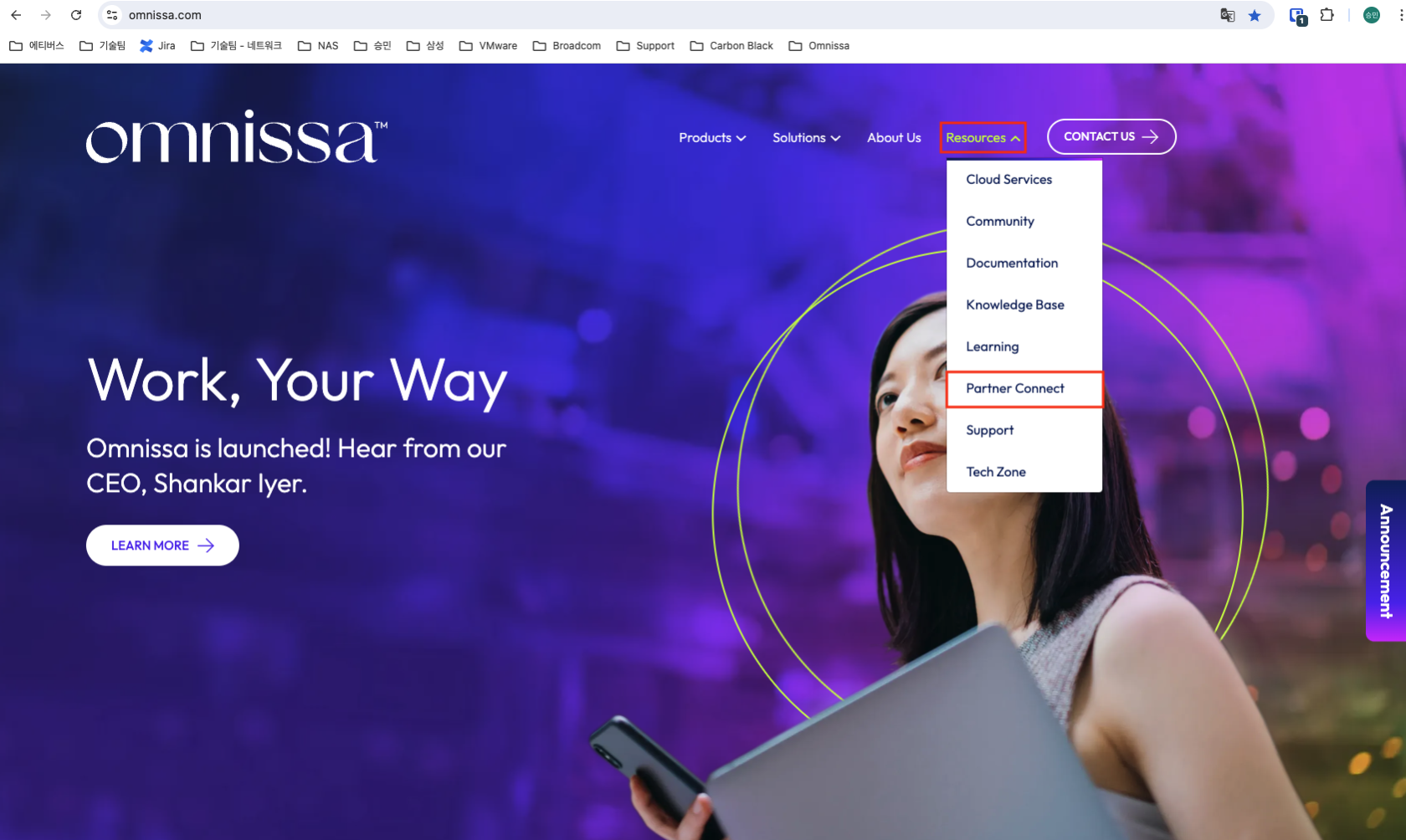
</td><td style="height: 114.65px;">**1.1. Omnissa 통한 접속**

- Omnissa 홈페이지 URL : [https://www.omnissa.com/](https://www.omnissa.com/ "https://www.omnissa.com/")
- \[[Omnissa 홈페이지 접속](https://www.omnissa.com/ "https://www.omnissa.com/")\] &gt; \[Resources\] 의   
    \[Partner Connect\] 메뉴 클릭

</td></tr><tr style="height: 29.6px;"><td style="height: 29.6px;">[![image.png](https://bs.etevers.tech/uploads/images/gallery/2025-10/scaled-1680-/U6simage.png)](https://bs.etevers.tech/uploads/images/gallery/2025-10/U6simage.png)

</td><td style="height: 29.6px;">**1.2. URL 통한 접속**

- Omnissa Parter Connect URL : [https://omnissa.my.site.com/partnerconnect/](https://omnissa.my.site.com/partnerconnect/ "https://omnissa.my.site.com/partnerconnect/")

</td></tr></tbody></table>

###  

### 2. 계정 확인<span class="heading-anchor-wrapper" role="presentation"><button aria-hidden="true" class="css-vhh4ux" data-testid="anchor-button" type="button"><span aria-label="Copy" class="_1e0c1o8l _vchhusvi _1o9zidpf _vwz4kb7n _y4ti1igz _bozg1mb9 _12va1onz _jcxd1r8n" role="img"><svg class="_1reo15vq _18m915vq _syaz1r31 _lcxvglyw _s7n4yfq0 _vc881r31 _1bsbpxbi _4t3ipxbi" fill="none" role="presentation" viewbox="0 0 16 16"><path clip-rule="evenodd" d="M8.22 2.22a3.932 3.932 0 1 1 5.56 5.56l-2.25 2.25-1.06-1.06 2.25-2.25a2.432 2.432 0 0 0-3.44-3.44L7.03 5.53 5.97 4.47zm3.06 3.56-5.5 5.5-1.06-1.06 5.5-5.5zM2.22 8.22l2.25-2.25 1.06 1.06-2.25 2.25a2.432 2.432 0 0 0 3.44 3.44l2.25-2.25 1.06 1.06-2.25 2.25a3.932 3.932 0 1 1-5.56-5.56" fill="currentcolor" fill-rule="evenodd"></path></svg></span></button></span>

#### 2.1 기존 회원<span class="heading-anchor-wrapper" role="presentation"><button aria-describedby="_r8pi_-tooltip" aria-hidden="true" class="css-vhh4ux" data-testid="anchor-button" type="button"><span aria-label="Copy" class="_1e0c1o8l _vchhusvi _1o9zidpf _vwz4kb7n _y4ti1igz _bozg1mb9 _12va1onz _jcxd1r8n" role="img"><svg class="_1reo15vq _18m915vq _syaz1r31 _lcxvglyw _s7n4yfq0 _vc881r31 _1bsbpxbi _4t3ipxbi" fill="none" role="presentation" viewbox="0 0 16 16"><path clip-rule="evenodd" d="M8.22 2.22a3.932 3.932 0 1 1 5.56 5.56l-2.25 2.25-1.06-1.06 2.25-2.25a2.432 2.432 0 0 0-3.44-3.44L7.03 5.53 5.97 4.47zm3.06 3.56-5.5 5.5-1.06-1.06 5.5-5.5zM2.22 8.22l2.25-2.25 1.06 1.06-2.25 2.25a2.432 2.432 0 0 0 3.44 3.44l2.25-2.25 1.06 1.06-2.25 2.25a3.932 3.932 0 1 1-5.56-5.56" fill="currentcolor" fill-rule="evenodd"></path></svg></span></button></span>

<p class="callout info">기존 VMware 회원의 경우, 사용하던 계정의 비밀번호 재설정 필요</p>

<table border="1" id="bkmrk-2.1.1.-%EB%A1%9C%EA%B7%B8%EC%9D%B8-%ED%8E%98%EC%9D%B4%EC%A7%80-%EC%A0%91%EC%86%8D-%5Bp" style="border-collapse: collapse; width: 100%; height: 1476.1px;"><colgroup><col style="width: 50.0477%;"></col><col style="width: 50.0477%;"></col></colgroup><tbody><tr style="height: 277.75px;"><td style="height: 277.75px;">[![image.png](https://bs.etevers.tech/uploads/images/gallery/2025-10/scaled-1680-/XVRimage.png)](https://bs.etevers.tech/uploads/images/gallery/2025-10/XVRimage.png)

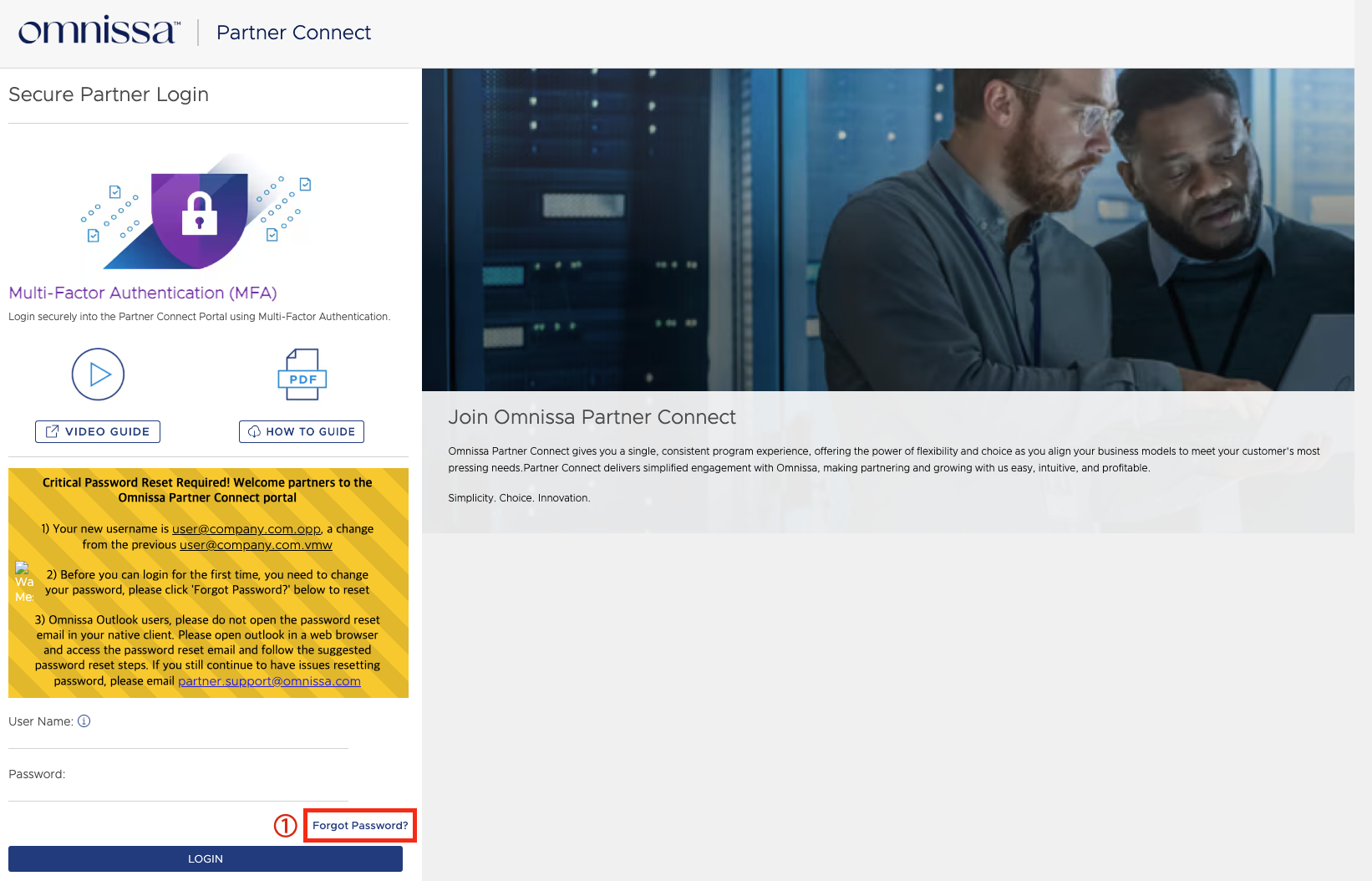
</td><td style="height: 277.75px;">**2.1.1. 로그인 페이지 접속**

- \[[Partner Connect 로그인 페이지](https://omnissa.my.site.com/partnerconnect/PC_Login "https://omnissa.my.site.com/partnerconnect/PC_Login")\] 접속
- ‘Forgot Password’ 버튼 클릭

</td></tr><tr style="height: 837.638px;"><td style="height: 837.638px;">[![image.png](https://bs.etevers.tech/uploads/images/gallery/2025-10/scaled-1680-/psEimage.png)](https://bs.etevers.tech/uploads/images/gallery/2025-10/psEimage.png)

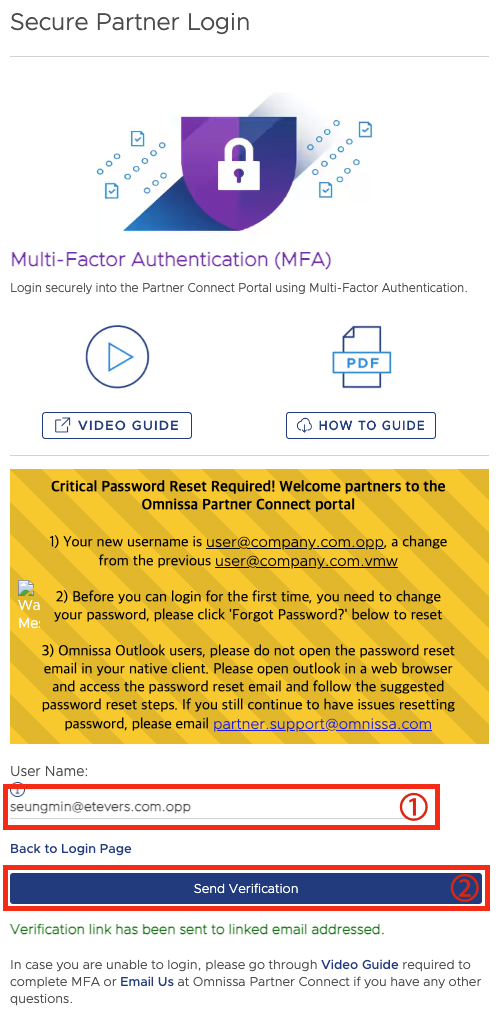
</td><td style="height: 837.638px;">**2.1.2. 계정 입력**

- 기존 VMware Partner Connect 계정을 변경된   
    계정 양식에 맞추어 입력
    
    
    - 기존 계정 양식 : user@company.com<span class="fabric-text-color-mark" data-renderer-mark="true" data-text-custom-color="#ff5630">.vmw</span>
    - 변경 계정 양식 : user@company.com<span class="fabric-text-color-mark" data-renderer-mark="true" data-text-custom-color="#ff5630">.opp</span>
- 계정 입력 후 \[Send Verification\] 버튼 클릭
- “Verification link has been sent to linked email addressed” 메세지 확인
- 입력한 계정으로 '비밀번호 초기화' 메일이 발송됨

</td></tr><tr style="height: 301.513px;"><td style="height: 301.513px;">[![image.png](https://bs.etevers.tech/uploads/images/gallery/2025-10/scaled-1680-/K3Vimage.png)](https://bs.etevers.tech/uploads/images/gallery/2025-10/K3Vimage.png)

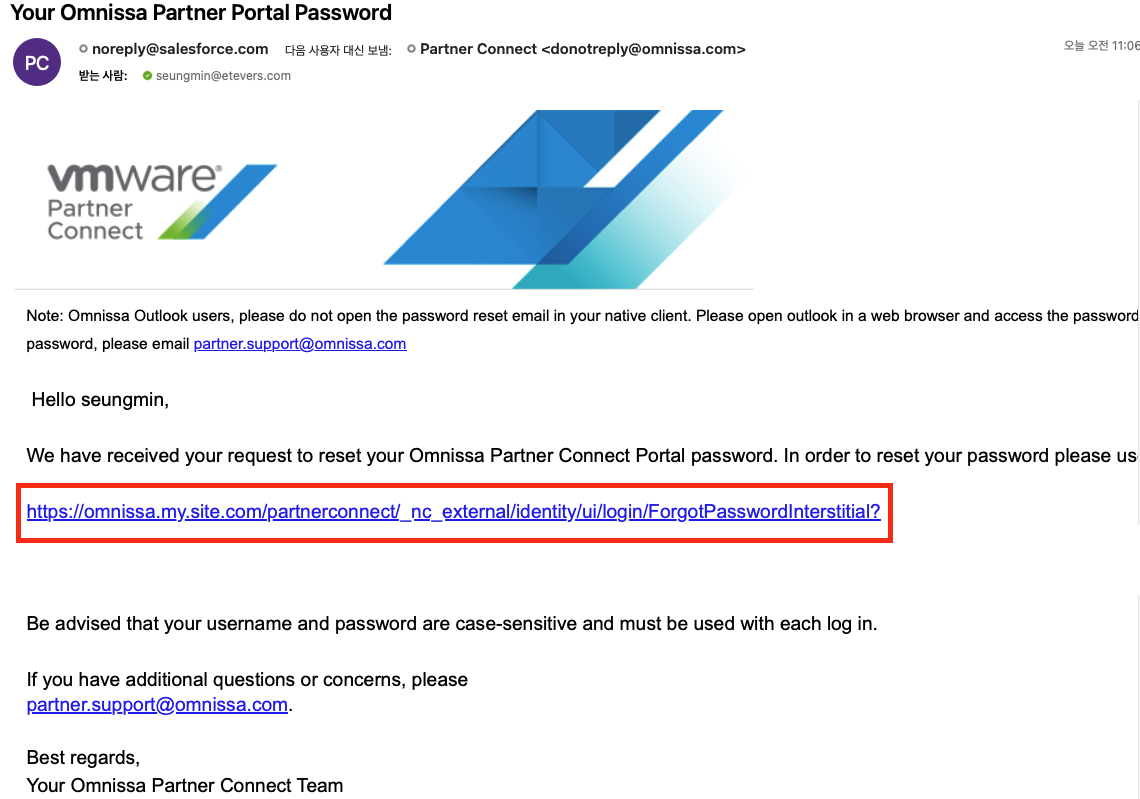
</td><td style="height: 301.513px;">**2.1.3. '비밀번호 재설정' 수신**

- 발송된 ‘비밀번호 재설정’ 메일 확인
    
    
    - 메일 제목 : Your Omnissa Partner Portal Password
- 메일 본문의 URL 선택하여 비밀번호 재설정 진행

<p class="callout warning">*<span class="fabric-text-color-mark" data-renderer-mark="true" data-text-custom-color="#ff5630">Omnissa 에서는 해당 메일을 Outlook 클라이언트가 아닌 '웹 페이지' 에서 링크에 접속하도록 안내하고 있으니 참고 바랍니다.</span>*</p>

</td></tr><tr style="height: 29.6px;"><td style="height: 29.6px;">[![image.png](https://bs.etevers.tech/uploads/images/gallery/2025-10/scaled-1680-/oPvimage.png)](https://bs.etevers.tech/uploads/images/gallery/2025-10/oPvimage.png)

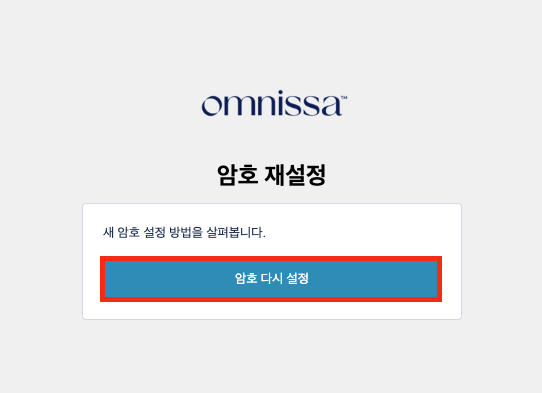
</td><td style="height: 29.6px;">**2.1.4. '비밀번호 재설정' 시작**

- 웹 페이지 상에 표시된 \[암호 다시 설정\] 버튼 클릭

</td></tr><tr style="height: 29.6px;"><td style="height: 29.6px;">[![image.png](https://bs.etevers.tech/uploads/images/gallery/2025-10/scaled-1680-/YGqimage.png)](https://bs.etevers.tech/uploads/images/gallery/2025-10/YGqimage.png)

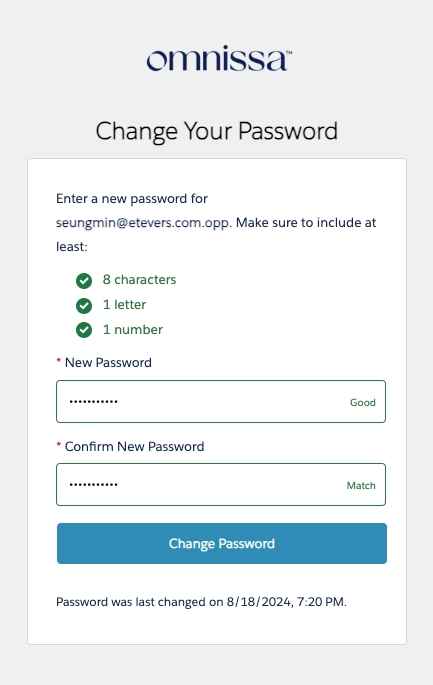
</td><td style="height: 29.6px;">**2.1.5. 비밀번호 재설정 완료**

- 제시된 규칙에 맞춰, 사용할 비밀번호 입력
    
    
    - 최소 8글자 이상
    - 최소 문자 1개 이상
    - 최소 숫자 1개 이상
- \[Change Password\] 버튼 클릭하여 비밀번호 재설정 완료

</td></tr></tbody></table>

#### 2.1 신규 회원<span class="heading-anchor-wrapper" role="presentation"><button aria-hidden="true" class="css-vhh4ux" data-testid="anchor-button" type="button"><span aria-label="Copy" class="_1e0c1o8l _vchhusvi _1o9zidpf _vwz4kb7n _y4ti1igz _bozg1mb9 _12va1onz _jcxd1r8n" role="img"><svg class="_1reo15vq _18m915vq _syaz1r31 _lcxvglyw _s7n4yfq0 _vc881r31 _1bsbpxbi _4t3ipxbi" fill="none" role="presentation" viewbox="0 0 16 16"><path clip-rule="evenodd" d="M8.22 2.22a3.932 3.932 0 1 1 5.56 5.56l-2.25 2.25-1.06-1.06 2.25-2.25a2.432 2.432 0 0 0-3.44-3.44L7.03 5.53 5.97 4.47zm3.06 3.56-5.5 5.5-1.06-1.06 5.5-5.5zM2.22 8.22l2.25-2.25 1.06 1.06-2.25 2.25a2.432 2.432 0 0 0 3.44 3.44l2.25-2.25 1.06 1.06-2.25 2.25a3.932 3.932 0 1 1-5.56-5.56" fill="currentcolor" fill-rule="evenodd"></path></svg></span></button></span>

<p class="callout info">신규 회원의 경우, 회원 가입 진행 필요</p>

<table border="1" id="bkmrk-2.1.1.-%EB%A1%9C%EA%B7%B8%EC%9D%B8-%ED%8E%98%EC%9D%B4%EC%A7%80-%EC%A0%91%EC%86%8D-%5Bp-1" style="border-collapse: collapse; width: 100%;"><colgroup><col style="width: 50%;"></col><col style="width: 50%;"></col></colgroup><tbody><tr><td>[![image.png](https://bs.etevers.tech/uploads/images/gallery/2025-10/scaled-1680-/Yeqimage.png)](https://bs.etevers.tech/uploads/images/gallery/2025-10/Yeqimage.png)

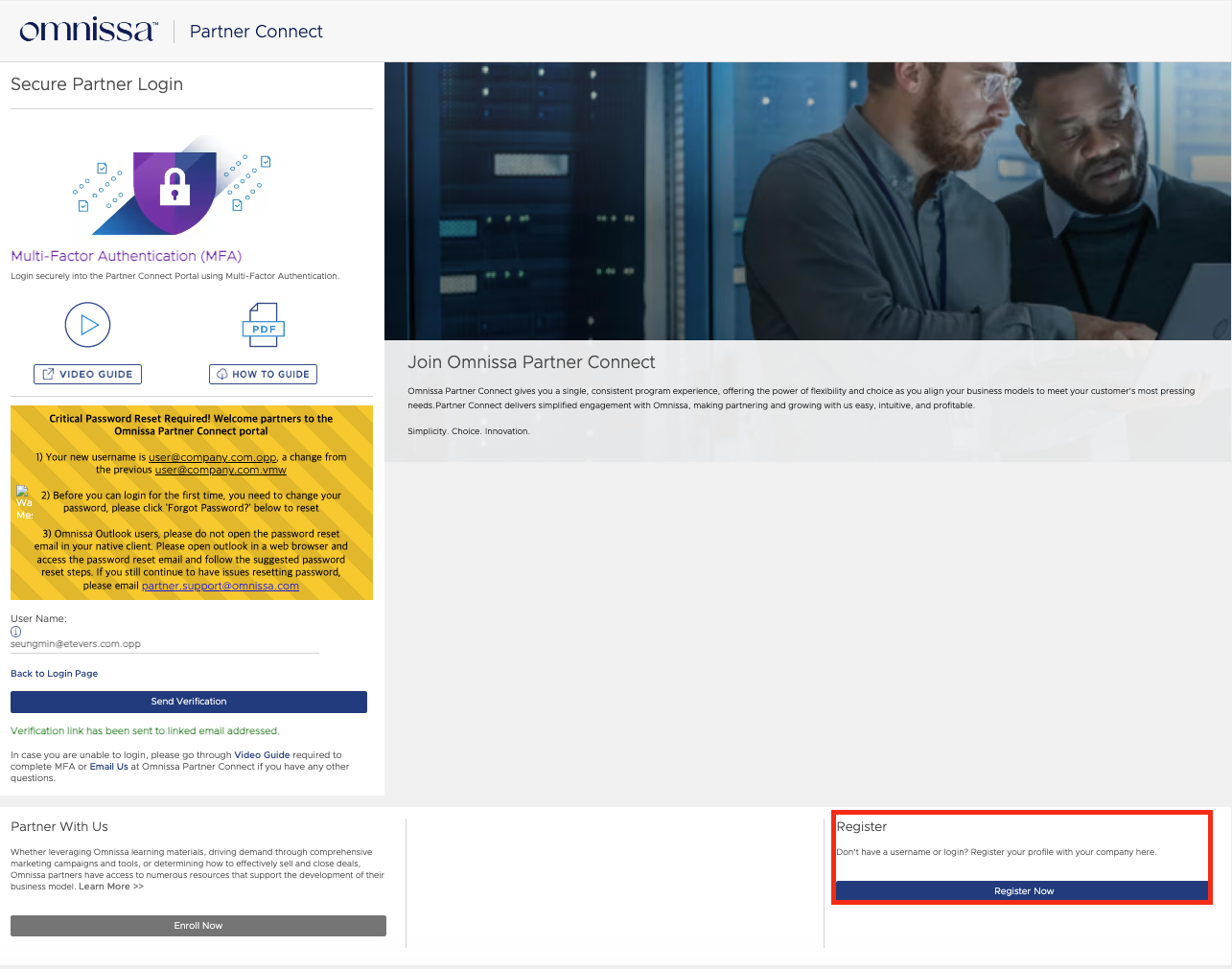
</td><td>**2.1.1. 로그인 페이지 접속**

- \[[Partner Connect 로그인 페이지](https://omnissa.my.site.com/partnerconnect/PC_Login "https://omnissa.my.site.com/partnerconnect/PC_Login")\] 접속
- 오른쪽 하단에 위치한 \[Register Now\] 버튼 클릭

</td></tr><tr><td>[![image.png](https://bs.etevers.tech/uploads/images/gallery/2025-10/scaled-1680-/Dvnimage.png)](https://bs.etevers.tech/uploads/images/gallery/2025-10/Dvnimage.png)

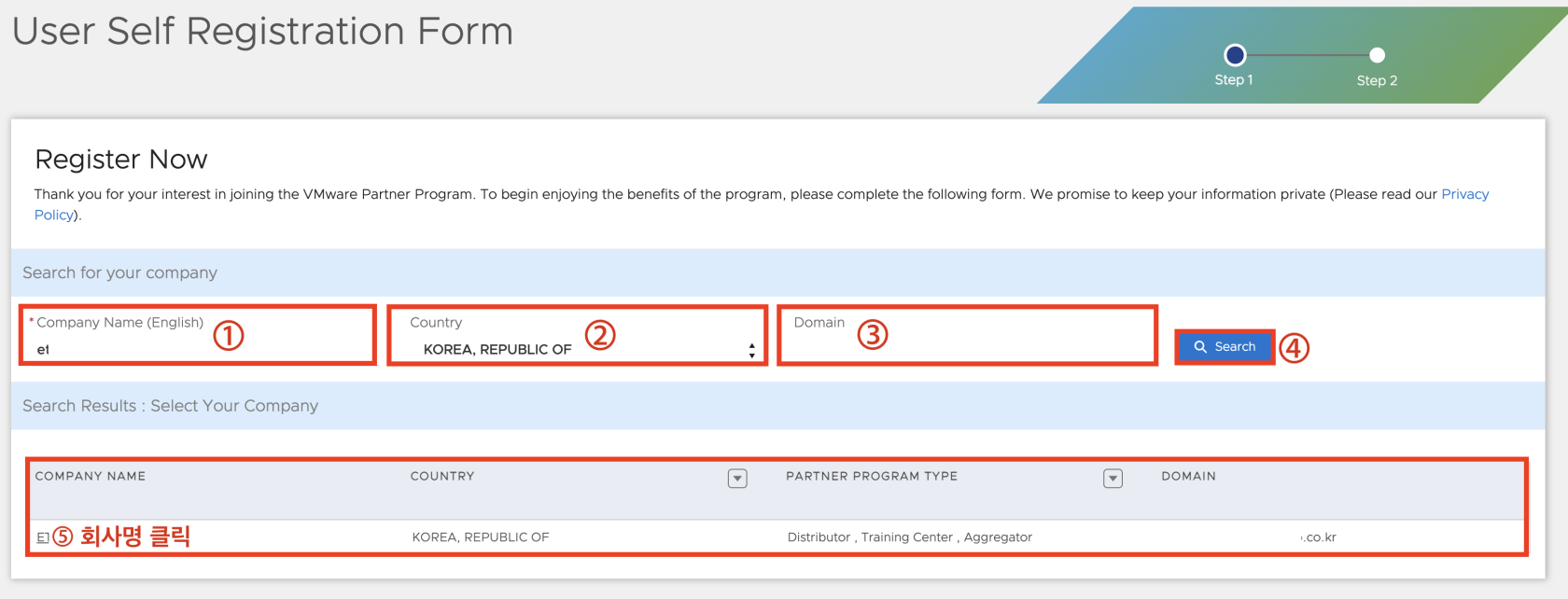
</td><td>**2.1.2. 회사 선택**

- 가입할 계정의 회사 조건 입력
    
    
    - Company Name : 회사 영문명
        
        
        - 예 : etecompany
    - Country : 나라
        
        
        - 예 : Korea, REPUBLIC OF
    - Domain : 회사 도메인 입력
        
        
        - 예 : [etecompany.co.kr](http://etecompany.co.kr/ "http://etecompany.co.kr")
- \[Search\] 버튼을 선택하여 회사 검색 진행
- 하단에 검색된 ‘회사 명’ 클릭

</td></tr><tr><td>[![image.png](https://bs.etevers.tech/uploads/images/gallery/2025-10/scaled-1680-/drximage.png)](https://bs.etevers.tech/uploads/images/gallery/2025-10/drximage.png)

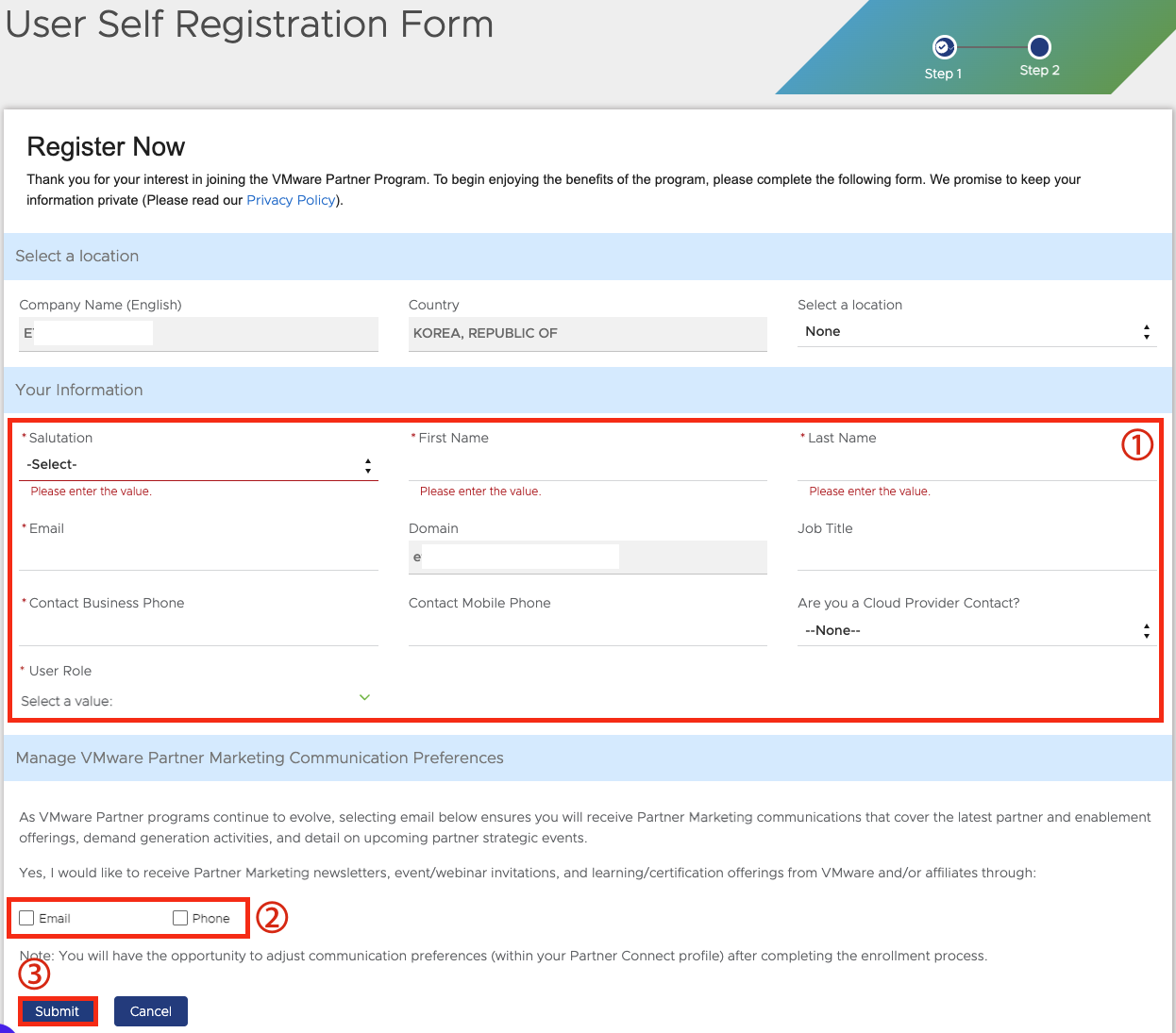
</td><td>**2.1.3. 계정 가입**

- 가입 정보 입력
    
    
    - Select a location : 회사 위치 선택
    - Salutation (필수) : 인사말
    - First Name (필수) : 이름
    - Last Name (필수) : 성
    - Email (필수) : 계정으로 사용할 이메일
        
        
        - *<span class="fabric-text-color-mark" data-renderer-mark="true" data-text-custom-color="#ff5630">이메일의 경우, 회사 도메인과 동일해야 함</span>*
    - Contact Business Phone (필수) : 휴대폰 번호
    - User Role (필수) : 직무
- 이벤트 및 뉴스레터 등 마케팅 소식 수신 유무 선택
    
    
    - Email
    - Phone
- \[Submit\] 버튼 클릭하여 회원가입 완료

</td></tr></tbody></table>