# 라이선스 키 확인 방법

## 개요

 엔드유저 혹은 파트너가 구매한 제품에 대한 라이선스 키를 확인할 수 있도록 만들어진 가이드 문서이다.

 엔드유저와 파트너는 해당 문서를 통해 다음과 같은 목적을 달성할 수 있다.

1. Broadcom Support Portal 의 \[My Entitlement\] 메뉴 확인
2. 라이선스 키 확인

---

### 대상 

<table border="1" id="bkmrk-%EB%8C%80%EC%83%81-%EC%83%81%ED%83%9C-%EB%B9%84%EA%B3%A0-%EC%84%B8%EC%9D%BC%EC%A6%88-%EA%B2%80%EC%88%98-%EC%97%94%EC%A7%80%EB%8B%88%EC%96%B4" style="border-collapse: collapse; width: 100%;"><colgroup><col style="width: 33.3731%;"></col><col style="width: 33.3731%;"></col><col style="width: 33.3731%;"></col></colgroup><thead><tr><td class="align-center">**상태**</td><td class="align-center">**대상**</td><td class="align-center">**범**</td></tr></thead><tbody><tr><td><p class="callout success">검수</p>

</td><td class="align-center">서포트 포탈 유저</td><td class="align-center">LSR</td></tr></tbody></table>

---

## 내용

### Broadcom Support Portal 접속

<table border="1" id="bkmrk-%28%EA%B7%B8%EB%A6%BC%29-%EC%84%A4%EB%AA%85-%28%EA%B7%B8%EB%A6%BC%29-%EC%84%A4%EB%AA%85" style="border-collapse: collapse; width: 100%;"><colgroup><col style="width: 50.0596%;"></col><col style="width: 50.0596%;"></col></colgroup><tbody><tr><td>[![image.png](https://bs.etevers.tech/uploads/images/gallery/2025-10/scaled-1680-/7hLimage.png)](https://bs.etevers.tech/uploads/images/gallery/2025-10/7hLimage.png)

</td><td>- <span data-annotation-inline-node="true" data-annotation-mark="true" data-card-url="https://broadcom.com/" data-inline-card="true" data-renderer-start-pos="279"><span class="loader-wrapper"><span class="hover-card-trigger-wrapper" data-testid="hover-card-trigger-wrapper">[<span class="_19itglyw _vchhusvi _r06hglyw _o5721jtm _1nmz9jpi _16d9qvcn _ca0qv77o _u5f31b66 _n3tdv77o _19bv1b66" data-testid="inline-card-icon-and-title"><span class="_19itglyw _vchhusvi _r06hglyw">Broadcom Inc. | Connecting Everything</span></span>](https://broadcom.com/)</span></span></span> 접속 후 로그인

</td></tr></tbody></table>

---

#### 제품 확인

<table border="1" id="bkmrk-%EC%9A%B0%EC%B8%A1-%EC%83%81%EB%8B%A8-%EB%B0%95%EC%8A%A4-%ED%81%B4%EB%A6%AD%ED%95%98%EC%97%AC-%ED%99%95%EC%9D%B8%EC%9D%84-%EC%9B%90%ED%95%98" style="border-collapse: collapse; width: 100%; height: 875.714px;"><colgroup><col style="width: 50.0596%;"></col><col style="width: 50.0596%;"></col></colgroup><tbody><tr style="height: 246.038px;"><td style="height: 246.038px;">[![image.png](https://bs.etevers.tech/uploads/images/gallery/2025-10/scaled-1680-/r6mimage.png)](https://bs.etevers.tech/uploads/images/gallery/2025-10/r6mimage.png)

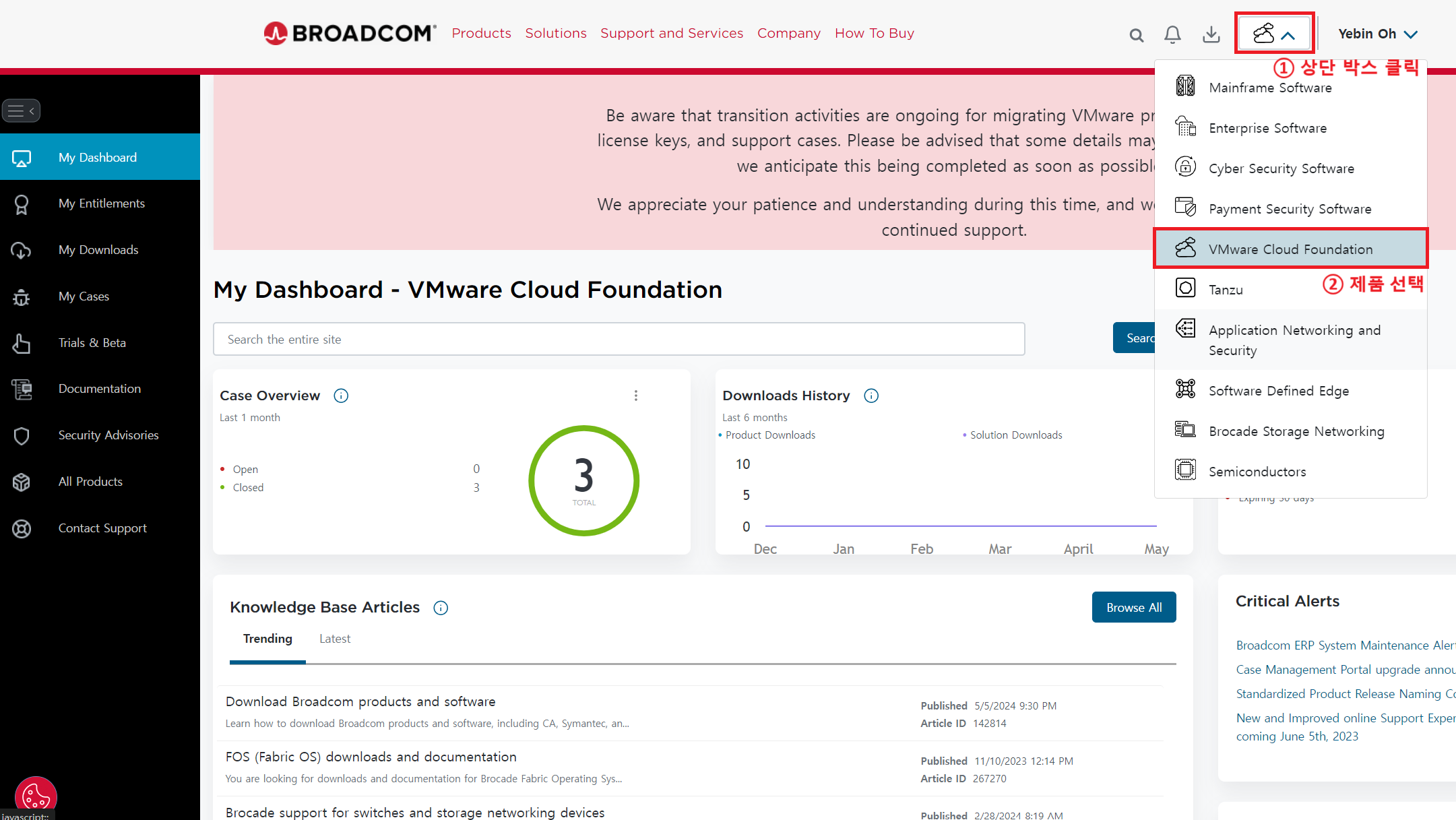
</td><td style="height: 246.038px;">- 우측 상단 박스 클릭하여 확인을 원하는 제품 선택

</td></tr><tr style="height: 205.45px;"><td style="height: 205.45px;">[![image.png](https://bs.etevers.tech/uploads/images/gallery/2025-10/scaled-1680-/ScNimage.png)](https://bs.etevers.tech/uploads/images/gallery/2025-10/ScNimage.png)

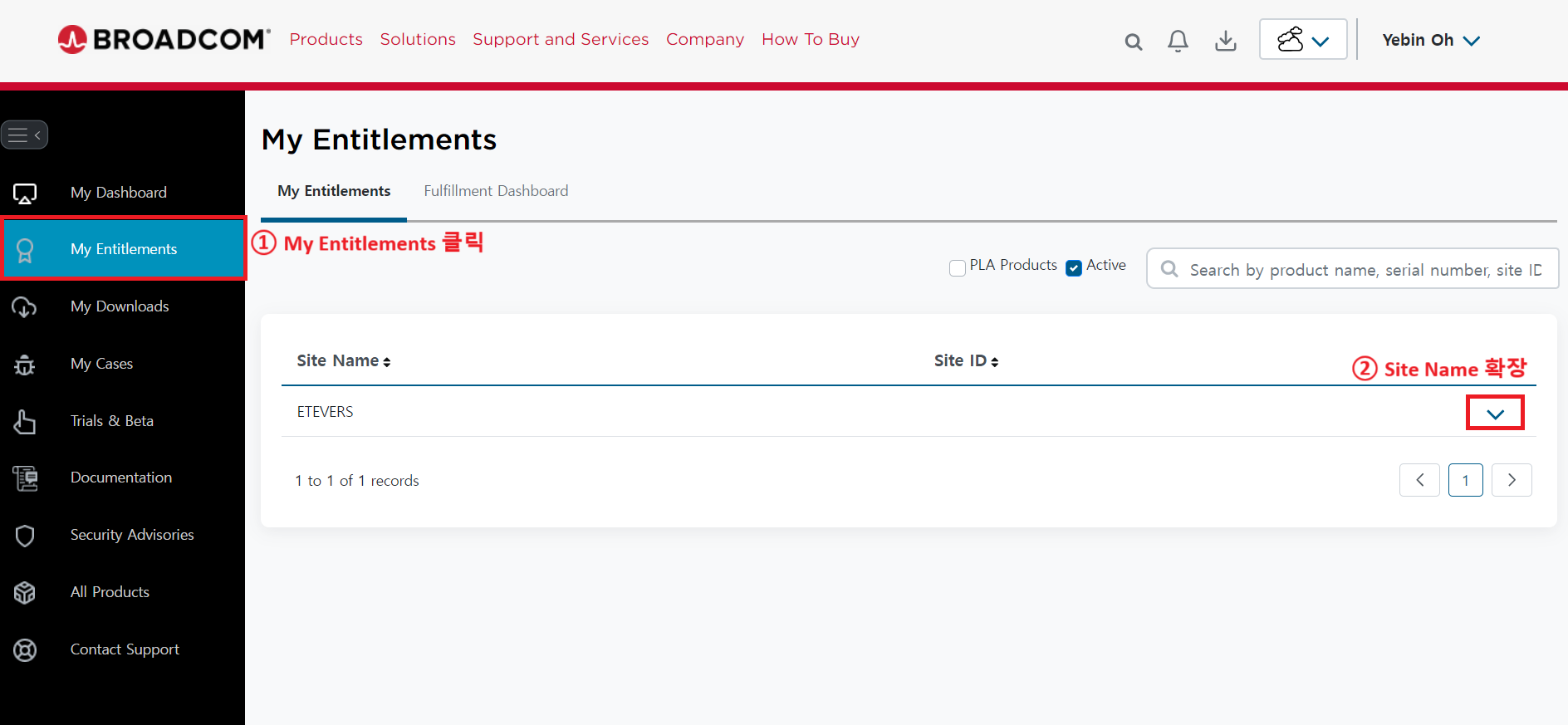
</td><td style="height: 205.45px;">- 좌측 메뉴 부분에서 \[My Entitlements\] 선택
- 회사의 Site Name 확장

</td></tr><tr style="height: 212.113px;"><td style="height: 212.113px;">[![image.png](https://bs.etevers.tech/uploads/images/gallery/2025-10/scaled-1680-/vxkimage.png)](https://bs.etevers.tech/uploads/images/gallery/2025-10/vxkimage.png)

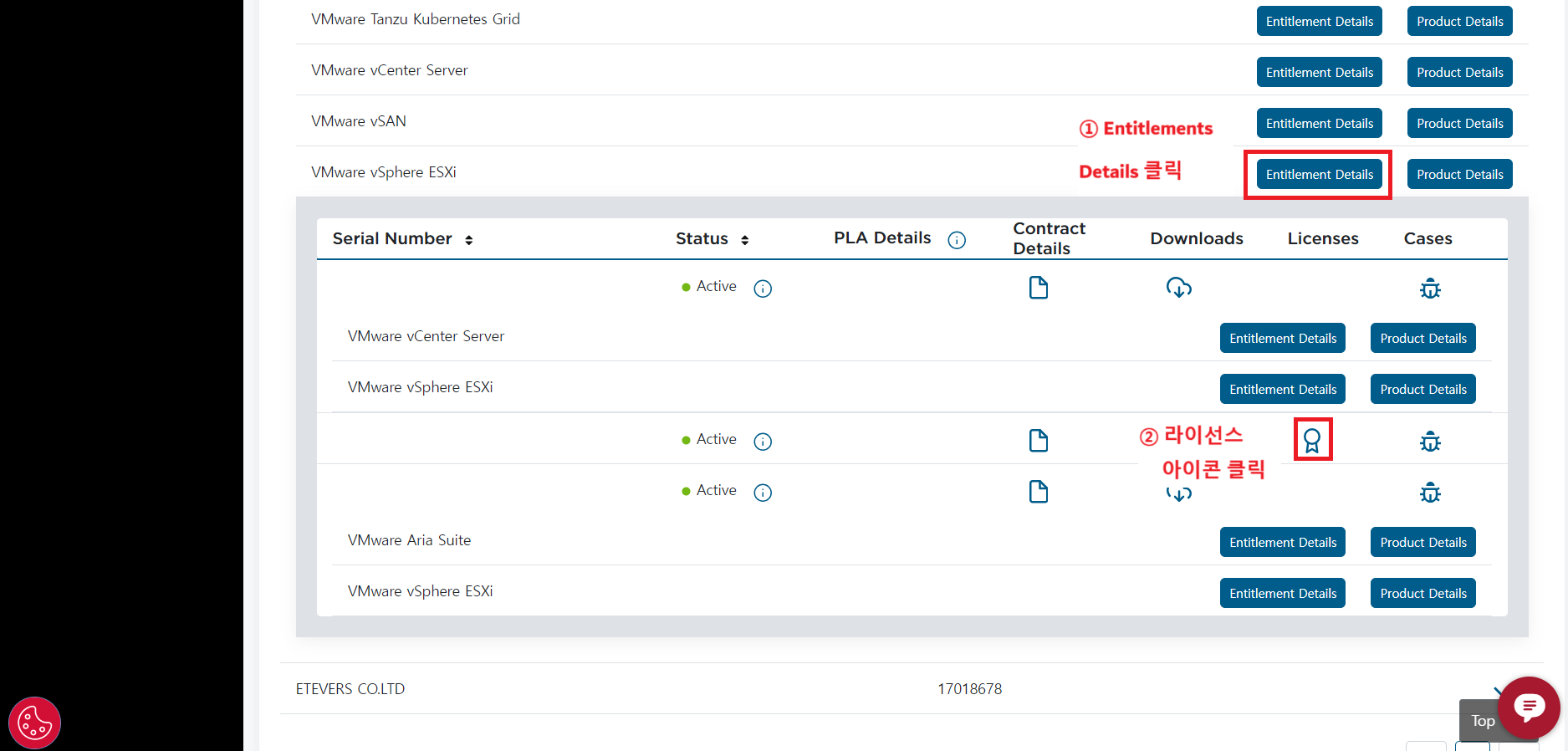
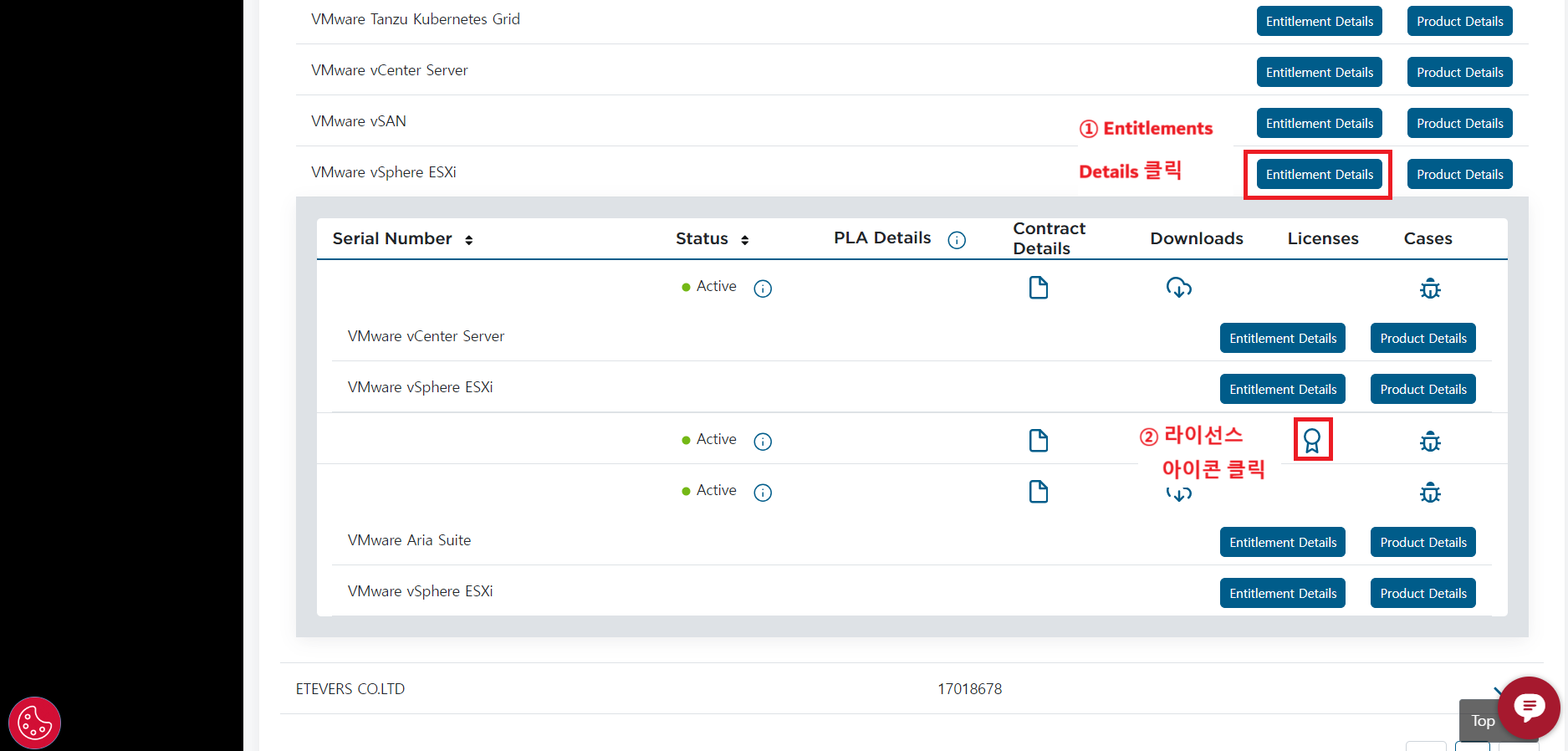
</td><td style="height: 212.113px;">- 확인을 원하는 제품의 \[Entitlements Details\] 클릭
- 확장된 목록에서 \[![image.png](https://bs.etevers.tech/uploads/images/gallery/2025-10/scaled-1680-/oQCimage.png)(Licenses)\] 아이콘 클릭

<p class="callout info">\[Entitlements Details\] 클릭 후, 그 하위 제품들의 정보를 확인하고 싶다면, 다시 한번 하위 제품의 \[Entitlements Details\]를 눌러 창을 확장해야 한다.</p>

</td></tr><tr style="height: 212.113px;"><td style="height: 212.113px;">[![image.png](https://bs.etevers.tech/uploads/images/gallery/2025-10/scaled-1680-/6whimage.png)](https://bs.etevers.tech/uploads/images/gallery/2025-10/6whimage.png)

</td><td style="height: 212.113px;">- \[Lisence Key\] 부분에서 라이선스 키 확인 가능

</td></tr></tbody></table>