# 권한 부여 방법: Invite 보내기

## 개요

 특정한 Site에 접근할 수 있도록 Site 접근을 원하는 계정에 초대를 보내는 방법을 나타낸 문서이다.

 해당 문서를 통해 다음과 같은 목적을 달성할 수 있다.

1. 특정한 계정에 Invite 보내기
2. 초대된 계정에 권한 부여 방법

---

### 대상 

<table border="1" id="bkmrk-%EB%8C%80%EC%83%81-%EC%83%81%ED%83%9C-%EB%B9%84%EA%B3%A0-%EC%84%B8%EC%9D%BC%EC%A6%88-%EA%B2%80%EC%88%98-%EC%97%94%EC%A7%80%EB%8B%88%EC%96%B4" style="border-collapse: collapse; width: 100%;"><colgroup><col style="width: 33.3731%;"></col><col style="width: 33.3731%;"></col><col style="width: 33.3731%;"></col></colgroup><thead><tr><td class="align-center">**상태**</td><td class="align-center">**대상**</td><td class="align-center">범</td></tr></thead><tbody><tr><td><p class="callout success">검수</p>

</td><td class="align-center">서포트 포탈 유저</td><td class="align-center">LSR</td></tr></tbody></table>

---

## 내용

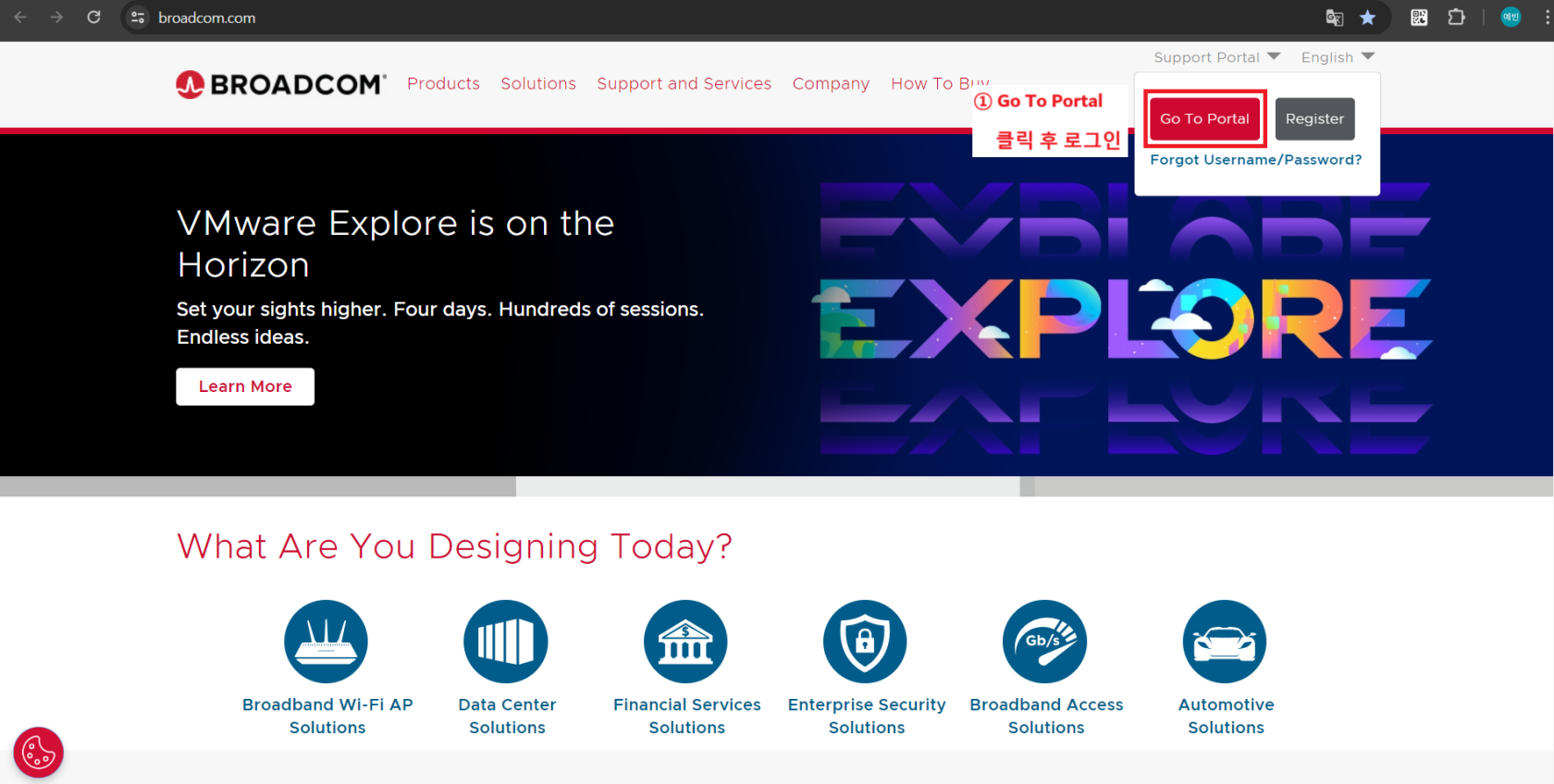
### Broadcom Support Portal 접속

<table border="1" id="bkmrk-%28%EA%B7%B8%EB%A6%BC%29-%EC%84%A4%EB%AA%85-%28%EA%B7%B8%EB%A6%BC%29-%EC%84%A4%EB%AA%85" style="border-collapse: collapse; width: 100%;"><colgroup><col style="width: 50.0596%;"></col><col style="width: 50.0596%;"></col></colgroup><tbody><tr><td>[![image.png](https://bs.etevers.tech/uploads/images/gallery/2025-10/scaled-1680-/pfPimage.png)](https://bs.etevers.tech/uploads/images/gallery/2025-10/pfPimage.png)

</td><td>- <span data-annotation-inline-node="true" data-annotation-mark="true" data-card-url="https://broadcom.com/" data-inline-card="true" data-renderer-start-pos="254"><span class="loader-wrapper"><span class="hover-card-trigger-wrapper" data-testid="hover-card-trigger-wrapper">[<span class="_19itglyw _vchhusvi _r06hglyw _o5721jtm _1nmz9jpi _16d9qvcn _ca0qv77o _u5f31b66 _n3tdv77o _19bv1b66" data-testid="inline-card-icon-and-title"><span class="_19itglyw _vchhusvi _r06hglyw">Broadcom Inc. | Connecting Everything</span></span>](https://broadcom.com/)</span></span></span> 접속 후 로그인

</td></tr></tbody></table>

---

### Site 초대/권한 부여

 권한을 부여하고 싶은 계정에 초대를 보내는 과정이다.

#### 계정에 초대 보내기

<table border="1" id="bkmrk-%5Bmy-tools%5D-%ED%81%B4%EB%A6%AD-%5Binvit" style="border-collapse: collapse; width: 100%;"><colgroup><col style="width: 50.0596%;"></col><col style="width: 50.0596%;"></col></colgroup><tbody><tr><td>[![image.png](https://bs.etevers.tech/uploads/images/gallery/2025-10/scaled-1680-/BbPimage.png)](https://bs.etevers.tech/uploads/images/gallery/2025-10/BbPimage.png)

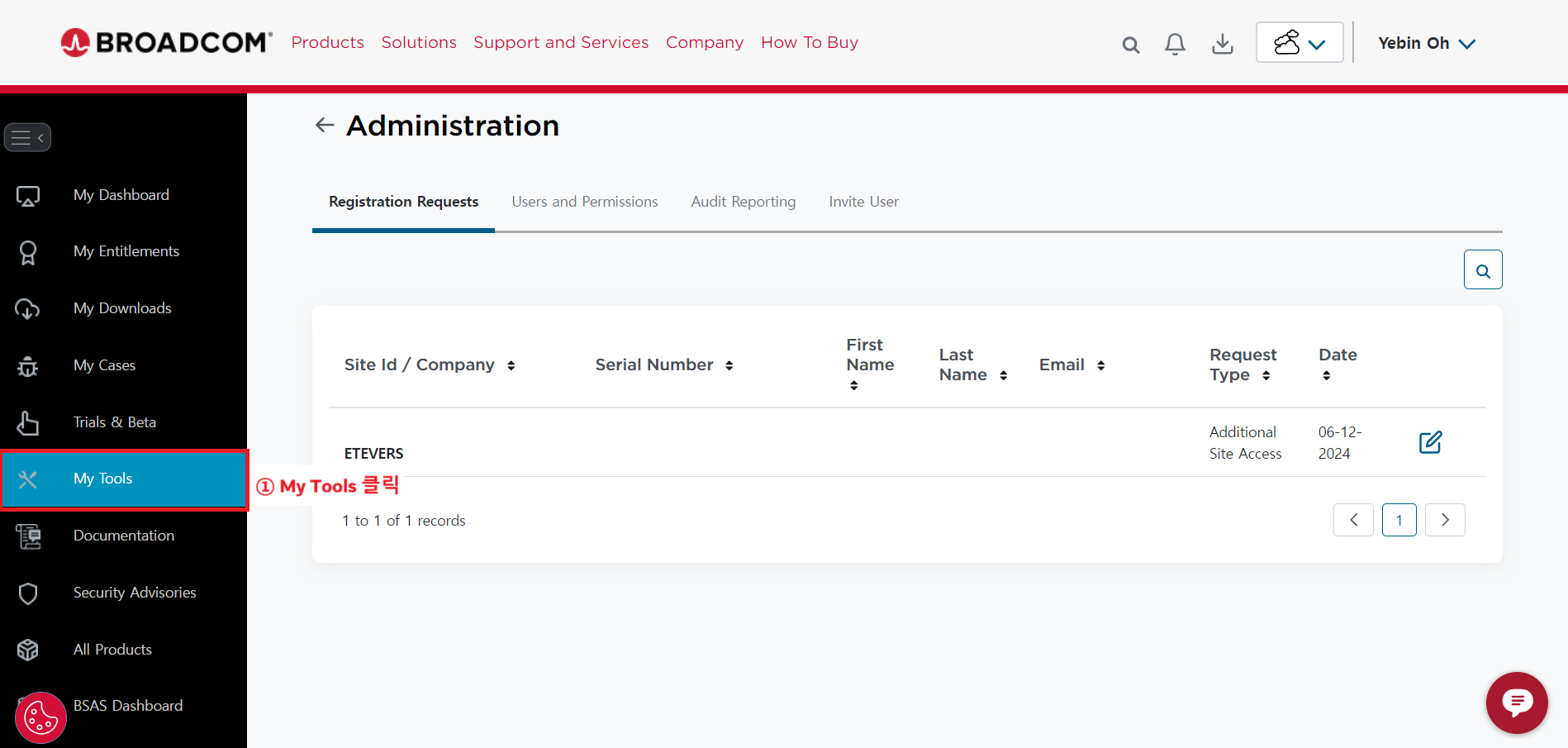
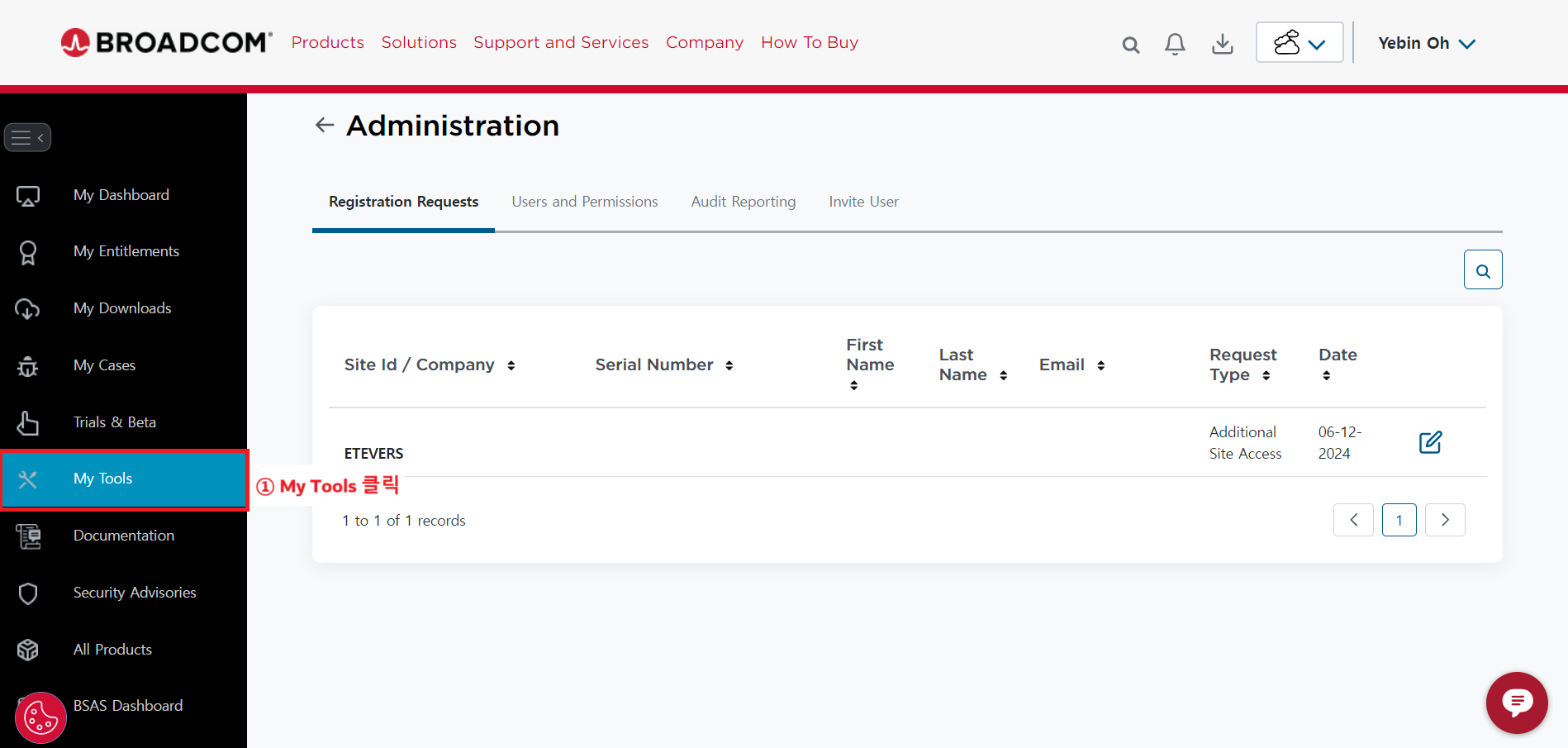
</td><td>- \[My Tools\] 클릭

</td></tr><tr><td>[![image.png](https://bs.etevers.tech/uploads/images/gallery/2025-10/scaled-1680-/l2eimage.png)](https://bs.etevers.tech/uploads/images/gallery/2025-10/l2eimage.png)

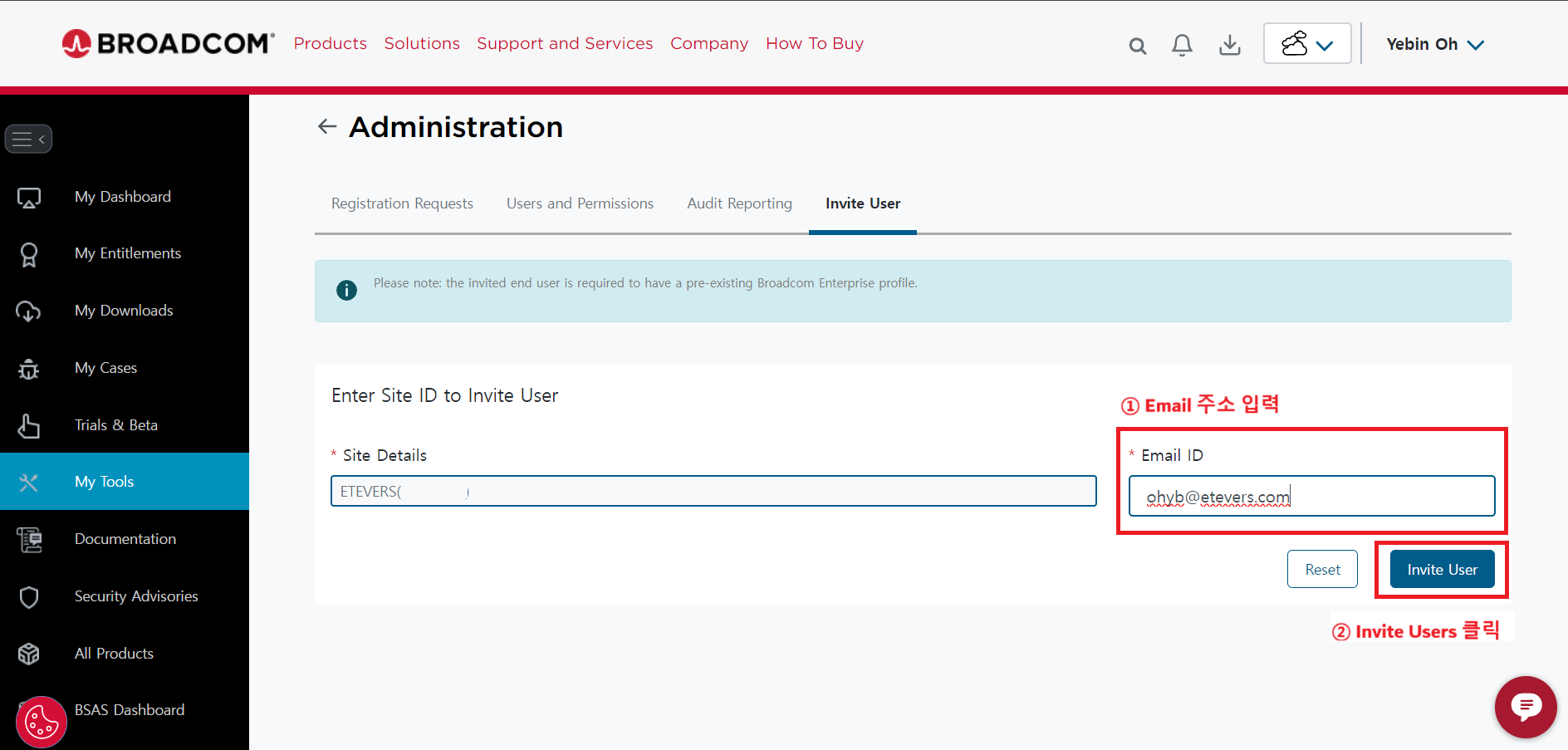
</td><td>- \[Invite User\] 클릭
- 권한을 부여할 Site ID 입력

<p class="callout info">접근을 원하는 Site ID를 넣는다.</p>

</td></tr><tr><td>[![image.png](https://bs.etevers.tech/uploads/images/gallery/2025-10/scaled-1680-/wLMimage.png)](https://bs.etevers.tech/uploads/images/gallery/2025-10/wLMimage.png)

</td><td>- Site ID를 입력하면 Email ID 란이 나타난다.
- 초대할 파트너 계정의 이메일 입력 후 \[Invite User\] 클릭

</td></tr></tbody></table>

---

#### 권한부여

<table border="1" id="bkmrk-%5Bmy-tools%5D-%ED%81%B4%EB%A6%AD-%5Buser-" style="border-collapse: collapse; width: 100%; height: 637.988px;"><colgroup><col style="width: 50.0596%;"></col><col style="width: 50.0596%;"></col></colgroup><tbody><tr style="height: 211.25px;"><td style="height: 211.25px;">[![image.png](https://bs.etevers.tech/uploads/images/gallery/2025-10/scaled-1680-/8y5image.png)](https://bs.etevers.tech/uploads/images/gallery/2025-10/8y5image.png)

</td><td style="height: 211.25px;">- \[My Tools\] 클릭

</td></tr><tr style="height: 211.65px;"><td style="height: 211.65px;">[![image.png](https://bs.etevers.tech/uploads/images/gallery/2025-10/scaled-1680-/pKlimage.png)](https://bs.etevers.tech/uploads/images/gallery/2025-10/pKlimage.png)

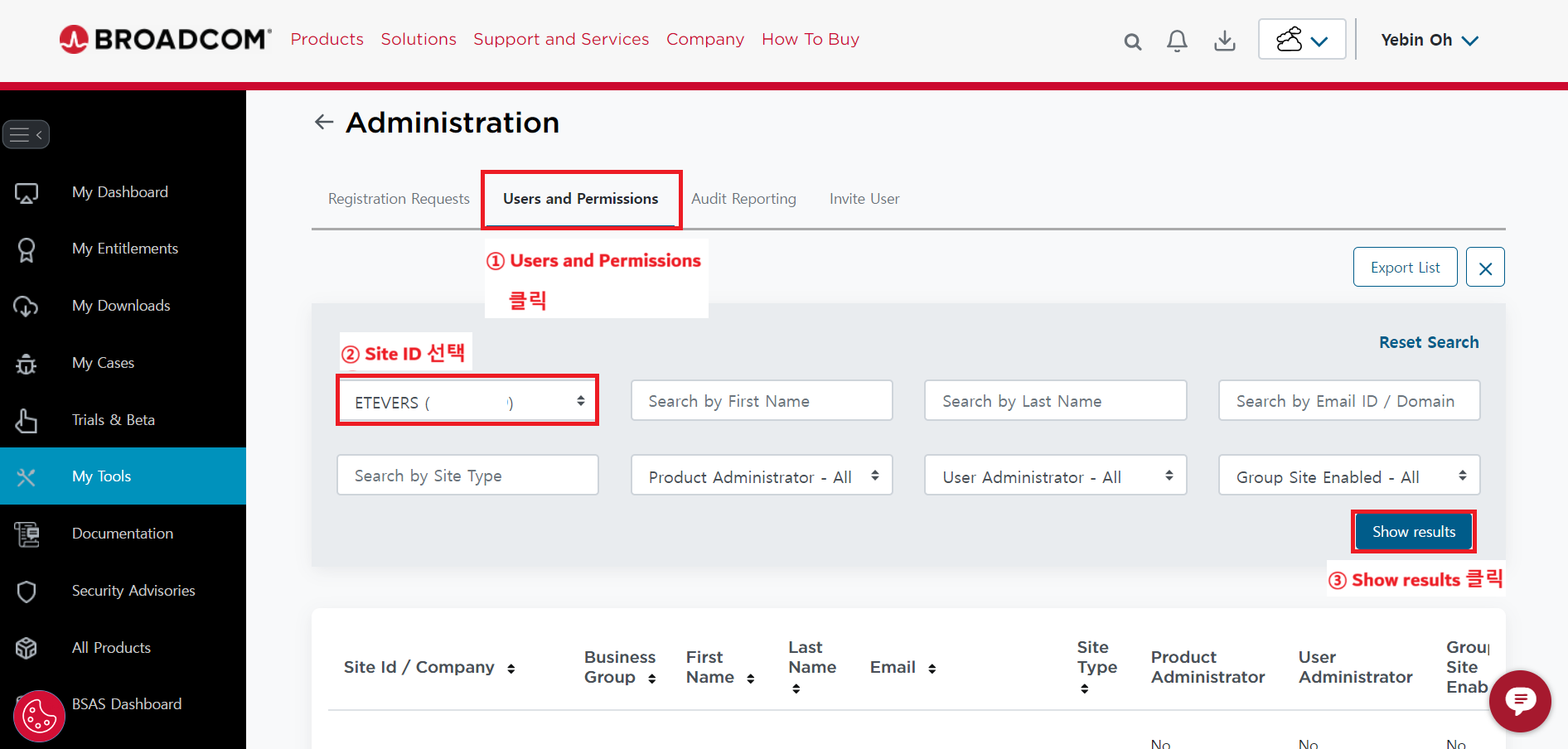
</td><td style="height: 211.65px;">- \[User and Permission\] 클릭
- 회사명(Site ID) 선택
- \[Show results\] 클릭

</td></tr><tr style="height: 185.488px;"><td style="height: 185.488px;">[![image.png](https://bs.etevers.tech/uploads/images/gallery/2025-10/scaled-1680-/Prqimage.png)](https://bs.etevers.tech/uploads/images/gallery/2025-10/Prqimage.png)

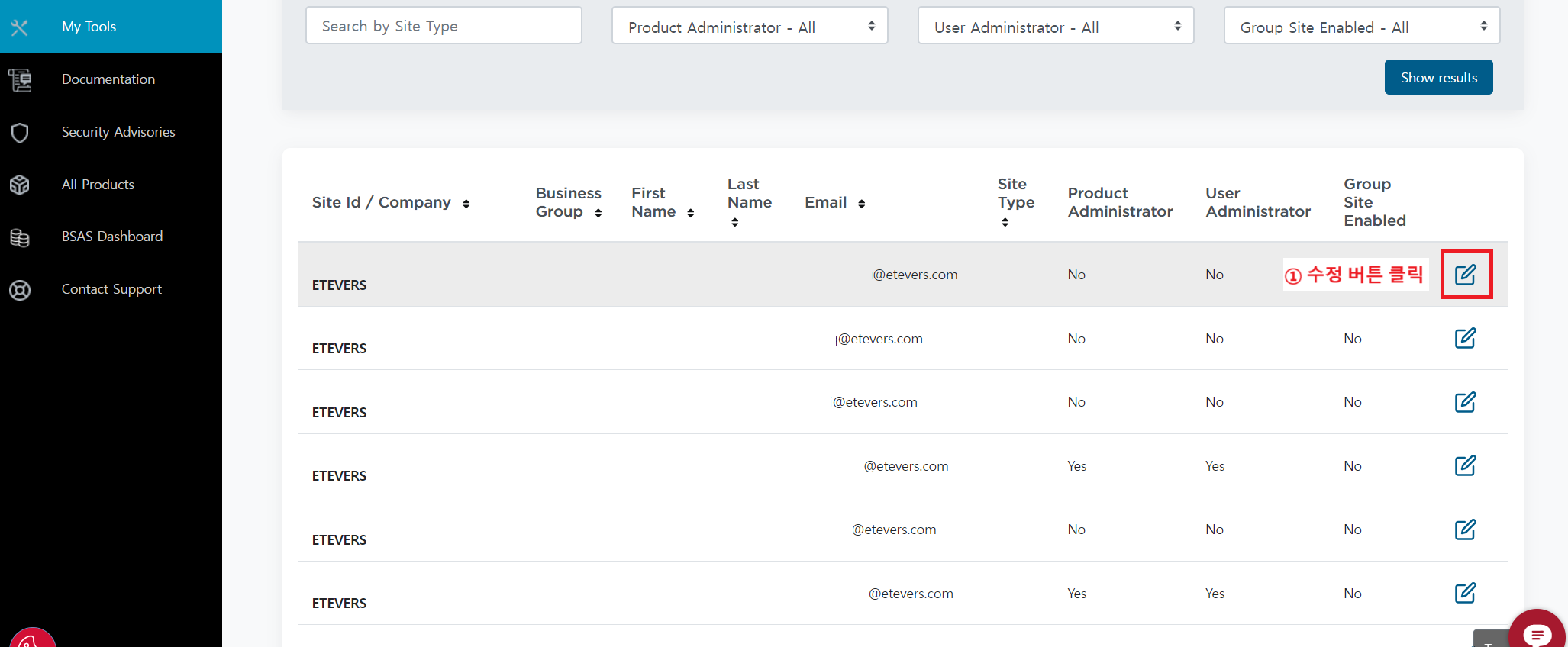
</td><td style="height: 185.488px;">- 초대한 계정의 권한 부여를 위해 해당 계정 편집 아이콘 클릭

</td></tr><tr style="height: 29.6px;"><td style="height: 29.6px;">[![image.png](https://bs.etevers.tech/uploads/images/gallery/2025-10/scaled-1680-/3Zcimage.png)](https://bs.etevers.tech/uploads/images/gallery/2025-10/3Zcimage.png)

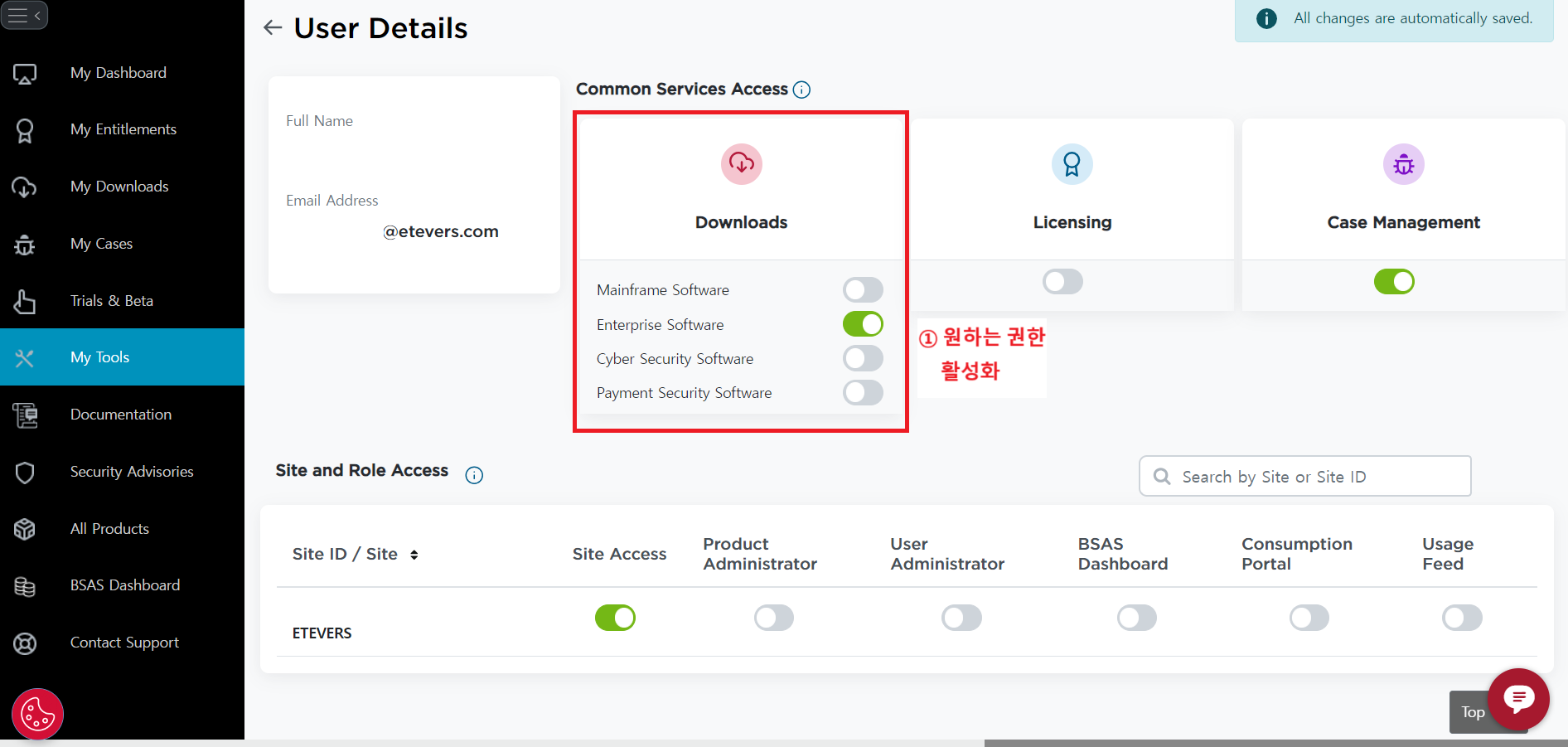
</td><td style="height: 29.6px;">- \[Downloads\] 부분에서 원하는 권한 부여 가능

<p class="callout info">다운로드 권한 외에 라이선스 접근, 케이스 오픈 권한, 제품 Admin 권한 등도 부여가 가능하다.</p>

</td></tr></tbody></table>

##