# Okta Verify 인증 설정 방법

## 개요

 서포트 포털 이용자가 Okta Verify를 통한 인증 환경을 구성하는 방법을 안내한 가이드 문서이다.

포탈 사용자는 해당 문서를 통해 다음과 같은 목적을 달성할 수 있다.

1. Broadcom Support Portal 내의 인증 메뉴 접속
2. Okta Verify 인증 환경 구성

---

### 대상 

<table border="1" id="bkmrk-%EB%8C%80%EC%83%81-%EC%83%81%ED%83%9C-%EB%B9%84%EA%B3%A0-%EC%84%B8%EC%9D%BC%EC%A6%88-%EA%B2%80%EC%88%98-%EC%97%94%EC%A7%80%EB%8B%88%EC%96%B4" style="border-collapse: collapse; width: 100%;"><colgroup><col style="width: 33.3731%;"></col><col style="width: 33.3731%;"></col><col style="width: 33.3731%;"></col></colgroup><thead><tr><td class="align-center">**상태**</td><td class="align-center">**대상**</td><td class="align-center">**범주**</td></tr></thead><tbody><tr><td><p class="callout success">검수</p>

</td><td class="align-center">서포트 포탈 유저</td><td class="align-center">LSR</td></tr></tbody></table>

---

## 내용

### Broadcom Support Portal 접속

<table border="1" id="bkmrk-%28%EA%B7%B8%EB%A6%BC%29-%EC%84%A4%EB%AA%85-%28%EA%B7%B8%EB%A6%BC%29-%EC%84%A4%EB%AA%85" style="border-collapse: collapse; width: 100%; height: 106.1px;"><colgroup><col style="width: 50.0477%;"></col><col style="width: 50.0477%;"></col></colgroup><tbody><tr style="height: 53.05px;"><td style="height: 53.05px;">[![image.png](https://bs.etevers.tech/uploads/images/gallery/2025-10/scaled-1680-/bb0image.png)](https://bs.etevers.tech/uploads/images/gallery/2025-10/bb0image.png)

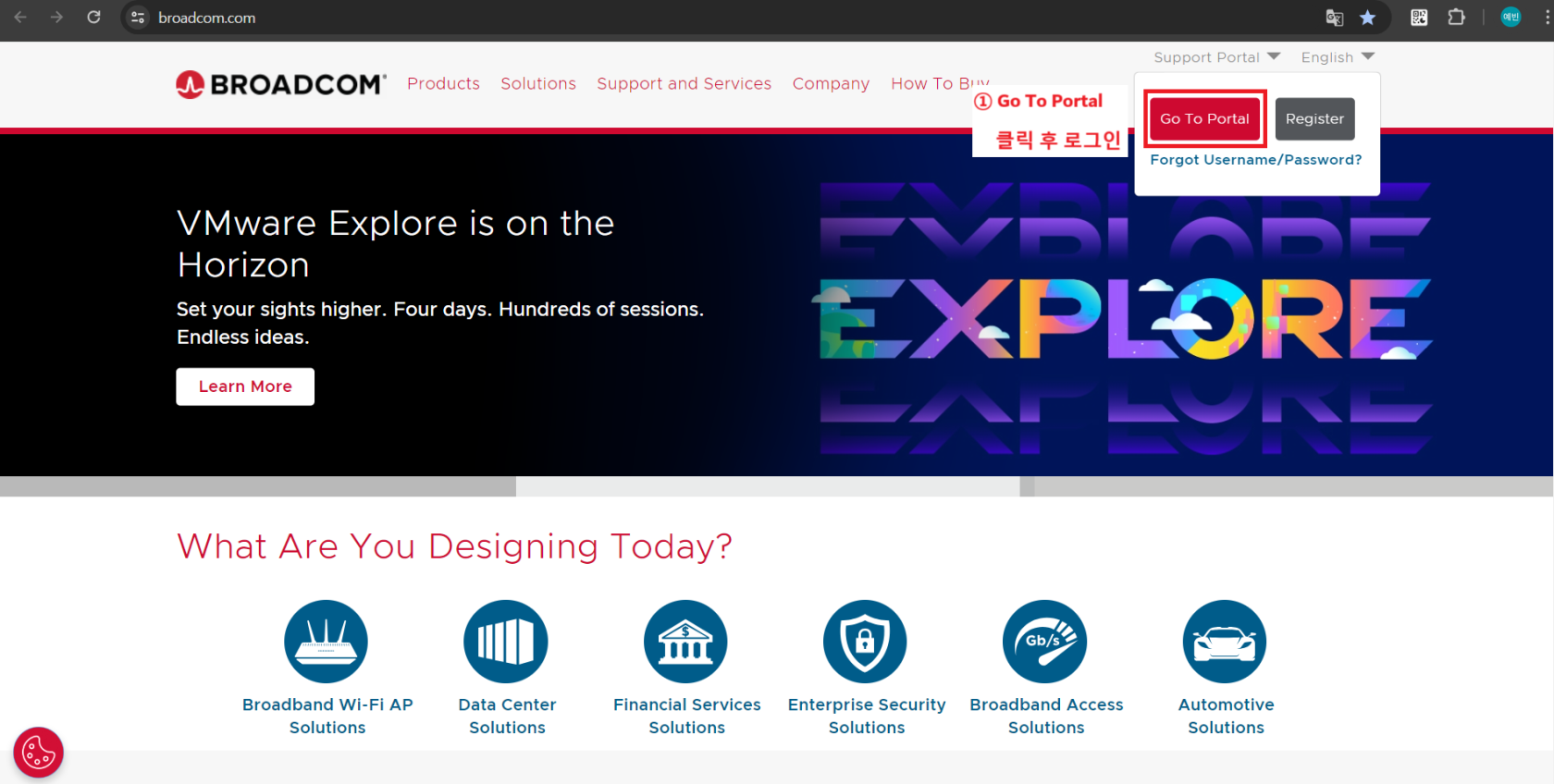
</td><td style="height: 53.05px;">- [https://broadcom.com/](https://broadcom.com/) 접속 후 로그인

</td></tr></tbody></table>

---

### Okta Verify 인증 설정

#### Portal 내의 설정 메뉴 접속 <span class="heading-anchor-wrapper" role="presentation"><button aria-describedby="_r1vg_-tooltip" aria-hidden="true" class="css-vhh4ux" data-testid="anchor-button" type="button"><span aria-label="Copy" class="_1e0c1o8l _vchhusvi _1o9zidpf _vwz4kb7n _y4ti1igz _bozg1mb9 _12va1onz _jcxd1r8n" role="img"><svg class="_1reo15vq _18m915vq _syaz1r31 _lcxvglyw _s7n4yfq0 _vc881r31 _1bsbpxbi _4t3ipxbi" fill="none" role="presentation" viewbox="0 0 16 16"><path clip-rule="evenodd" d="M8.22 2.22a3.932 3.932 0 1 1 5.56 5.56l-2.25 2.25-1.06-1.06 2.25-2.25a2.432 2.432 0 0 0-3.44-3.44L7.03 5.53 5.97 4.47zm3.06 3.56-5.5 5.5-1.06-1.06 5.5-5.5zM2.22 8.22l2.25-2.25 1.06 1.06-2.25 2.25a2.432 2.432 0 0 0 3.44 3.44l2.25-2.25 1.06 1.06-2.25 2.25a3.932 3.932 0 1 1-5.56-5.56" fill="currentcolor" fill-rule="evenodd"></path></svg></span></button></span>

<table border="1" id="bkmrk-%EC%9A%B0%EC%B8%A1-%EC%83%81%EB%8B%A8-%EC%9C%A0%EC%A0%80-%EC%9D%B4%EB%A6%84-%ED%81%B4%EB%A6%AD-%ED%9B%84-%5Bre" style="border-collapse: collapse; width: 100%; height: 2096.54px;"><colgroup><col style="width: 50.0477%;"></col><col style="width: 50.0477%;"></col></colgroup><tbody><tr style="height: 217.238px;"><td style="height: 217.238px;">[![image.png](https://bs.etevers.tech/uploads/images/gallery/2025-10/scaled-1680-/ZnJimage.png)](https://bs.etevers.tech/uploads/images/gallery/2025-10/ZnJimage.png)

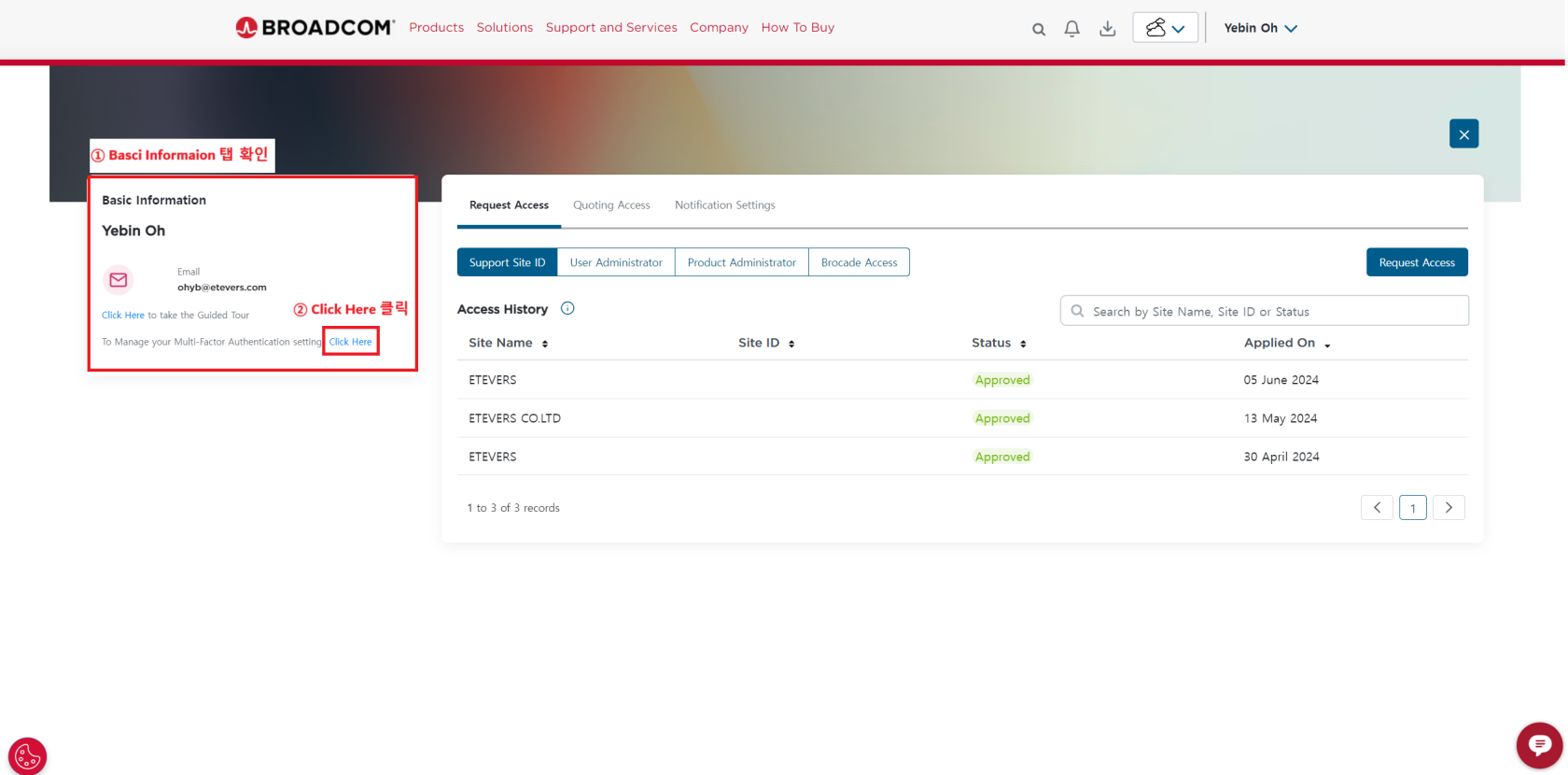
</td><td style="height: 217.238px;">- 우측 상단 유저 이름 클릭 후 \[Request Access\] 접속

</td></tr><tr style="height: 218.2px;"><td style="height: 218.2px;">[![image.png](https://bs.etevers.tech/uploads/images/gallery/2025-10/scaled-1680-/hk1image.png)](https://bs.etevers.tech/uploads/images/gallery/2025-10/hk1image.png)

</td><td style="height: 218.2px;">- 좌측 \[Basic Information\] &gt; \[Click Here\] 클릭

</td></tr><tr style="height: 218.438px;"><td style="height: 218.438px;">[![image.png](https://bs.etevers.tech/uploads/images/gallery/2025-10/scaled-1680-/GUrimage.png)](https://bs.etevers.tech/uploads/images/gallery/2025-10/GUrimage.png)

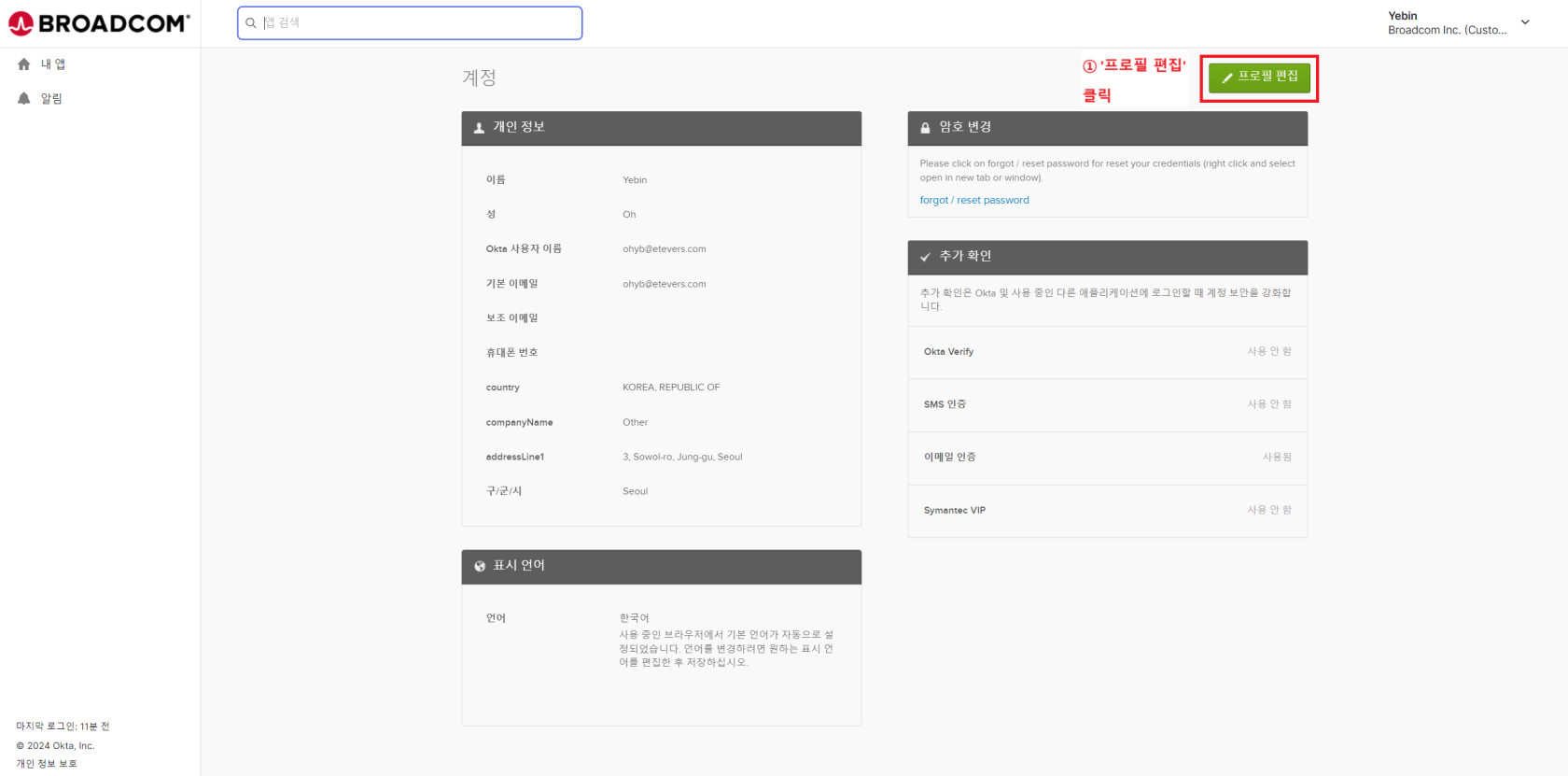
</td><td style="height: 218.438px;">- \[프로필 편집\] 클릭

</td></tr><tr style="height: 218.438px;"><td style="height: 218.438px;">[![image.png](https://bs.etevers.tech/uploads/images/gallery/2025-10/scaled-1680-/z3Timage.png)](https://bs.etevers.tech/uploads/images/gallery/2025-10/z3Timage.png)

</td><td style="height: 218.438px;">- Broadcom Support Portal 암호 입력

</td></tr><tr style="height: 220.35px;"><td style="height: 220.35px;">[![image.png](https://bs.etevers.tech/uploads/images/gallery/2025-10/scaled-1680-/soNimage.png)](https://bs.etevers.tech/uploads/images/gallery/2025-10/soNimage.png)

</td><td style="height: 220.35px;">- 이메일 인증 코드 입력

</td></tr><tr style="height: 232.825px;"><td style="height: 232.825px;">[![image.png](https://bs.etevers.tech/uploads/images/gallery/2025-10/scaled-1680-/QA7image.png)](https://bs.etevers.tech/uploads/images/gallery/2025-10/QA7image.png)

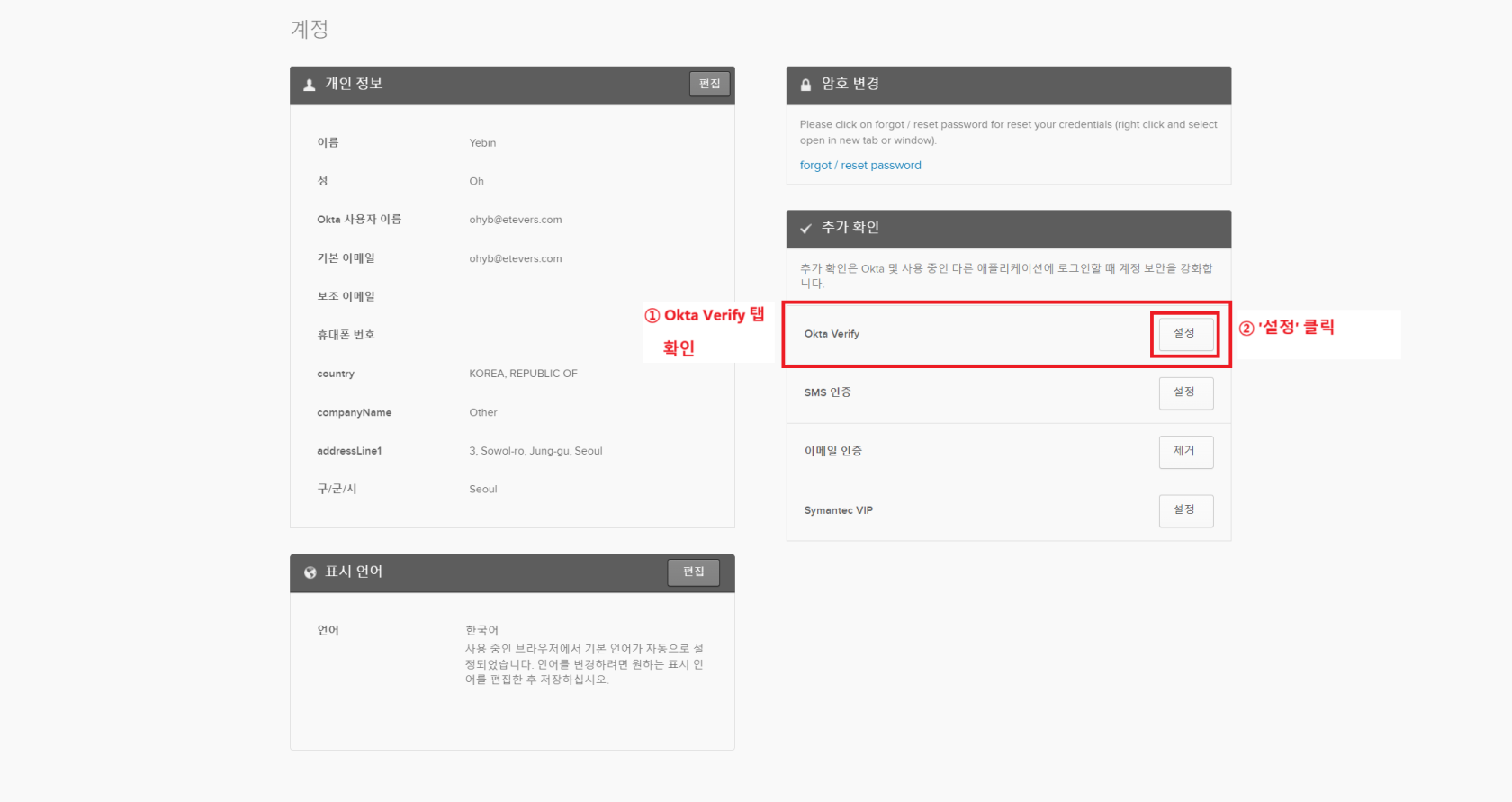
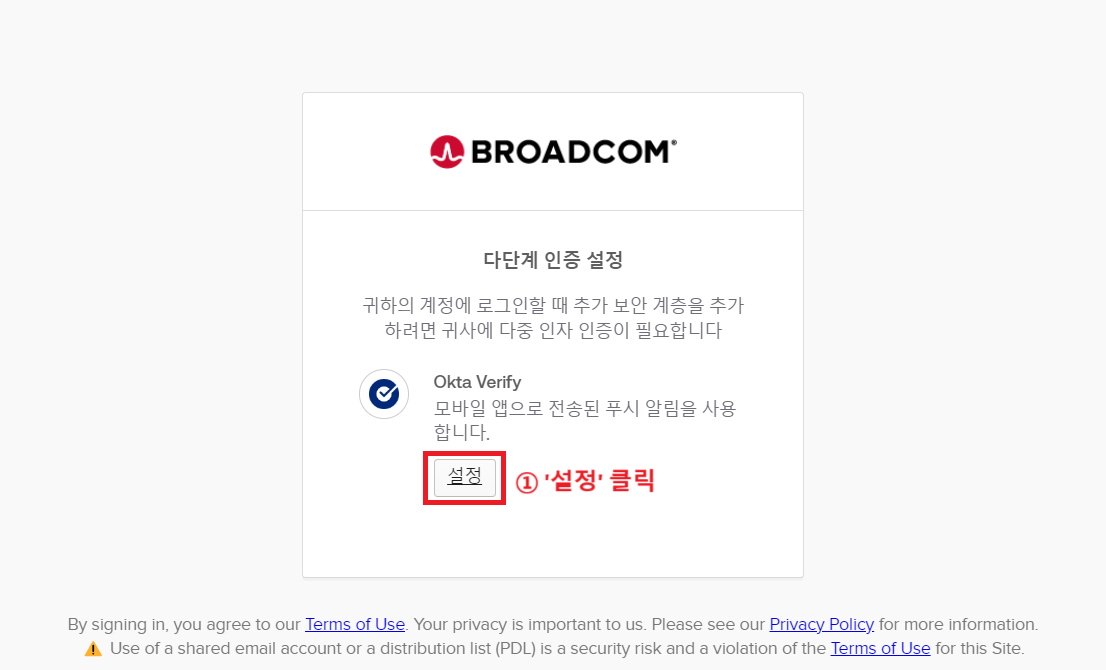
</td><td style="height: 232.825px;">- Okta Verify 부분 \[설정\] 클릭

</td></tr><tr style="height: 263.2px;"><td style="height: 263.2px;">[![image.png](https://bs.etevers.tech/uploads/images/gallery/2025-10/scaled-1680-/HDXimage.png)](https://bs.etevers.tech/uploads/images/gallery/2025-10/HDXimage.png)

</td><td style="height: 263.2px;">- \[설정\] 클릭

</td></tr><tr style="height: 248.325px;"><td style="height: 248.325px;">[![image.png](https://bs.etevers.tech/uploads/images/gallery/2025-10/scaled-1680-/nouimage.png)](https://bs.etevers.tech/uploads/images/gallery/2025-10/nouimage.png)

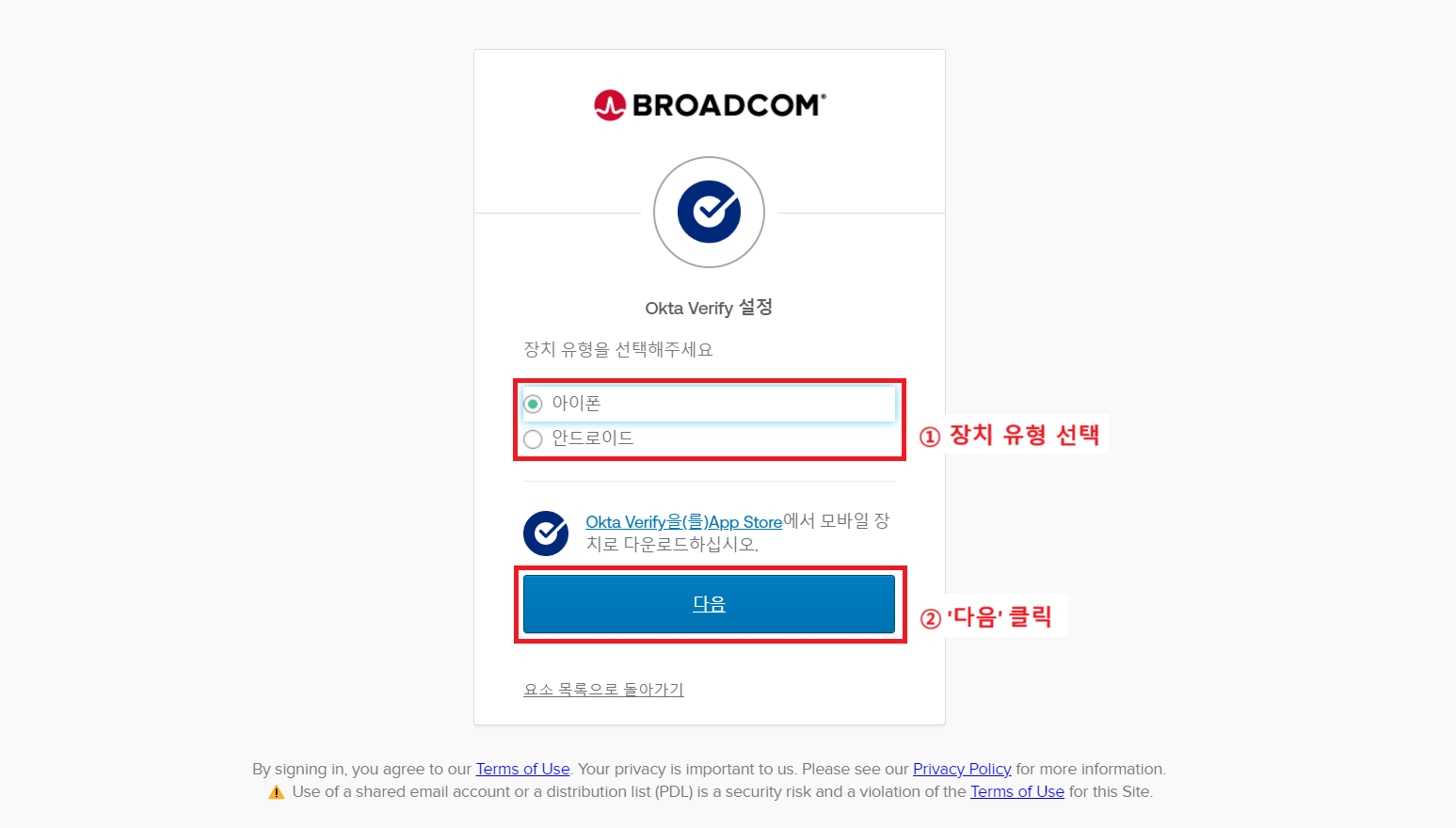
</td><td style="height: 248.325px;">- 장치 유형 선택 후 \[다음\] 클릭

</td></tr><tr style="height: 259.525px;"><td style="height: 259.525px;">[![image.png](https://bs.etevers.tech/uploads/images/gallery/2025-10/scaled-1680-/35qimage.png)](https://bs.etevers.tech/uploads/images/gallery/2025-10/35qimage.png)

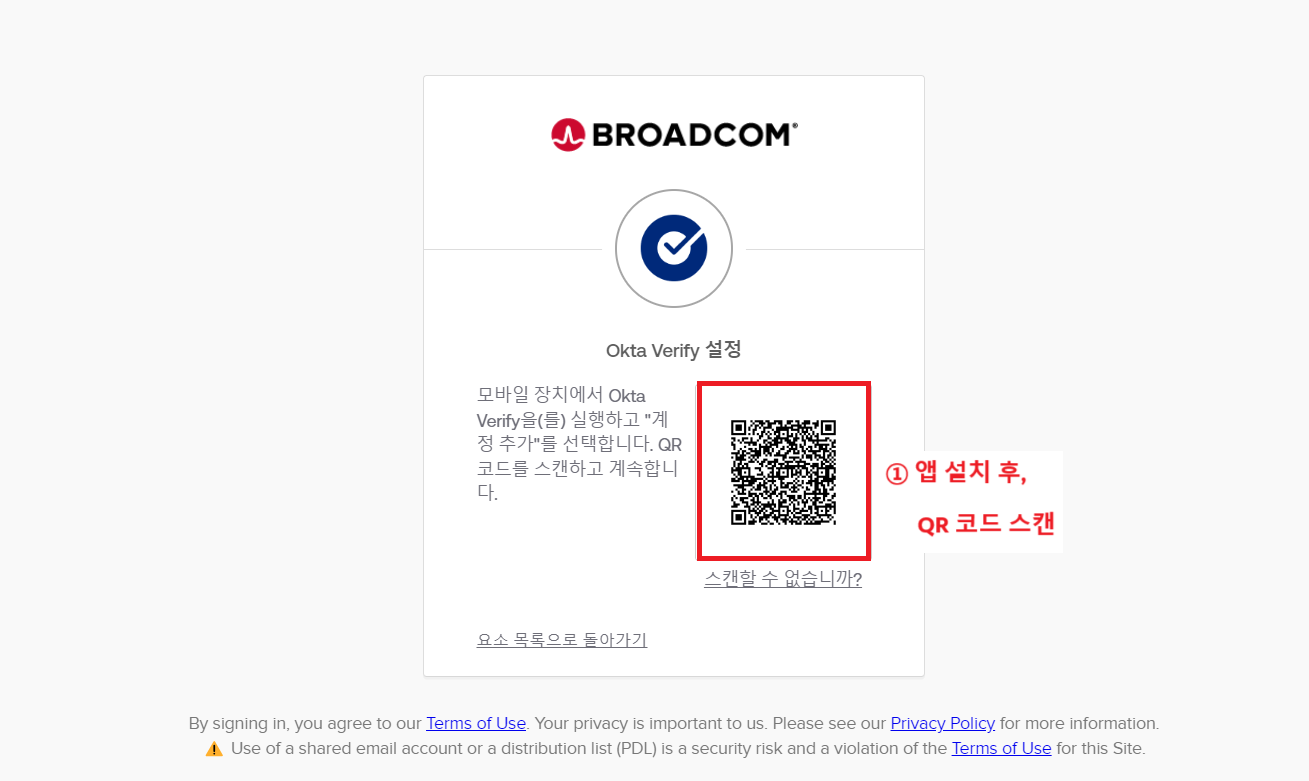
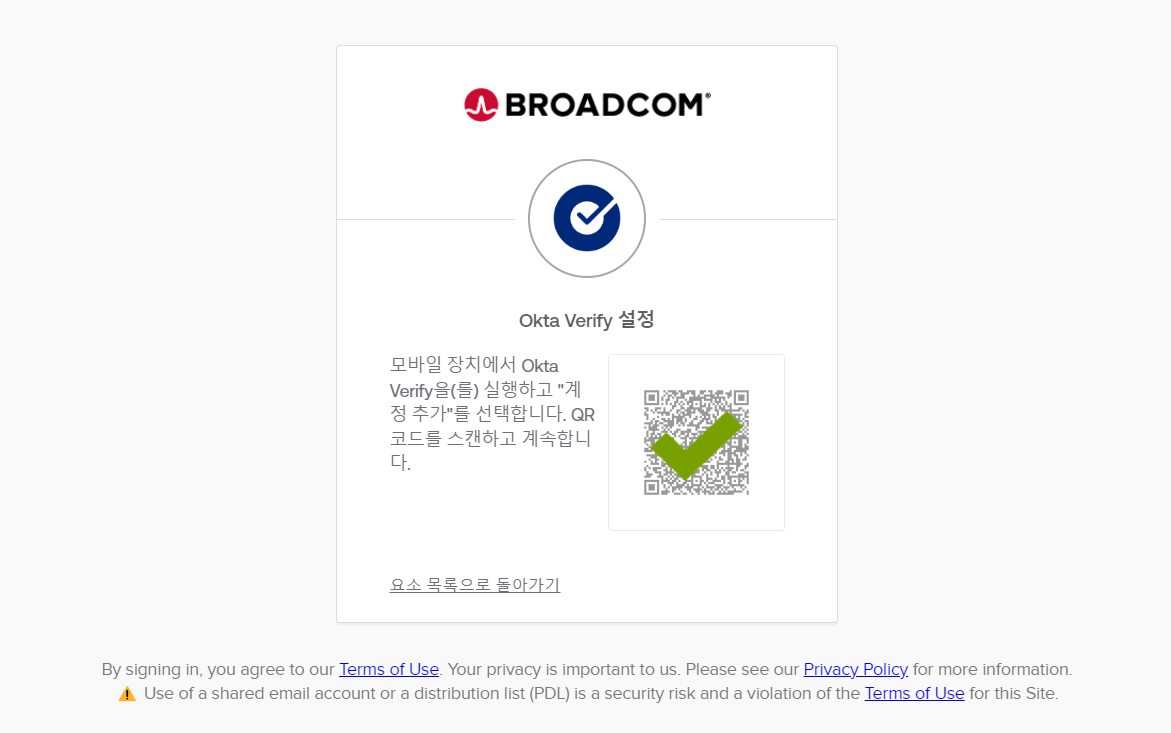
</td><td style="height: 259.525px;">- 계정 <span data-highlighted="true" data-vc="highlighted-text"><span class="_kqswh2mm"><span class="_5pioz8co _189e1dm9 _1il9buyh _19lc184f _d0altlke" data-testid="definition-highlighter">QR</span></span></span>코드 생성

</td></tr></tbody></table>

#### 앱 설치 및 설정

<table border="1" id="bkmrk-app-store-%ED%98%B9%EC%9D%80-google-" style="border-collapse: collapse; width: 100%; height: 2877.54px;"><colgroup><col style="width: 50.0477%;"></col><col style="width: 50.0477%;"></col></colgroup><tbody><tr style="height: 890.112px;"><td style="height: 890.112px;">[![image.png](https://bs.etevers.tech/uploads/images/gallery/2025-10/scaled-1680-/vX7image.png)](https://bs.etevers.tech/uploads/images/gallery/2025-10/vX7image.png)

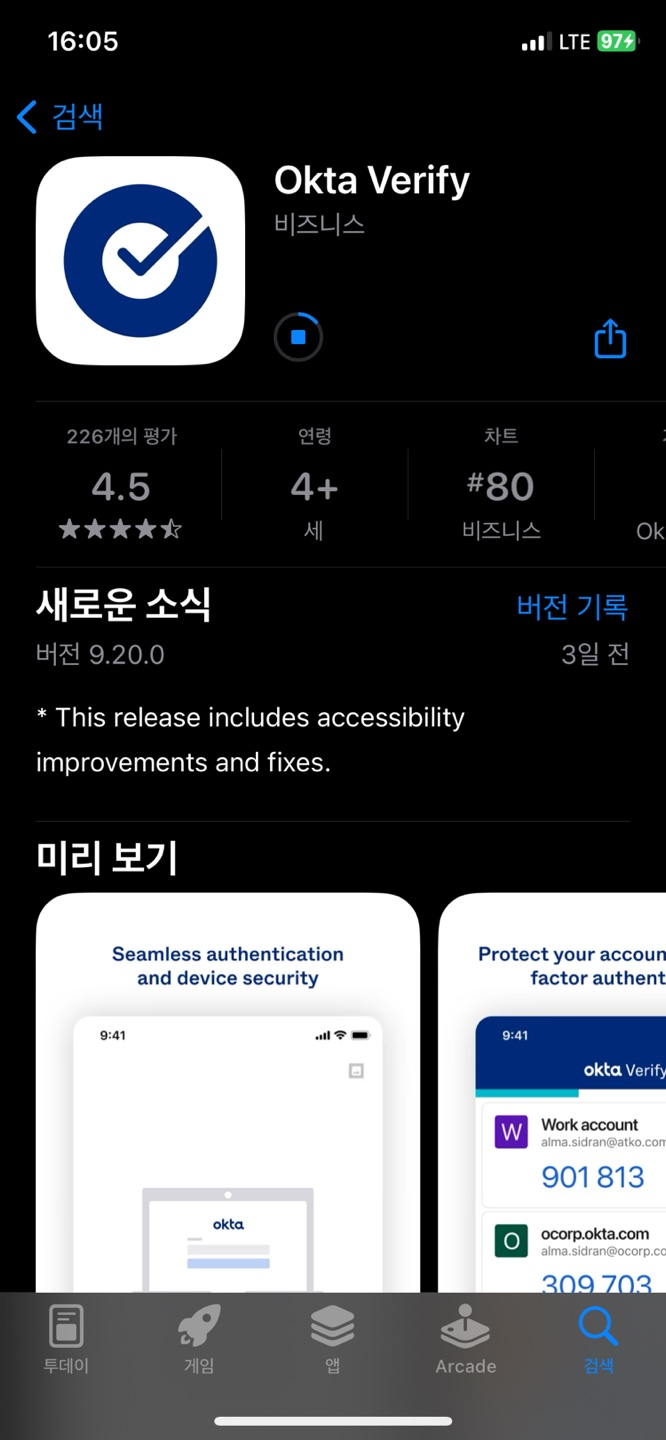
</td><td style="height: 890.112px;">- App Store 혹은 Google Play Store에서 \[Okta Verify\] 어플리케이션 다운로드
- App Store: <span data-annotation-inline-node="true" data-annotation-mark="true" data-card-url="https://apps.apple.com/us/app/okta-verify/id490179405" data-inline-card="true" data-renderer-start-pos="759"><span class="loader-wrapper"><span class="hover-card-trigger-wrapper" data-testid="hover-card-trigger-wrapper">[<span class="_19itglyw _vchhusvi _r06hglyw _o5721jtm _1nmz9jpi _16d9qvcn _ca0qv77o _u5f31b66 _n3tdv77o _19bv1b66" data-testid="inline-card-icon-and-title"><span class="_19itglyw _vchhusvi _r06hglyw">‎Okta Verify</span></span>](https://apps.apple.com/us/app/okta-verify/id490179405)</span></span></span>
- Google Play Store: <span data-annotation-inline-node="true" data-annotation-mark="true" data-card-url="https://play.google.com/store/apps/details?id=com.okta.android.auth&hl=en" data-inline-card="true" data-renderer-start-pos="784"><span class="loader-wrapper"><span class="hover-card-trigger-wrapper" data-testid="hover-card-trigger-wrapper">[<span class="_19itglyw _vchhusvi _r06hglyw _o5721jtm _1nmz9jpi _16d9qvcn _ca0qv77o _u5f31b66 _n3tdv77o _19bv1b66" data-testid="inline-card-icon-and-title"><span class="_19itglyw _vchhusvi _r06hglyw">Okta Verify - Apps on Google Play</span></span>](https://play.google.com/store/apps/details?id=com.okta.android.auth&hl=en)</span></span></span>

</td></tr><tr style="height: 890.112px;"><td style="height: 890.112px;">[![image.png](https://bs.etevers.tech/uploads/images/gallery/2025-10/scaled-1680-/6W6image.png)](https://bs.etevers.tech/uploads/images/gallery/2025-10/6W6image.png)

</td><td style="height: 890.112px;">- \[계정 추가\] 클릭

</td></tr><tr style="height: 890.112px;"><td style="height: 890.112px;">[![image.png](https://bs.etevers.tech/uploads/images/gallery/2025-10/scaled-1680-/3ujimage.png)](https://bs.etevers.tech/uploads/images/gallery/2025-10/3ujimage.png)

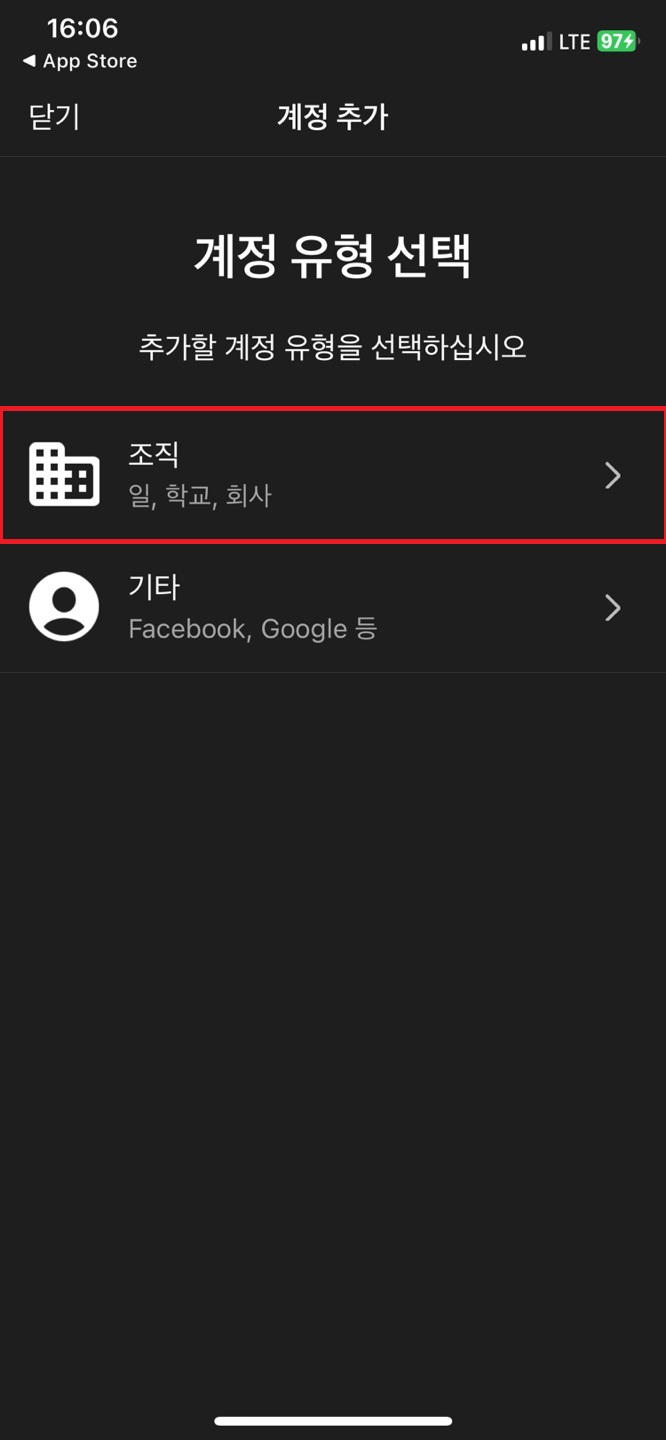
</td><td style="height: 890.112px;">- 계정 유형 \[조직\] 선택

</td></tr><tr style="height: 29.6px;"><td style="height: 29.6px;">[![image.png](https://bs.etevers.tech/uploads/images/gallery/2025-10/scaled-1680-/BnFimage.png)](https://bs.etevers.tech/uploads/images/gallery/2025-10/BnFimage.png)

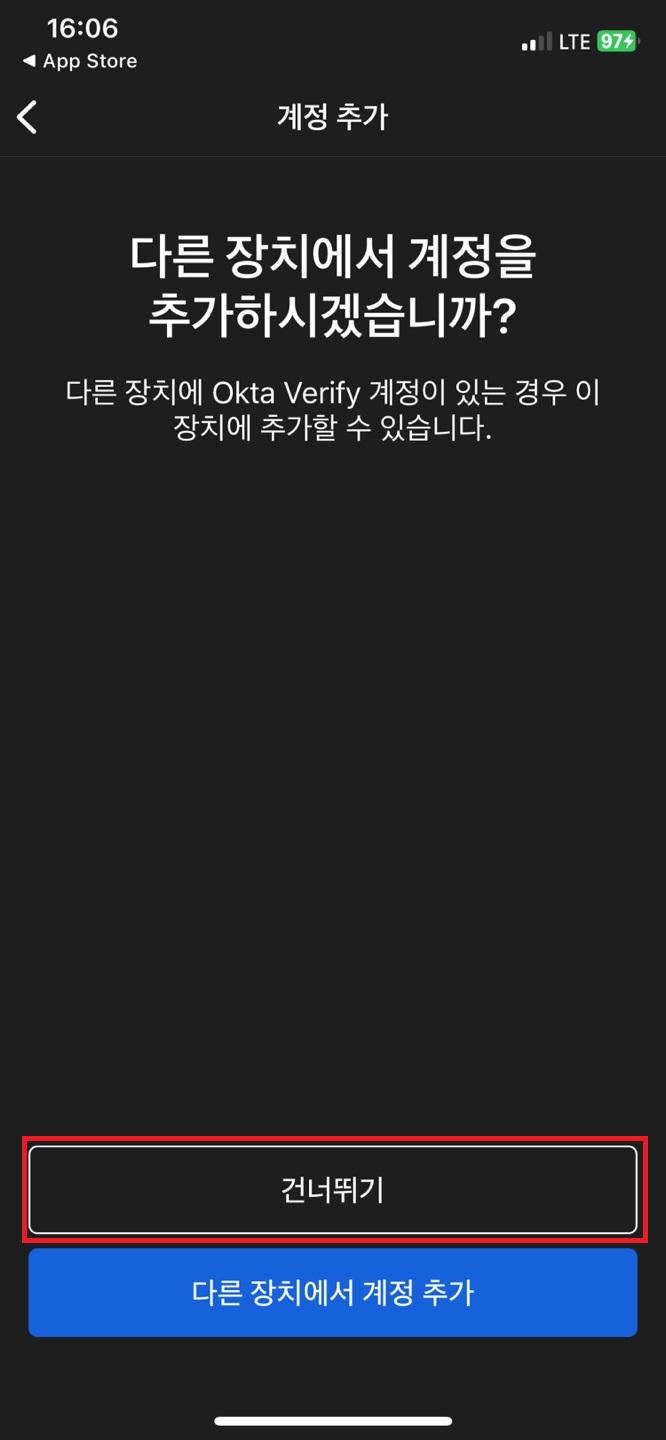
</td><td style="height: 29.6px;">- \[건너뛰기\] 클릭

</td></tr><tr style="height: 29.6px;"><td style="height: 29.6px;">[![image.png](https://bs.etevers.tech/uploads/images/gallery/2025-10/scaled-1680-/kORimage.png)](https://bs.etevers.tech/uploads/images/gallery/2025-10/kORimage.png)

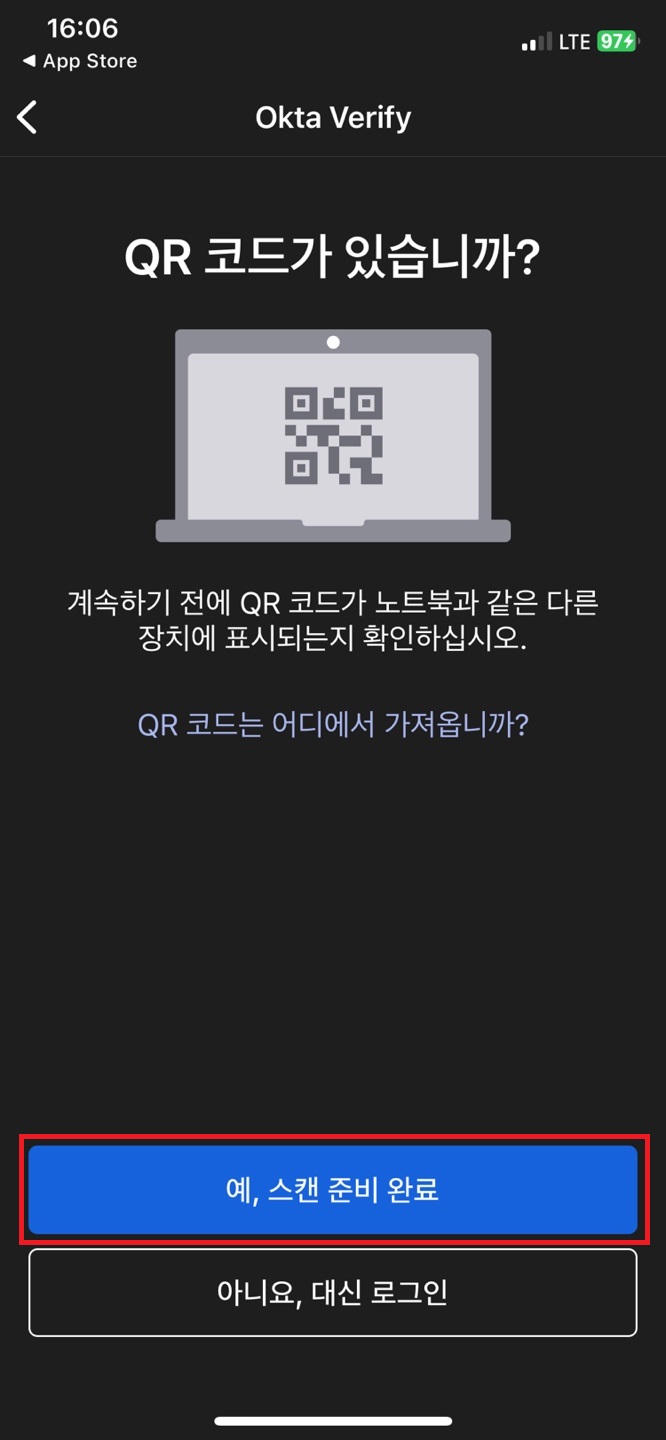
</td><td style="height: 29.6px;">- \[예, 스캔 준비 완료\] 클릭

</td></tr><tr style="height: 29.6px;"><td style="height: 29.6px;">[![image.png](https://bs.etevers.tech/uploads/images/gallery/2025-10/scaled-1680-/IfPimage.png)](https://bs.etevers.tech/uploads/images/gallery/2025-10/IfPimage.png)

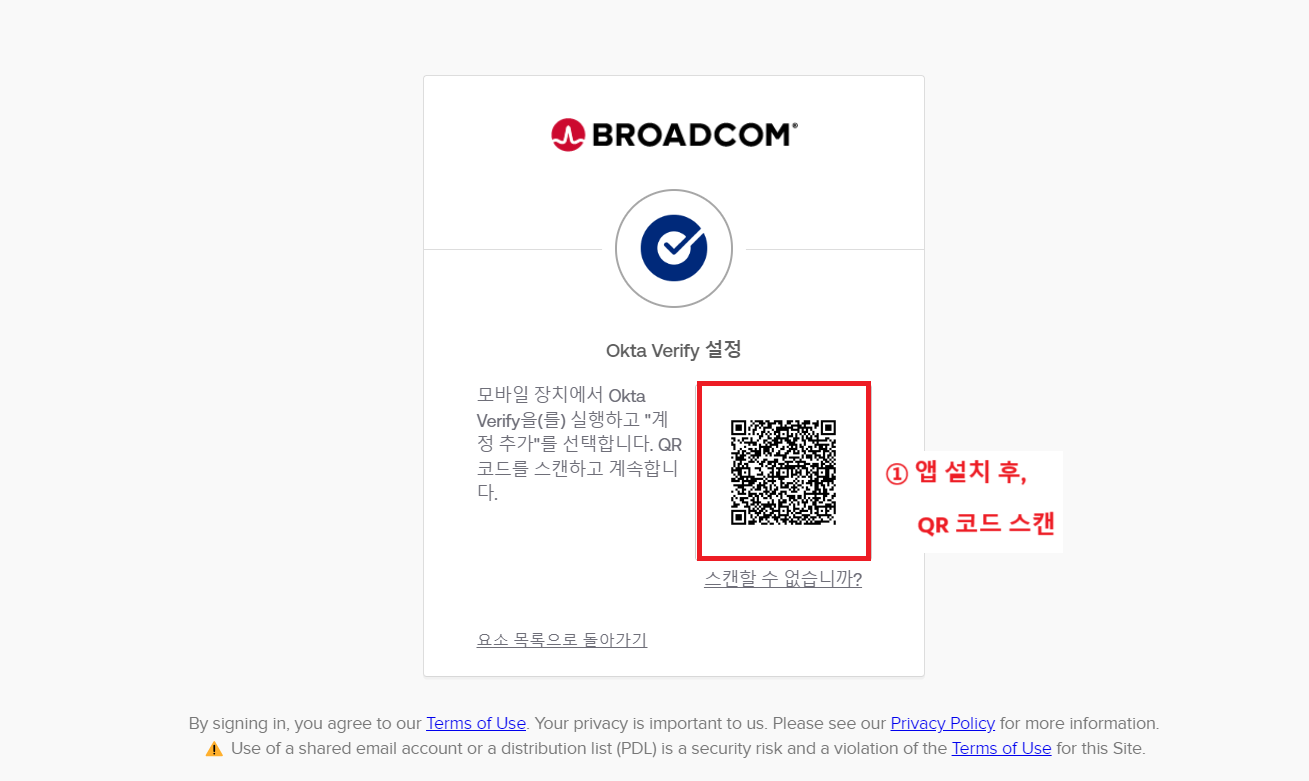
</td><td style="height: 29.6px;">- Broadcom Support Portal 화면의 <span data-highlighted="true" data-vc="highlighted-text">QR</span> 코드 스캔

[![image.png](https://bs.etevers.tech/uploads/images/gallery/2025-10/scaled-1680-/B75image.png)](https://bs.etevers.tech/uploads/images/gallery/2025-10/B75image.png)

</td></tr><tr style="height: 29.6px;"><td style="height: 29.6px;">[![image.png](https://bs.etevers.tech/uploads/images/gallery/2025-10/scaled-1680-/HFzimage.png)](https://bs.etevers.tech/uploads/images/gallery/2025-10/HFzimage.png)

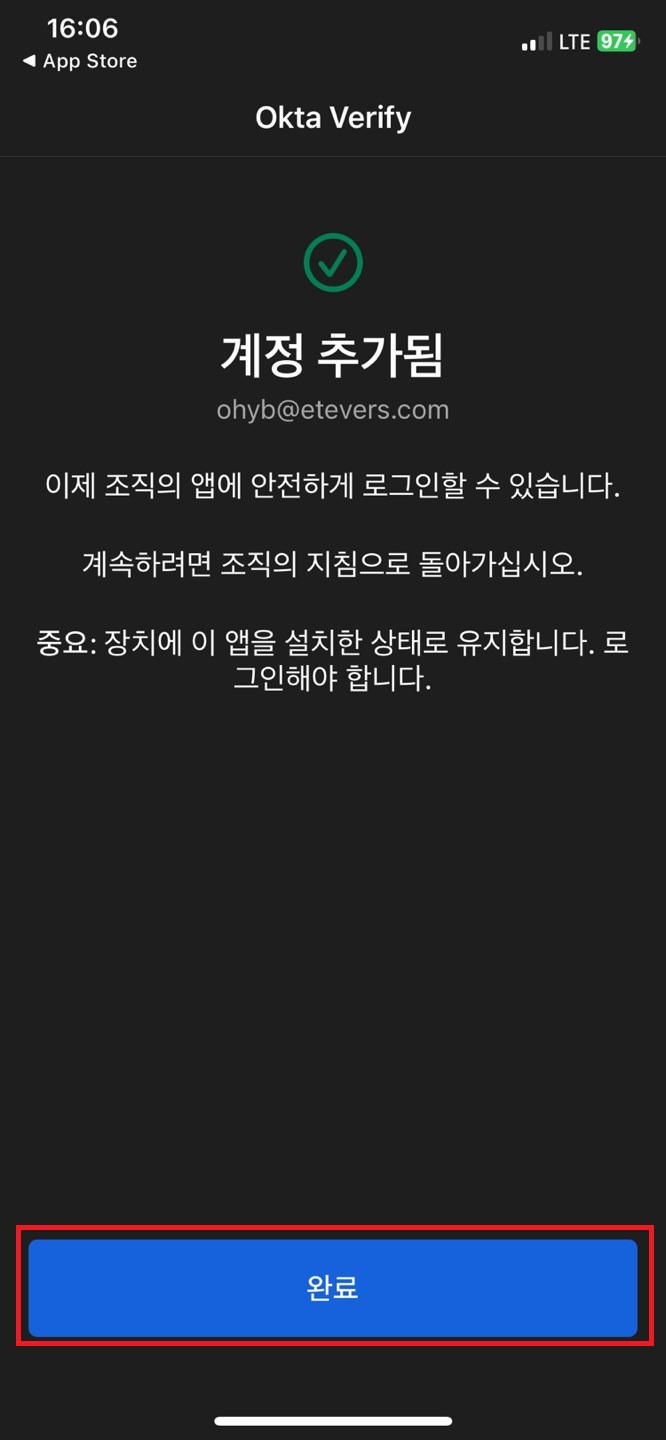
</td><td style="height: 29.6px;">- <span data-highlighted="true" data-vc="highlighted-text">QR</span> 코드 정상적으로 인식 완료

</td></tr><tr style="height: 29.6px;"><td style="height: 29.6px;">[![image.png](https://bs.etevers.tech/uploads/images/gallery/2025-10/scaled-1680-/294image.png)](https://bs.etevers.tech/uploads/images/gallery/2025-10/294image.png)

</td><td style="height: 29.6px;">- \[완료\] 클릭

</td></tr><tr style="height: 29.6px;"><td style="height: 29.6px;">[![image.png](https://bs.etevers.tech/uploads/images/gallery/2025-10/scaled-1680-/AjFimage.png)](https://bs.etevers.tech/uploads/images/gallery/2025-10/AjFimage.png)

</td><td style="height: 29.6px;">- Broadcom Support Portal 로그인 인증 코드 생성 완료

</td></tr></tbody></table>

---

<table border="1" id="bkmrk-%EB%A1%9C%EA%B7%B8%EC%9D%B8-%EC%8B%9C%2C-okta-%EC%9D%B8%EC%A6%9D-%EA%B0%80%EB%8A%A5-%ED%91%B8%EC%8B%9C" style="border-collapse: collapse; width: 100%; height: 2877.54px;"><colgroup><col style="width: 50.0477%;"></col><col style="width: 50.0477%;"></col></colgroup><tbody><tr style="height: 29.6px;"><td style="height: 29.6px;">[![image.png](https://bs.etevers.tech/uploads/images/gallery/2025-10/scaled-1680-/JrAimage.png)](https://bs.etevers.tech/uploads/images/gallery/2025-10/JrAimage.png)

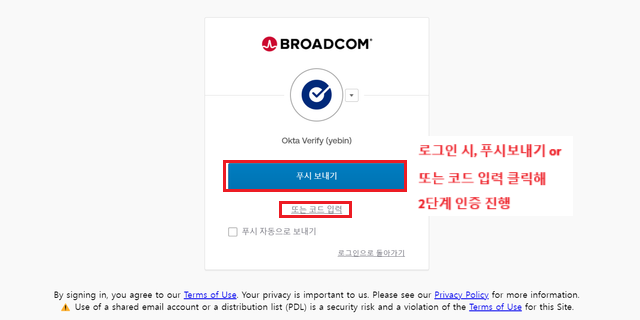
</td><td style="height: 29.6px;">- 로그인 시, Okta 인증 가능
- 푸시 보내기: 앱으로 푸시 알림 후, 수락 버튼으로 인증
- 또는 코드 입력: Okat Verify 앱내의 숫자 코드(위 단계에서 보였던 6자리 숫자)인증

</td></tr></tbody></table>

##