# 교육 포탈 접속 및 기술 자격 확인

## 개요

 서포트 포털 이용자가 Broadcom의 교육 포털인 Learning@Broadcom 사이트를 이용하는 방법을 담은 가이드 문서이다.

포탈 사용자는 해당 문서를 통해 다음과 같은 지식을 얻을 수 있다.

1. Learning@Broadcom 접속 방법
2. 기술 자격 사항 확인 방법

---

### 대상 

<table border="1" id="bkmrk-%EB%8C%80%EC%83%81-%EC%83%81%ED%83%9C-%EB%B9%84%EA%B3%A0-%EC%84%B8%EC%9D%BC%EC%A6%88-%EA%B2%80%EC%88%98-%EC%97%94%EC%A7%80%EB%8B%88%EC%96%B4" style="border-collapse: collapse; width: 100%;"><colgroup><col style="width: 33.3731%;"></col><col style="width: 33.3731%;"></col><col style="width: 33.3731%;"></col></colgroup><thead><tr><td class="align-center">**상태**</td><td class="align-center">**대상**</td><td class="align-center">**범주**</td></tr></thead><tbody><tr><td><p class="callout success">검수</p>

</td><td class="align-center">브로드컴 파트너</td><td class="align-center">파트너 공지</td></tr></tbody></table>

---

## 내용

### Broadcom Support Portal 접속 <span class="heading-anchor-wrapper" role="presentation"><button aria-describedby="_r3no_-tooltip" aria-hidden="true" class="css-vhh4ux" data-testid="anchor-button" type="button"><span aria-label="Copy" class="_1e0c1o8l _vchhusvi _1o9zidpf _vwz4kb7n _y4ti1igz _bozg1mb9 _12va1onz _jcxd1r8n" role="img"><svg class="_1reo15vq _18m915vq _syaz1r31 _lcxvglyw _s7n4yfq0 _vc881r31 _1bsbpxbi _4t3ipxbi" fill="none" role="presentation" viewbox="0 0 16 16"><path clip-rule="evenodd" d="M8.22 2.22a3.932 3.932 0 1 1 5.56 5.56l-2.25 2.25-1.06-1.06 2.25-2.25a2.432 2.432 0 0 0-3.44-3.44L7.03 5.53 5.97 4.47zm3.06 3.56-5.5 5.5-1.06-1.06 5.5-5.5zM2.22 8.22l2.25-2.25 1.06 1.06-2.25 2.25a2.432 2.432 0 0 0 3.44 3.44l2.25-2.25 1.06 1.06-2.25 2.25a3.932 3.932 0 1 1-5.56-5.56" fill="currentcolor" fill-rule="evenodd"></path></svg></span></button></span>

<table border="1" id="bkmrk-%28%EA%B7%B8%EB%A6%BC%29-%EC%84%A4%EB%AA%85-%28%EA%B7%B8%EB%A6%BC%29-%EC%84%A4%EB%AA%85" style="border-collapse: collapse; width: 100%; height: 104.1px;"><colgroup><col style="width: 50.0596%;"></col><col style="width: 50.0596%;"></col></colgroup><tbody><tr style="height: 53.05px;"><td style="height: 53.05px;">[![image.png](https://bs.etevers.tech/uploads/images/gallery/2025-10/scaled-1680-/8RKimage.png)](https://bs.etevers.tech/uploads/images/gallery/2025-10/8RKimage.png)

</td><td style="height: 53.05px;">- <span data-annotation-inline-node="true" data-annotation-mark="true" data-card-url="https://broadcom.com/" data-inline-card="true" data-renderer-start-pos="294"><span class="loader-wrapper"><span class="hover-card-trigger-wrapper" data-testid="hover-card-trigger-wrapper">[<span class="_19itglyw _vchhusvi _r06hglyw _o5721jtm _1nmz9jpi _16d9qvcn _ca0qv77o _u5f31b66 _n3tdv77o _19bv1b66" data-testid="inline-card-icon-and-title"><span class="_19itglyw _vchhusvi _r06hglyw">Broadcom Inc. | Connecting Everything</span></span>](https://broadcom.com/)</span></span></span> 접속 후 로그인

</td></tr></tbody></table>

#### Learning@Broadcom 접속

<table border="1" id="bkmrk-%EB%A1%9C%EA%B7%B8%EC%9D%B8-%ED%9B%84%2C-my-dashboard-" style="border-collapse: collapse; width: 100%; height: 104.1px;"><colgroup><col style="width: 50.0596%;"></col><col style="width: 50.0596%;"></col></colgroup><tbody><tr style="height: 53.05px;"><td style="height: 53.05px;">[![image.png](https://bs.etevers.tech/uploads/images/gallery/2025-10/scaled-1680-/YdTimage.png)](https://bs.etevers.tech/uploads/images/gallery/2025-10/YdTimage.png)

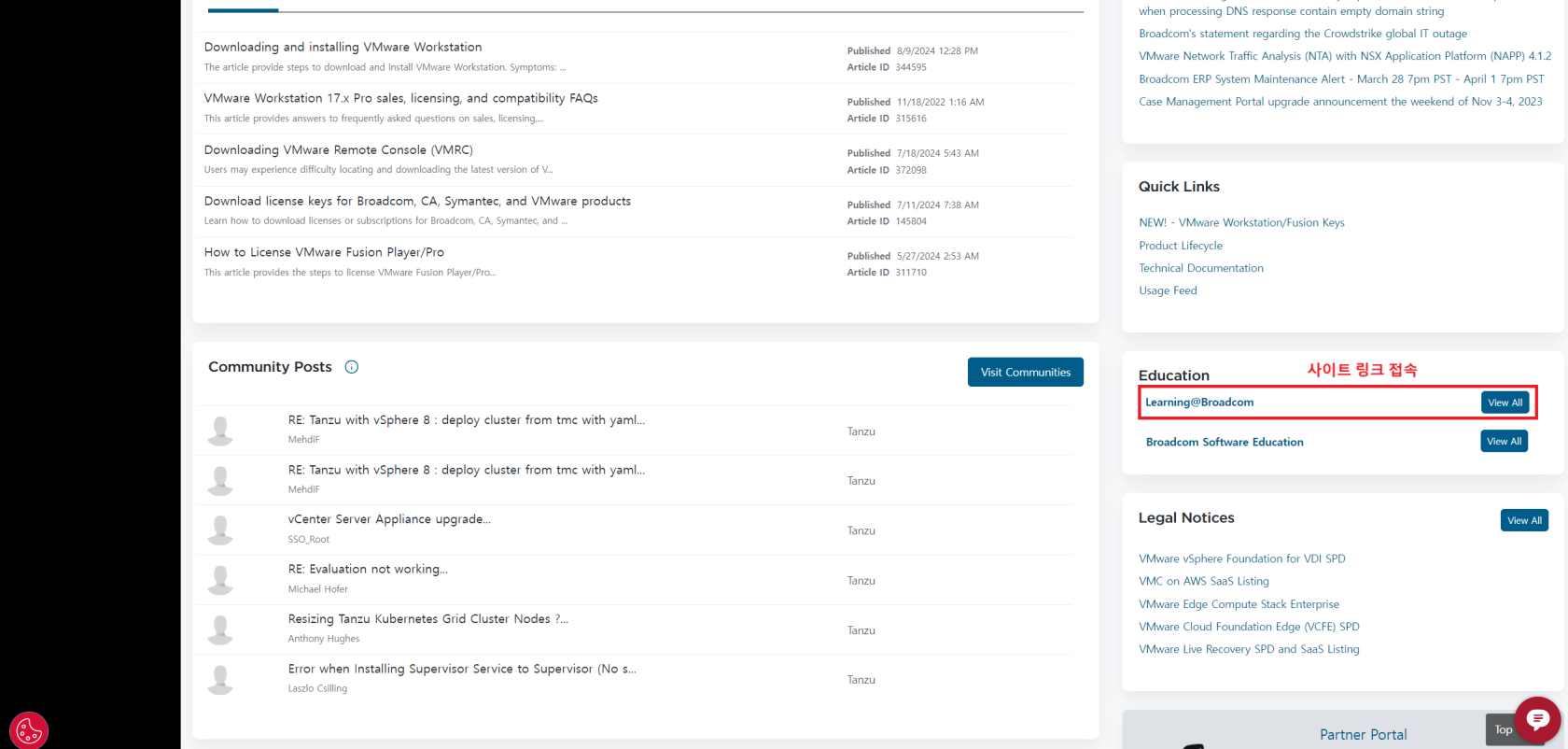
</td><td style="height: 53.05px;">- 로그인 후, My Dashboard 창에서 스크롤 내린 후, \[Education\] &gt; \[Learning@Broadcom\] 링크 클릭

</td></tr><tr><td>[![image.png](https://bs.etevers.tech/uploads/images/gallery/2025-10/scaled-1680-/gssimage.png)](https://bs.etevers.tech/uploads/images/gallery/2025-10/gssimage.png)

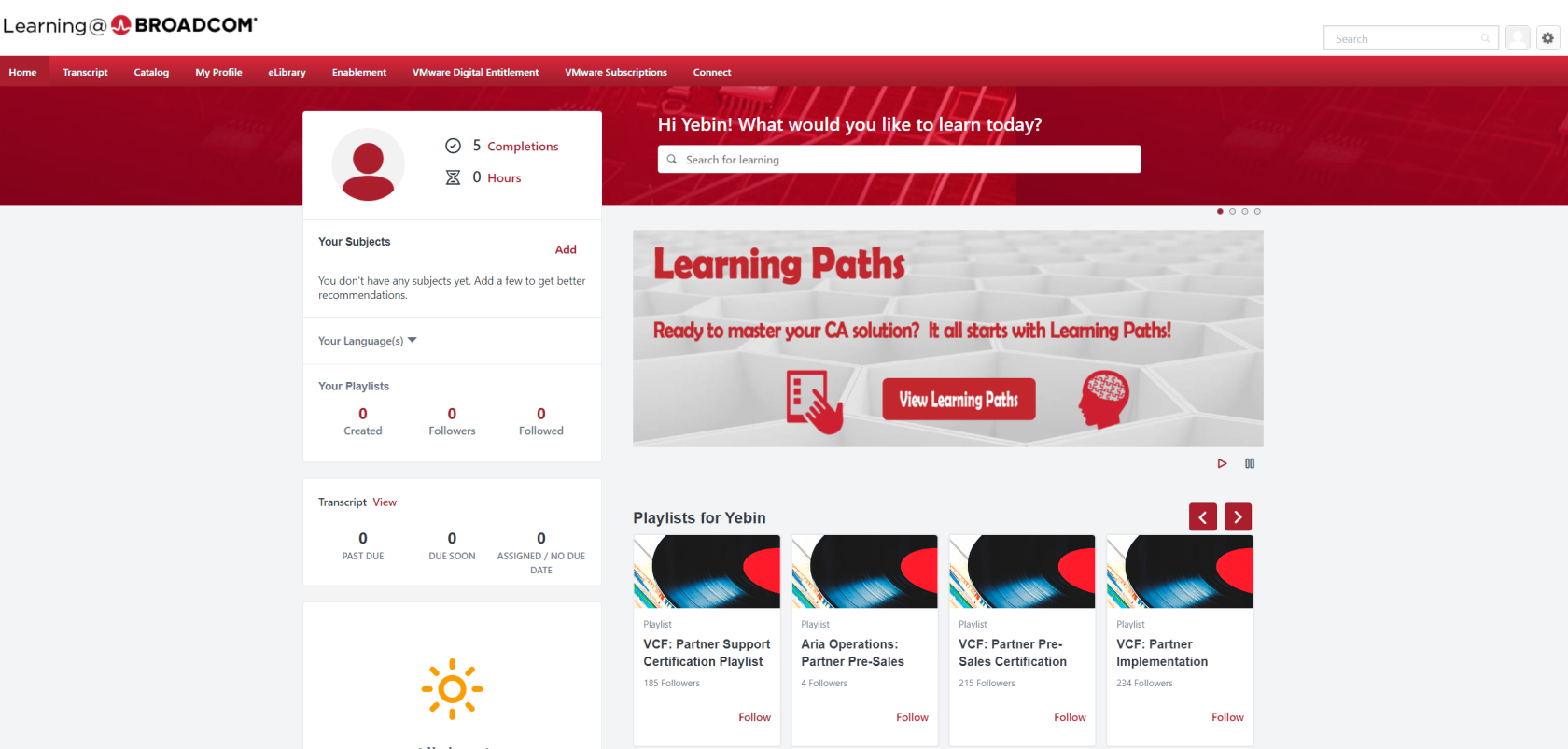
</td><td>- Learning@Broadcom 사이트 메인 화면

</td></tr><tr><td>[![image.png](https://bs.etevers.tech/uploads/images/gallery/2025-10/scaled-1680-/K7jimage.png)](https://bs.etevers.tech/uploads/images/gallery/2025-10/K7jimage.png)

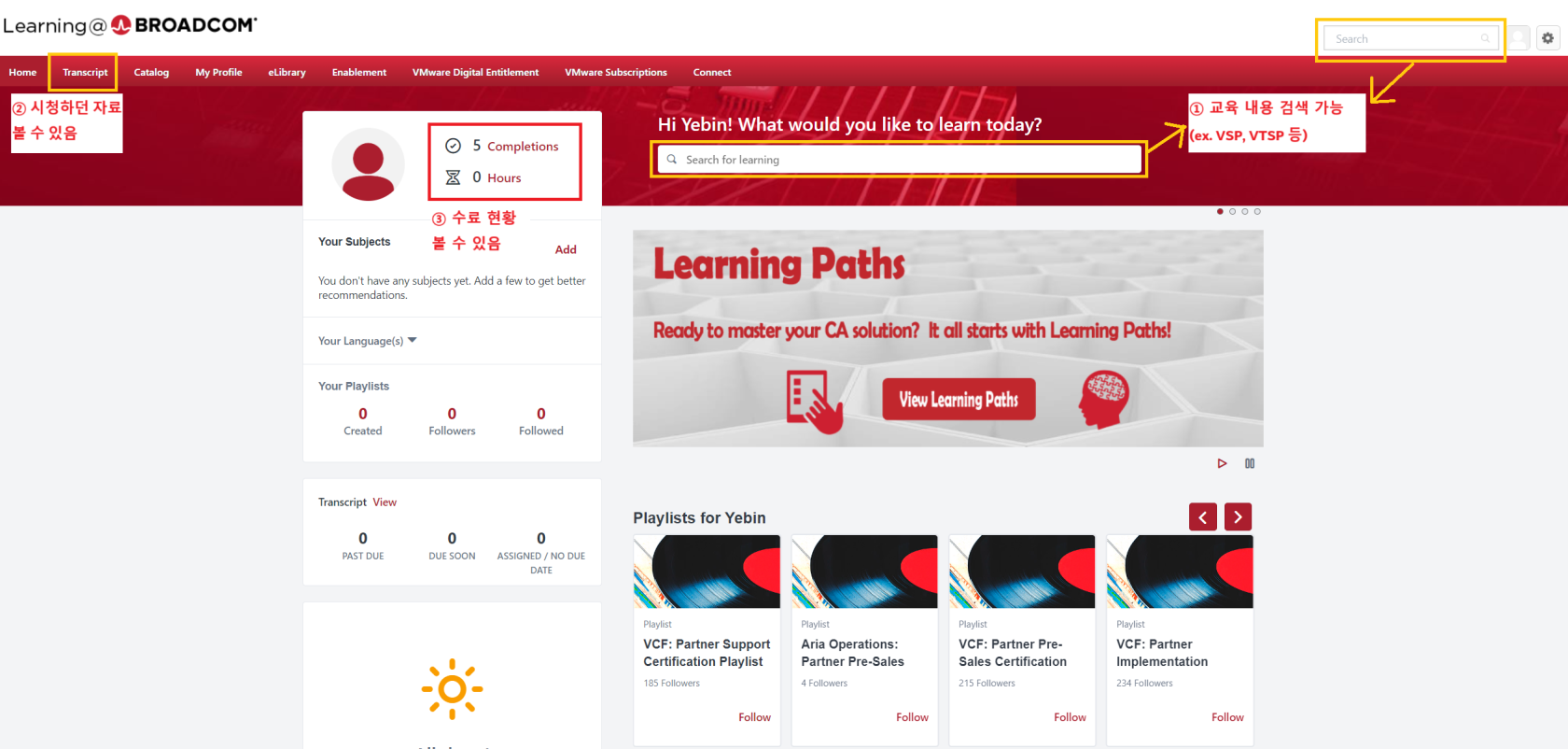
</td><td>- 주요 기능
    
    
    - 중앙/우측 상단 검색 기능을 통해 자료 찾기
    - 좌측 상단 \[Transcript\]에서 시청하던 자료 기록됨
    - 중앙 프로필 부분에서 수료 현황 확인 가능

</td></tr></tbody></table>

---

### 자격 사항 확인 방법

<table border="1" id="bkmrk-certmetrics-%EC%82%AC%EC%9D%B4%ED%8A%B8-%EC%A0%91%EA%B7%BC%3A-" style="border-collapse: collapse; width: 100%; height: 280.037px;"><colgroup><col style="width: 50.0596%;"></col><col style="width: 50.0596%;"></col></colgroup><tbody><tr style="height: 220.837px;"><td style="height: 220.837px;">[![image.png](https://bs.etevers.tech/uploads/images/gallery/2025-10/scaled-1680-/kn8image.png)](https://bs.etevers.tech/uploads/images/gallery/2025-10/kn8image.png)

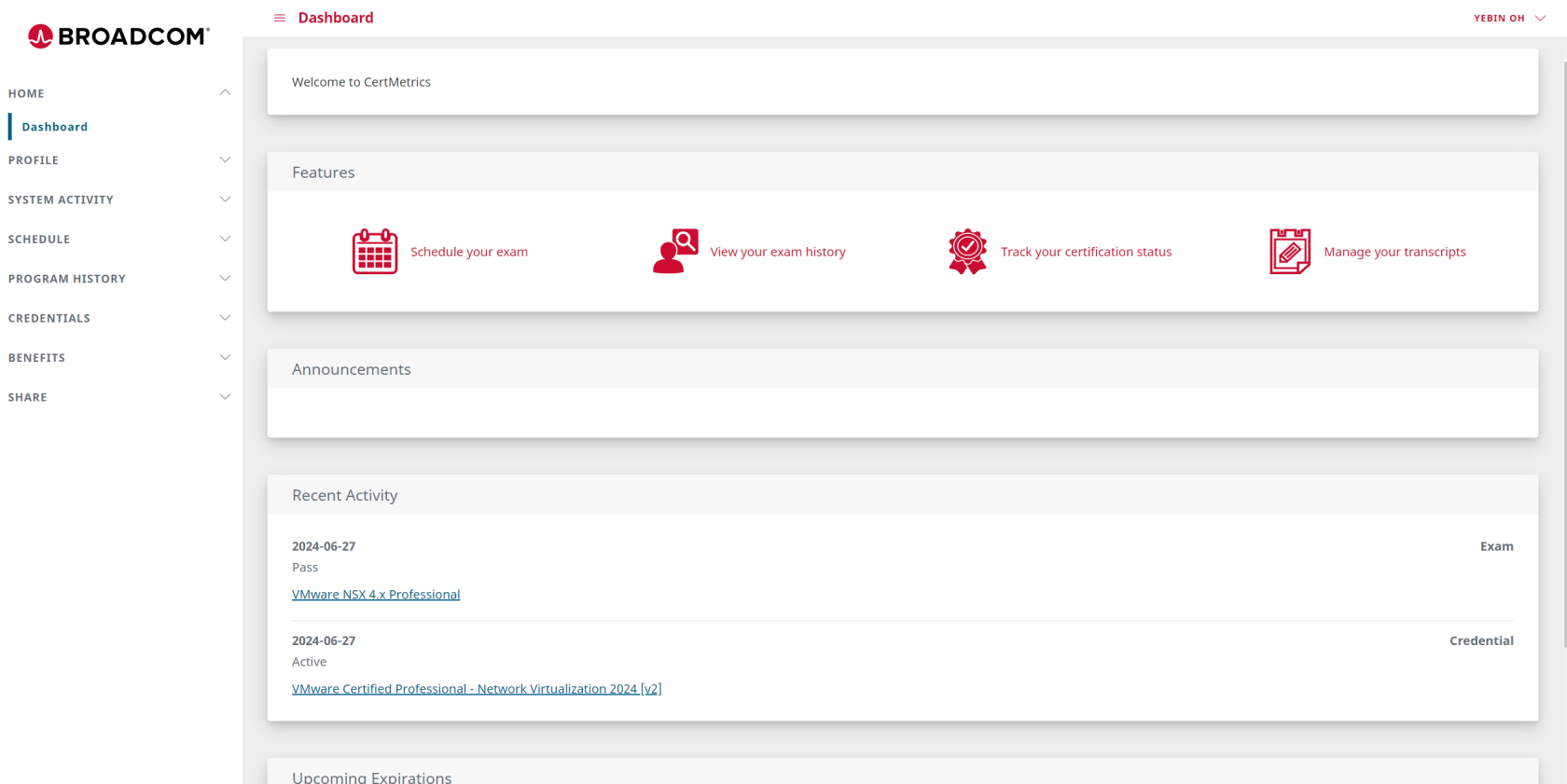
</td><td style="height: 220.837px;">- CertMetrics 사이트 접근: <span data-annotation-inline-node="true" data-annotation-mark="true" data-card-url="https://cp.certmetrics.com/vmware/en/" data-inline-card="true" data-renderer-start-pos="624"><span class="loader-wrapper"><span class="hover-card-trigger-wrapper" data-testid="hover-card-trigger-wrapper">[<span class="_19itglyw _vchhusvi _r06hglyw _o5721jtm _1nmz9jpi _16d9qvcn _ca0qv77o _u5f31b66 _n3tdv77o _19bv1b66" data-testid="inline-card-icon-and-title"><span class="_19itglyw _vchhusvi _r06hglyw">Certmetrics Candidate Portal</span></span>](https://cp.certmetrics.com/vmware/en/)</span></span></span>
- 자격을 획득한 계정으로 로그인하면 대시보드 화면으로 접속

</td></tr><tr style="height: 29.6px;"><td style="height: 29.6px;">[![image.png](https://bs.etevers.tech/uploads/images/gallery/2025-10/scaled-1680-/dJfimage.png)](https://bs.etevers.tech/uploads/images/gallery/2025-10/dJfimage.png)

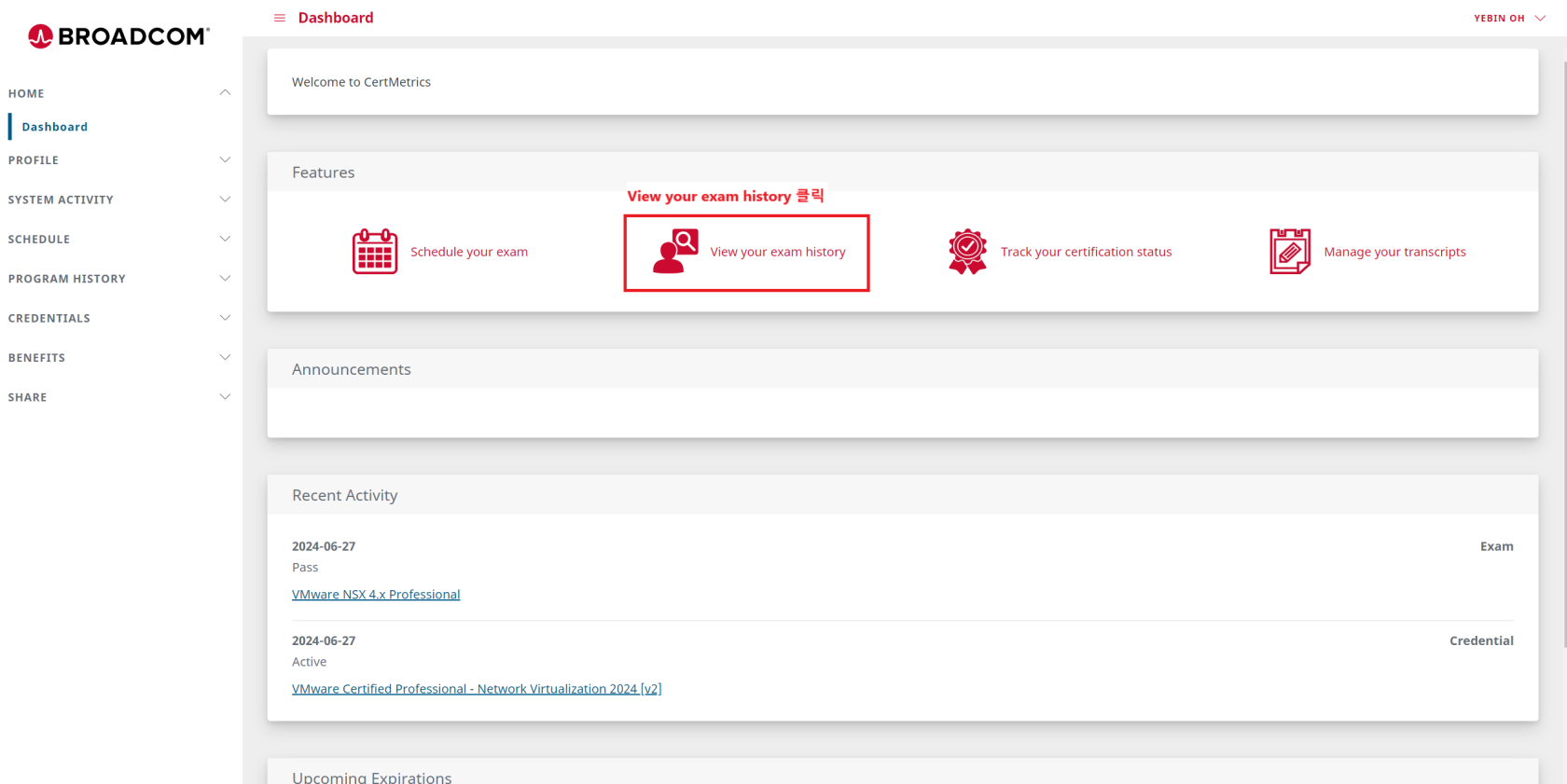
</td><td style="height: 29.6px;">- \[View your exam history\] 클릭

</td></tr><tr style="height: 29.6px;"><td style="height: 29.6px;">[![image.png](https://bs.etevers.tech/uploads/images/gallery/2025-10/scaled-1680-/Sgqimage.png)](https://bs.etevers.tech/uploads/images/gallery/2025-10/Sgqimage.png)

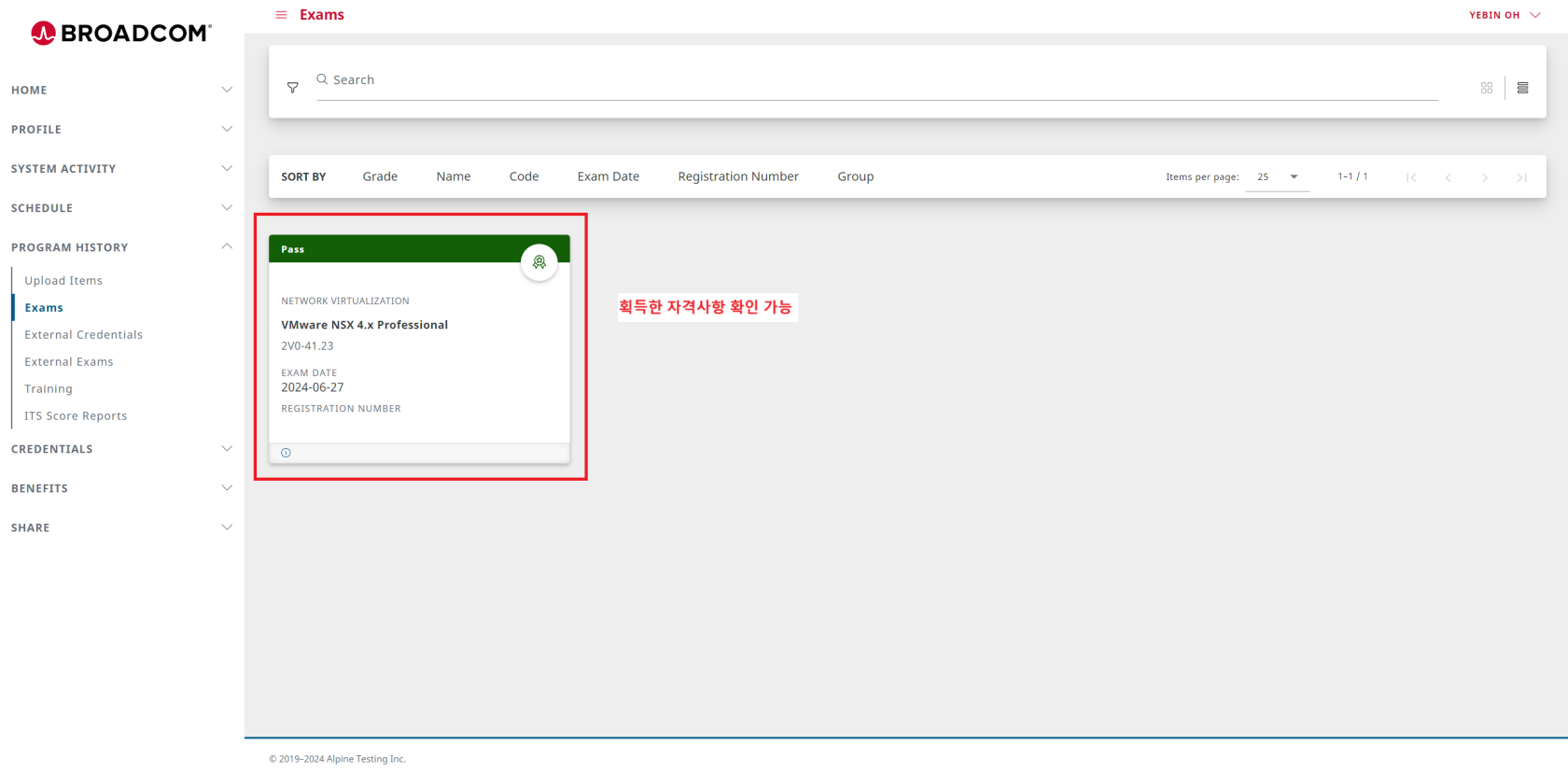
</td><td style="height: 29.6px;">- 획득한 자격 사항 확인 가능

</td></tr></tbody></table>

---

### 자격 수여 요건 확인하기<span class="heading-anchor-wrapper" role="presentation"><button aria-describedby="_r3nu_-tooltip" aria-hidden="true" class="css-vhh4ux" data-testid="anchor-button" type="button"><span aria-label="Copy" class="_1e0c1o8l _vchhusvi _1o9zidpf _vwz4kb7n _y4ti1igz _bozg1mb9 _12va1onz _jcxd1r8n" role="img"><svg class="_1reo15vq _18m915vq _syaz1r31 _lcxvglyw _s7n4yfq0 _vc881r31 _1bsbpxbi _4t3ipxbi" fill="none" role="presentation" viewbox="0 0 16 16"><path clip-rule="evenodd" d="M8.22 2.22a3.932 3.932 0 1 1 5.56 5.56l-2.25 2.25-1.06-1.06 2.25-2.25a2.432 2.432 0 0 0-3.44-3.44L7.03 5.53 5.97 4.47zm3.06 3.56-5.5 5.5-1.06-1.06 5.5-5.5zM2.22 8.22l2.25-2.25 1.06 1.06-2.25 2.25a2.432 2.432 0 0 0 3.44 3.44l2.25-2.25 1.06 1.06-2.25 2.25a3.932 3.932 0 1 1-5.56-5.56" fill="currentcolor" fill-rule="evenodd"></path></svg></span></button></span>

> <span style="color: rgb(35, 111, 161);">**<span class="heading-anchor-wrapper" role="presentation">[https://www.broadcom.com/support/education/vmware/certification](https://www.broadcom.com/support/education/vmware/certification)</span>**</span>
> 
> <span style="color: #236fa1;">**VMware By Broadcom Certification 자격증 종류와 사전 요건 등의 정보를 확인하실 수 있습니다.** </span>

#### 자격 시험 예약하기

<table border="1" id="bkmrk-%5Bschedule-your-exam%5D" style="border-collapse: collapse; width: 100%; height: 280.037px;"><colgroup><col style="width: 50.0596%;"></col><col style="width: 50.0596%;"></col></colgroup><tbody><tr style="height: 29.6px;"><td style="height: 29.6px;">[![image.png](https://bs.etevers.tech/uploads/images/gallery/2025-10/scaled-1680-/LZVimage.png)](https://bs.etevers.tech/uploads/images/gallery/2025-10/LZVimage.png)

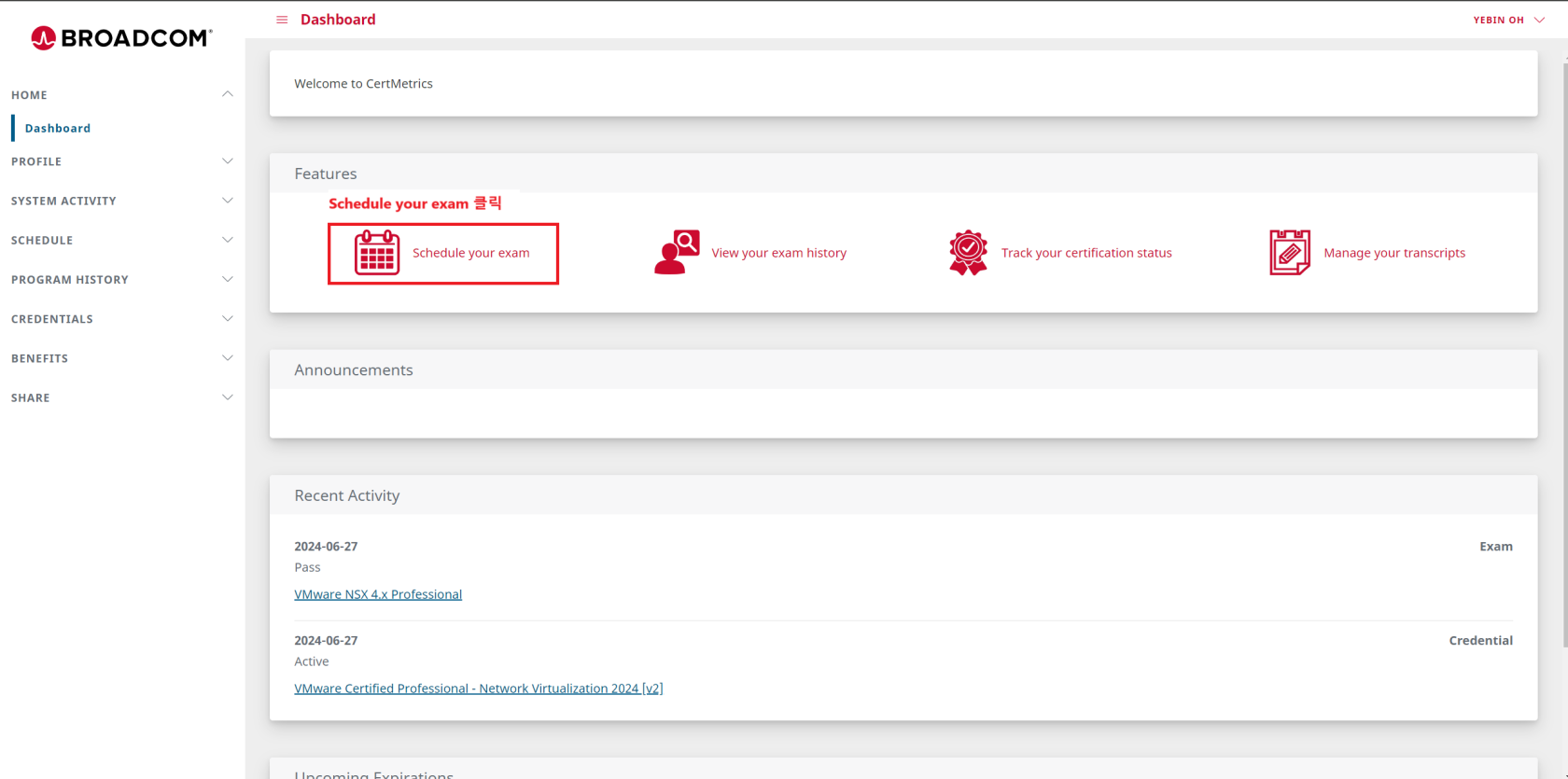
</td><td style="height: 29.6px;">- \[Schedule your exam\] 클릭

</td></tr><tr><td>[![image.png](https://bs.etevers.tech/uploads/images/gallery/2025-10/scaled-1680-/i7Cimage.png)](https://bs.etevers.tech/uploads/images/gallery/2025-10/i7Cimage.png)

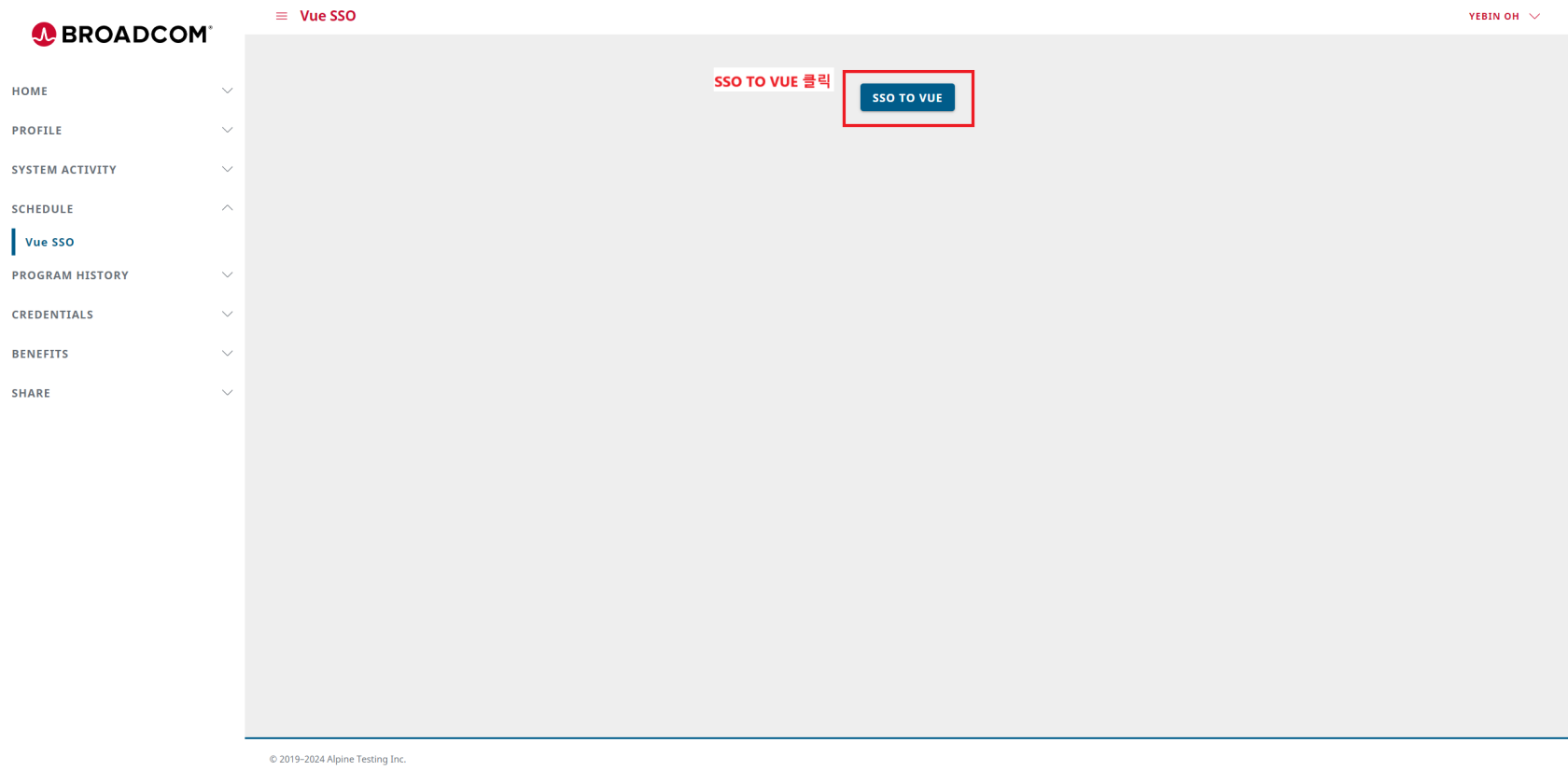
</td><td>- \[<span data-highlighted="true" data-vc="highlighted-text"><span class="_kqswh2mm"><span class="_5pioz8co _189e1dm9 _1il9buyh _19lc184f _d0altlke" data-testid="definition-highlighter">SSO</span></span></span> TO <span data-highlighted="true" data-vc="highlighted-text"><span class="_kqswh2mm"><span class="_5pioz8co _189e1dm9 _1il9buyh _19lc184f _d0altlke" data-testid="definition-highlighter">VUE</span></span></span>\] 버튼 클릭

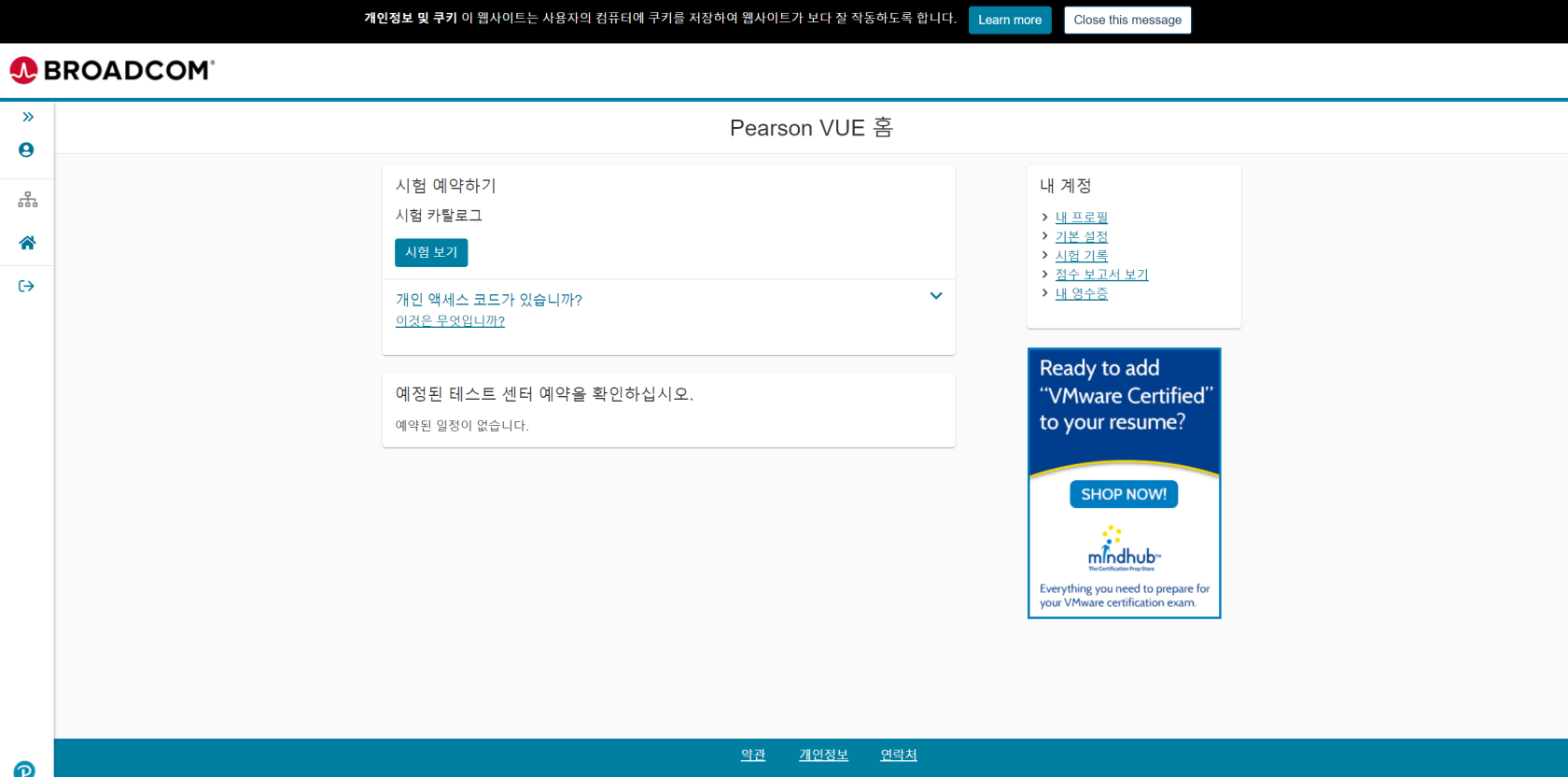
</td></tr><tr><td>[![image.png](https://bs.etevers.tech/uploads/images/gallery/2025-10/scaled-1680-/1JUimage.png)](https://bs.etevers.tech/uploads/images/gallery/2025-10/1JUimage.png)

</td><td>- Pearson <span data-highlighted="true" data-vc="highlighted-text">VUE</span> 사이트로 리다이렉션 되어 시험 예약 가능

</td></tr></tbody></table>